How my display usage changed over time

When I was eight years old, my parents bought our first computer. With it came a tiny monochrome display that could be used to show 80×25 characters in amber yellow. I’m typing this text on my most recent computer that is equipped with several displays that show a combined amount of nearly 27 million pixels with at least 2^24 colors each. I don’t dare to count the number of characters that are on screen right now. Something happened along the way.

The formative years

Me as an eight year old boy immediately “clicked” with that first computer. It became my destiny to unlock its full potential. I was delighted when my parents upgraded to a much better PC years later with a color display that could actually show 256 colors at once on a 14″ frame. It was still a CRT monitor, so the refresh rate was probably around 30 Hz and I remember the “fishbowl eyes” you got from longer computer sessions.

If we want to have a visual representation of this monitor, it looks like this:

14″ CRT, 4:3

My first own computer came with a 17″ CRT monitor, which was considered a luxury size and didn’t really fit on the desk. I used this monitor up until my first year of my studies. Nothing in my world would suggest that using more than one monitor per computer is even possible. This computer had a mouse without scroll wheel and no internet access:

17″ CRT, 4:3

When I studied computer science, I came in contact with a lot of people that all took computing and programming serious. Some had monitors the size of a freezer, which hinted at me (and my peers) that 17″ is not as lavish as we thought. But still, a computer had one CPU and one monitor. I scraped my money together and bought a 19″ flat panel CRT monitor. Flat panel just meant that the display area didn’t resemble a fish bowl by itself. It could run up to 60 Hz:

19″ CRT, 4:3

The professional setup

That was my personal computing situation when I founded my company in the third year of my studies. I knew that the equipment had to be better and more professional. Our first work computers still had one CPU and one monitor. It just happened to be gigantic 21″ CRTs. Our desks had extra depth to provide a healthy distance between eyes and display area. Those monitors were delicate enough to provide a “de-gauss” button that would unhinge random electronics around it if pressed:

21″ CRT, 4:3

This was how software was developed in the early 2000s. A “fast” computer with lots of RAM (1 GB were not unheard of), a magnetic harddisk with 160 GB of storage and still one CPU and one monitor. At least, they had internet access and a mouse with a scroll wheel now.
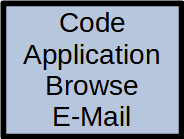
Everything we did, we did in the same place

This setup lasted for four or five years, with better computers, but still the same old monitors. Then, virtually over night, the prices for the new and very cool TFT “flat panel” monitors dropped to readonable numbers. These monitors were really flat and very thin compared to the CRT fish bowls that hogged our desks. We were thrilled and replaced all of our monitors within one year.

The double setup

But just as the CPUs now got two “cores”, we didn’t just replace our one monitor, we doubled it. Every workplace now had two monitors:

2x 24″ TFT, 16:10

And not just that. The monitors were bigger, better, smaller, easier on the eye and had a greater resolution (called WUXGA, essentially FullHD with some extra pixels on the vertical axis).

And we had two of them! This was a game changer because things that used to be done one after another could now be done in parallel – on the CPU and on the monitors. We began to dedicate screen estate to fixed activities:
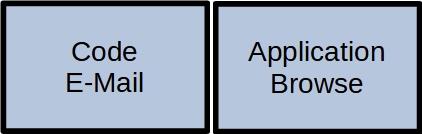
The monitors are now assigned to certain tasks

The left monitor was the “coding space” while the right monitor was the “tryout space”. The actual distribution of activity to screen location differed from developer to developer, but we all agreed that we would not go back to single monitoring.

During that time, I was sometimes asked if two monitors “are worth the investment”. I blogged about it and I’m still convinced that a second monitor is the single most profitable investment you can do for a developer.

The triple setup

In the blog post above, I made one statement that I soon took back: A third monitor is not the game changer like the transition from one to two monitors, but – if the hardware issues are solved – the next step in the evolution that truly separates work, work result and communication:

3x 27″ TFT, 16:9

This setup is probably wider than your standard desk and requires a dedicated monitor stand, but it is the first time you can do the three essential things a programmer does in parallel:

  • Browse the internet (like stackoverflow or an API documentation)
  • Edit your source code in a fullscreen IDE
  • Watch the result of your changes live (with hot reloading)

Your workflow essentially moves your head from the left (gather new knowledge) over the middle (apply the new knowledge) to the right (evaluate the result of the new knowledge) and back again for the next step:

A typical left-to-right setup

This is our default workplace setup since 2018, with two possible resolution levels:

  • QHD: 3x 2560 x 1440 pixels. This results in 11 million pixels per computer
  • UHD: 3x 3840 x 2160 pixels. You now have almost 25 million pixels at your disposal

There is a biological limit what a human can see at once. This setup nearly fills your complete viewspace. You cannot fit a fourth monitor to the sides that you can really see. The only possibility to expand is now the vertical axis, with additional monitors above and maybe below.

The pandemic setup

I would probably still use the triple monitor setup if there hadn’t happened a fundemental change in the way we develop software in early 2020. In March 2020, we decided within days to abandon our office desks and retreat into home office workplaces that were improvised at first. Now, nearly two years later, all these workplaces are fully equipped and still continually improved. But not only our places changed, our communication as well. Video calls are a natural component of our workday now. And in my case, they happen in parallel to my normal work. So I had to dedicate screen space to videoconferencing. And I’ve done it by adding a fourth monitor:

3x 27″ TFT, 1x 10″ TFT, 16:9

This small monitor sits right next to the webcam, so if I look at my dialog partner, I also seem to look right into the camera. This setup adds a new distinctive activity to the mix:
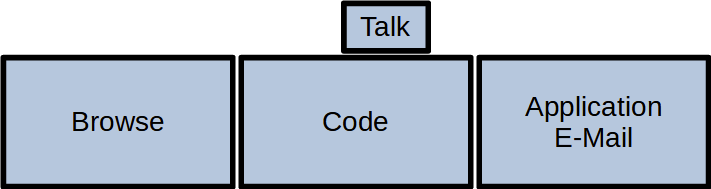
You can guess what I’m doing by following my gaze

I’ve described the other ingredients for a fully equipped home office in a previous blog post. You can see an early photo of my setup in this post.

Conclusion

And this is the setup I’m writing this blog post on. 27 million pixels that I can use to speed up my workflow by assigning dedicated working zones. If you had asked my in 2009 if I can imagine to double the amount of monitors and have nearly six times more pixels available, I would have said no way.

But by looking back to the beginning, I can see how the fundamentals of personal computing changed in every aspect. A computer is no longer “one CPU” and it doesn’t have only one monitor. Today’s displaying technology is capable of providing a lot of screen estate. The main limiting factor is our own imagination. Reaping the benefits of dedicated display areas is satisfying and increases your work troughput effortlessly.

If you ask yourself how your ideal monitor setup should look like, try to reflect on how you move your application windows around or how often you switch applications without moving your head. If you would like to make the switch without hiding the previous context, you’ve just found a use case for an additional monitor.

What is your monitor setup and your usage pattern with it? Tell us in the comments!

The ever-connecting WebSocket

This is another of these „funny how we live in a time, where we take connectivity for granted“-posts. But what is taken for granted, usually still is somewhat cumbersome under the hood. As in our current episode.

Admittedly, the arrival of WebSockets in the last decade were one of the more significant steps towards a fluid internet experience. The WebSocket protocol is an advancement from the old „some client asks some server to handle some stuff“ way in that it is bi-directional: After mutual agreement („hand shake“), the connection stays open for the server to send data to the client, without the client having to ask first. Consider the server to be a complex application which processes lots of tasks and from time to time creates some „news“ for the client, which the user might want to read in real time.

Nowadays, the WebSocket itself is long established. What surprised us a few weeks, however – and what made us invest several days in actual research – is their behaviour when paired with loss of internet connection. Which had quite some surprise for us.

Now, this is a real scenario for one of our customers. You have a web application running on a mobile device, and this device moves in and out of WiFi-accessible areas all the time. The application should just show this circumstance and attempt to reconnect. Now the straightforward thing was to use the native WebSocket API class, or the “websocket” npm package (which acts as a small wrapper around that API); this comes with a small enough set of event handlers (onopen, onclose, onerror, onmessage). but the less obvious thing was: How is “connection lost” actually noticed? Is it onerror? Is it onclose?

In reality, this is not clear at all. Depending on the type of internet loss, there might occur a delay of several minutes until onclose fires, and onerror alone seems not to imply any closing at all. Furthermore, it depended on the type of internet loss. How do you even simulate “mobile device walked away from WiFi” as accurately as possible? While disconnecting our WiFi seemed to register with almost no delay, this was too far from the real scenario. It was only after switching to an ethernet cable and then unplugging it, that we saw the effect. And we found that the onclose event is actually quite confused if we reconnect our cable before it has fired. It could happen, then, that one old onclose did not fire until a new WebSocket was already opened, i.e. not a good indicator of “no connection” at all.

This confusion made it clear that the WebSocket technology is not as well defined as we thought it was. We actually resorted to one of the most basic ideas in order to notice our “(dis)connected” state: Continuously checking for it. Indeed – as low-level as it sounds.

We found that following solution to work quite well:

  • The server continuously sends a “heart beat” over the WebSocket. We are aware that there is a websocket.ping() method but we didn’t want to run into more surprises here.
  • WebSocket handling is done inside our own module which
    • wraps the WebSocket onmessage event in order to expect that heart beat or else “the watchdog gets angry”
    • has its own onclose event which communicates the problem to the outside as early as possible
    • also, instantly tries to reconnect
    • wraps the WebSocket onclose event in order to make it quiet if the watchdog gets angry and it would fire too late; but otherwise fire (if the watchdog is happy and the WebSocket is closed normally).

The latter implements Loose Coupling / the Principle of Least Knowledge / Separation of Concerns. We do not want our module to have a much larger interface than the original WebSocket implementation. In fact, the only information from our application to our new module is “is the user logged in”? In our application, this is part of the Redux state, but we want our module to know neither of React, Redux or other magic; it should be vanilla TypeScript in order be testable, or even better, so straightforward that any tests would be trivial.

So there we have it. If you are interested in the code, I’d be glad to share that, but the actual deed here was in finding out what we actually need.

I have no idea why the WebSocket specification is the way it is, but if you ever encounter such a problem, that would be my advice – take the thing, put it in your own thing, and couple the things loosely.

But anyway, it was fun to realize that even in 2021, a two-way-connected client-server system still might need a small guardian that tells you whether everything’s fine.

Addendum: Monkey-patching an existing class in TypeScript

I leave that here for quick reference. As stated above, we needed to equip our websocket instances with a flag to ignore their onclose events. Now some sources might readily give you the quick advice to do it as:

const socket = new w3cwebsocket(...);
(socket as any).silent = false;

But why use TypeScript if you want to work around the type system anyway? Just extend it.

class CustomWebSocket extends w3cwebsocket {
    silent: boolean = false;
    constructor(url: string) {
        super(url);
    }
}

const socket = new CustomWebSocket(...);

Composition of C# iterator methods

Iterator methods in C# or one of my favorite features of that language. I do not use it all that often, but it is nice to know it is there. If you are not sure what they are, here’s a little example:

public IEnumerable<int> Iota(int from, int count)
{
  for (int offset = 0; offset < count; ++offset)
    yield return from + offset;
}

They allow you to lazily generate any sequence directly in code. For example, I like to use them when generating a list of errors on a complex input (think compiler errors). The presence of the yield contextual keyword transforms the function body into a state machine, allowing you to pause it until you need the next value.

However, this makes it a little more difficult to compose such iterator methods, and in reverse, refactor a complex iterator method into several smaller ones. It was not obvious to me right away how to do it at all in a ‘this always works’ manner, so I am sharing how I do it here. Consider this slightly more complex iterator method:

public IEnumerable<int> IotaAndBack(int from, int count)
{
  for (int offset = 0; offset < count; ++offset)
    yield return from + offset;

  for (int offset = 0; offset < count; ++offset)
    yield return from + count - offset - 1;
}

Now we want to extract both loops into their own functions. My one-size-fits-all solution is this:

public IEnumerable<int> AndBack(int from, int count)
{
  for (int offset = 0; offset < count; ++offset)
    yield return from + count - offset - 1;
}

public IEnumerable<int> IotaAndBack(int from, int count)
{
  foreach (var x in Iota(from, count))
     yield return x;

  foreach (var x in AndBack(from, count))
     yield return x;
}

As you can see, a little ‘foreach harness’ is needed to compose the parts into the outer function. Of course, in a simple case like this, the LINQ version Iota(from, count).Concat(AndBack(from, count)) also works. But that only works when the outer function is sufficiently simple.

Understanding, identifying and fixing the N+1 query problem

One of the most common performance pitfalls for applications accessing data from databases is the so-called “N+1 query problem”, or sometimes also called the “N+1 selects problem”. It is the first thing you should look for when an application has performance issues related to database access. It is especially easy to run into with object-relational mappers (ORMs).

The problem

The problem typically arises when your entity-relationship model has a 1:n or n:m association. It exists when application code executes one query to get objects of one entity and then executes another query for each of these objects to get the objects of an associated entity. An example would be a blog application that executes one query to fetch all authors whose names start with the letter ‘B’, and then another query for each of these authors to fetch their articles. In pseudocode:

# The 1 query
authors = sql("SELECT * FROM author WHERE name LIKE 'B%'");

# The N queries
articles = []
FOR EACH author IN authors:
    articles += sql("SELECT * FROM article WHERE author_id=:aid", aid: author.id)

The first query is the “1” in “N+1”, the following queries in the loop are the “N”.

Of course, to anybody who knows SQL this is a very naive way to get the desired result. However, OR mappers often seduce their users into writing inefficient database access code by hiding the SQL queries and allowing their users to reach for the normal tools of their favorite programming language like loops or collection operations such as map. A lot of popular web application frameworks come along with OR mappers: Rails with Active Record, Grails with GORM (Hibernate based), Laravel with Eloquent.

How to detect

The easiest way to detect the problem in an application is to log the database queries. Virtually all ORMs have a configuration option to enable query logging.

For Grails/GORM the logging can be enabled per data source in the application.yml config file:

dataSource:
    logSql: true
    formatSql: true

For Rails/ActiveRecord query logging is automatically enabled in the development environment. Since Grails 5.2 the Verbose Query Logs format is enabled by default, which you had to explicitly enable in earlier versions.

For Laravel/Eloquent you can enable and access the query log with these two methods/functions:

DB::connection()->enableQueryLog();
DB::getQueryLog();

Once query logging is enabled you will quickly see if the same query is executed over and over again, usually indicating the presence of the N+1 problem.

How to fix

The goal is to replace the N+1 queries with a single query. In SQL this means joining. The example above would be written as a single query:

SELECT article.*
FROM article
JOIN author
  ON article.author_id=author.id
WHERE author.name LIKE 'B%'

The query interface of ORMs usually allows you to write joins as well. Here the example in ActiveRecord:

Article.joins(:authors).where("authors.name LIKE ?", "B%")

Another option when using ORMs is to enable eager loading for associations. In GORM this can be enabled via the fetchMode static property:

class Author {
    static hasMany = [articles: Article]
    static fetchMode = [articles: 'eager']
}

REST APIs

The problem isn’t limited to SQL databases and SQL queries. For REST APIs it’s the “N+1 requests problem”, describing the situation where a client application has to call the server N+1 times to fetch one collection resource + N child resources. Here the REST-API has to be extended or modified to serve the client’s use cases with a single request. Another option is to offer a GraphQL API instead of a REST API. GraphQL is a query language for HTTP APIs that allows complex queries, so the client application can specify exactly what resources it needs with in a single request.