CMake Builder Plugin for Hudson

Update: Check out my post introducing the newest version of the plugin.

Today I’m pleased to announce the first version of the cmakebuilder plugin for Hudson. It can be used to build cmake based projects without having to write a shell script (see my previous blog post). Using the scratch-my-own-itch approach I started out implementing only those features that I needed for my cmake projects which are mostly Linux/g++ based so far.

Let’s do a quick walk through the configuration:

1. CMake Path:
If the cmake executable is not in your $PATH variable you can set its path in the global Hudson configuration page.

2. Build Configuration:

To use the cmake builder in your Free-style project, just add “CMake Build” to your build steps. The configuration is pretty straight forward. You just have to set some basic directories and the build type.

cmakebuilder demo config

The demo config above results in the following behavior (shell pseudocode):

if $WORKSPACE/build_dir does not exist
   mkdir $WORKSPACE/build_dir
end if

cd $WORKSPACE/build_dir
cmake $WORKSPACE/src -DCMAKE_BUILD_TYPE=Debug -DCMAKE_INSTALL_PREFIX=$WORKSPACE/install_dir
make
make install

That’s it. Feedback is very much appreciated!!

Originally the plan was to have the plugin downloadable from the hudson plugins site by now but I still have some publishing problems to overcome. So if you are interested, make sure to check out the plugins site again in a few days. I will also post an update here as soon as the plugin can be downloaded.

Update: After fixing some maven settings I was finally able to publish the plugin. Check it out!

Lightweight dependency management

Managing project dependencies without maven or ant ivy, using a custom ant task to ensure classpath orthogonality.

Java’s classpath is a powerful concept – when used appropriate. As your project grows larger in terms of code and people, it gets harder to ensure that your classpath is correct. A great danger arises from JAR files containing different versions of the same resource. You might end up running different code than you think, leading to strange effects. If you build your classpath using wildcards, you can’t even control the order your JAR files are loaded.

Managing dependencies

To avoid the issues mentioned above, you need to manage your project dependencies. It’s a common practice to implement the build process of the project using maven or ant ivy. Both tools provide dependency mangement by declaration. But at a high cost. Especially maven has received some malice lately, criticizing its steep learning curve and complexity.

Scratching the biggest itch

We decided to try a different approach to dependency management, tackling only our biggest concern: The duplication of classpath resources. We take care of the scope of a third-party library, put required JARs in the repository (to us, third party binary artifacts are part of the project source) and update manually. The one thing we cannot assure manually is that every resource is unique. Sometimes, the same class is included in different JARs, as it seems to be common practice among java web frameworks.

Ant to the rescue

Thus, I wrote a custom ant task that, given the classpath, checks for duplicate entries. If it finds one, it lists the culprits and optionally aborts the build process. Included in our continuous integration system, it gets run every time somebody performs a change. You can’t forget to delete an old version of a library or check in the same library twice without breaking the build now.

Our ClasspathCollisionCheckTask

I provide this task here, without any warranty. The source code is included in the JAR alongside the classes, if you want to know what it does exactly.

Assuming you already know how to use custom tasks within an ant build script, here’s only a short usage description.

Import the custom task:

<taskdef
    name="check.collision"
    classname="com.schneide.internal.anttask.ClasspathCollisionCheckTask"
    classpath="${customtasks.library.directory}/schneidetasks.jar"
/>

Next, use it on your classpath:

<check.collision verbose="true" failOnCollision="true">
    <path>
        <fileset dir="${classpath.library.directory}">
            <include name="**/*.jar"/>
        </fileset>
        <fileset dir="${internal.library.directory}">
            <include name="**/*.jar"/>
        </fileset>
    </path>
</check.collision>

The task scans the whole path you give it and reports any collision it detects. You will see the warnings in your build log.

If the failOnCollision parameter is set to true (optional, defaults to false), the build will abort after a collision. If you want to have debug information, set the verbose parameter to true (optional, defaults to false).

Conclusion

If you manage your project dependencies manually, you might find our custom ant task useful. If you use maven or ant ivy, you already have this functionality in your build process.

Feedback

I’m very interested in hearing your opinion on the task or about your way of handling dependencies. Leave us a comment.

We’ve won a prize!

When we switched our continuous integration platform from CruiseControl to Hudson, it was still a younhudsonbutler-149_50pxg project with many white areas on the project roadmap. But it already was powerful enough to handle our settings and delivered real value, so we eagerly wanted to contribute back.

The development process with “release early, release often” policy and community focussed drive fit right into our mindset, so we (in fact, mostly me) spent a few nights figuring out what and how to contribute. The effort materialized in a few private tweaks and a new plugin: the Crap4J hudson plugin.

With the knowledge of Hudson’s internals, we were able to help out various customers to set up their own sophisticated installations (which nearly led to the development of a Perforce plugin when Mike Wille finished his one right on time). This led to various bug reports and feature requests that we filed to Hudson’s issue database.

Soon afterwards, Sun Microsystems announced the GlassFish Awards Program (GAP) as part of the Community Innovation Awards Program. Hudson was part of the participating projects, so I gave it a try and submitted some feature requests and the plugin.

lauriersAnd we won a prize! It’s not the big sort of prize (look at position 50 in the list), but a reward for our filed issues and a honorable mention of the plugin (which truly stands no chance compared to the awesome work of Dr. Hafner, who contributed a complete “get-them-all” collection of useful metrics reporting plugins). At least, we are the only winner from Karlsruhe.

Lately, we blogged about awarding your customers. Well, that’s just what Sun did here. Thanks for that!

Spelling the feedback: The LED bar

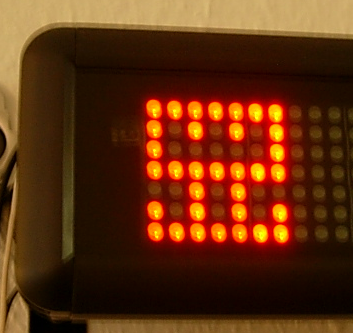
Our fully automated project ecosystem provides us with feedback of very different type and granularity. We felt it was impossible to render every single notable event into its own extreme feedback device (XFD). Instead, we implemented an universal feedback source: the LED bar.

ledbar-alone

You know the LED bar already from a shop window of your town. It tells you about the latest special bargain, the opening hours of the shop or just something you didn’t want to know. But you’ve read it, because it is flashing and moving. You just can’t pass that shop window without noticing the text on the LED bar.

Our LED bar sells details to us. The most important issues are already handled by the ONOZ Lamp and the Audio feedback, as both are very intrusive. The LED bar is responsible to spell the news, rather than to tell it.

A very comforting news might be “All projects sane”, which happen to be our regular state. You might be told that you rendered “project X BROKEN”, but you already know this, as the ONOZ Lamp lit up and you were the one to check in directly before. It’s better to be informed that “project X sane” was the build’s outcome. After a while, the text returns to the regular state or blanks out.

Setting up the LED bar

We aren’t the only ones out there with a LED bar on the wall. Dirk Ziegelmeier for example installed his at the same time, but blogged much earlier about it. He even gives you detailed information about the communication protocol used by the device and a C# implementation for it. The lack of protocol documentation was a bugger for us, too. We reverse engineered it independently and confirm his information. We wrote a complete Java API for the device (in our case a LSB-100R), which we might open source on request. Just drop us a note if you are interested.

Basically, we wrote an IRC bot that understands commands given to it and transforms it into API calls. The API then deals with the low-level transformation and the device handshake. This way, software modules that want to display text on the LED bar from anywhere on the internal net only need to talk on IRC.

The idea of connecting an IRC channel and the led bar isn’t unique to us, either. The F-Secure Linux Team blogged about their setup, which is disturbingly equal to ours. Kudos to you guys for being cool, too.

Effects of the LED bar

The LED bar is the perfect place to indicate project news. Its non-intrusive if you hold back those “funny” displaying effects but versatile enough to provide more than simple binary (on/off) information. Its the central place to look up to if you want to know what’s the news.

We even found out that our company logo (created by Hannafaktur) is scalable down to 7×7 pixels, which exactly fits the LED bar in height:

logo_on_led

Try this with your company’s logo!


Read more about our Extreme Feedback Devices:

Extreme Feedback Device (XFD): The ONOZ! Lamp

When two good ideas meet, there’s a chance for an even better idea to be born. This happened to us some time ago, when the ONOZ! Lamp came up.

(This is a free translation and revision of an earlier article written in german)

The first good idea

On April 1st 2004, Alberto Savioa published a blog entry about an idea of two lava lamps (green and red) displaying the current build state of a project. I was somewhat distracted that day, marrying my wife, so the idea came to us two years later. Mike Clark wrote his wonderful book “Pragmatic Project Automation” and included not only the idea of the lava lamps, but also detailed construction guidance.

The second good idea

One day, an email contained a little animated gif with two panic guys running around.

Investigation suggests Jonn Wood as the author. We thought the guys act exactly like us after a broken build (one of the worst things that may happen here), so the gif and the word “ONOZ” were integrated into our company culture.

The birth of another idea

After we read about the lava lamps, we wanted to own them, too. But only after inspiration from the animated gif, we were sure about our specific realisation. We merged the two states into one lamp (on/off instead of green/red) and did without the lava. A normal desk light would do the job now.
We even have a good justification for the omission of the green (lava) lamp:

  • it saves energy
  • no timer switch is needed for the nights/weekends
  • our team includes colorblinds

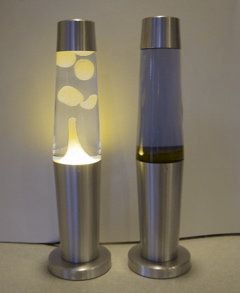
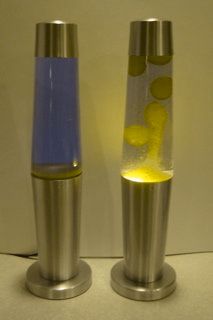
The last reason is a good one when you look at this simulation of colorblindness:
These are pictures of the original green and red lava lamps:

This is how it looks to a colorblind employee. These images were generated by Vischeck, a website trying to inform about colorblindness practically.

Not much of a difference. If you swap them around secretly, ten percent (the percentage of colorblinds in the male population) of your team will panic without reason.

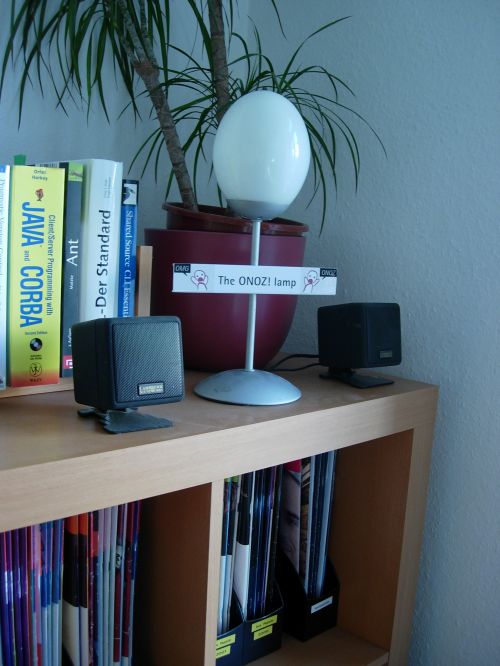
The ONOZ! Lamp

With little investment, we build a system supervising the build state of all our projects. Every build process sends its result to a server that checks for failures. If a build failed, the lamp gets switched on over traditional X10 signals. We can’t overlook the sudden burst of luminance, we panic a bit and try to fix the build. The lamp turns off when all projects are back to normal.

The ONOZ! Lamp is just a lamp standing around, until something ugly happens. Then it turns into a glowing infernal of failure. We nearly failed to give it a correctly spelled name, too. We named it “ONOEZ! Lamp” first, which seems to be the only invalid spelling of this exclamation.

The effects

The ONOZ! Lamp works great. Its mere presence has a comforting effect, as long as it is off. Which is the case most of the time. When it fires, the effect is like an alarm stopping all work. And the operator giving the alarm is always alert and incorruptible: our continuous integration server.


Read more about our Extreme Feedback Devices:

Extreme Feedback Device (XFD): The Code Flow-O-Meter

This is a free translation and revision of an earlier article written in german.

Since March 2007, the Schneide uses another Extreme Feedback Device (XFD): the Code Flow-O-Meter.

So what is this thing?

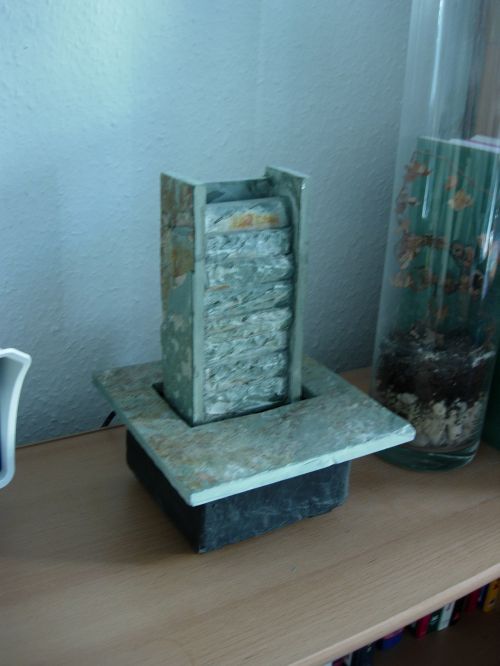
We bought a portable fountain made of slate, filled in water (no additives) and connected the power supply cord with a X10 application module. Then we programmed a litte IRC Bot (using the ten-minutes-to-success java IRC library pircbot) that triggers the module. We were then able to control the fountain by speaking to it over IRC.

Afterwards, we piped the commit messages of our source repositories to a little script that determines the “impact” of the commit by measuring the amount of changes to the code. This sounds more sophisticated as it really is, the number of changed files was a good enough guess for it. This impact is related to a duration, the more impact, the longer the timespan. Now the script tells the IRC bot to activate the fountain for that amount of time.

This way, we have a direct but unobtrusive notification about what is going on in the repositories, as this is the most important location of our company (talking about the numerous safety nets we applied to it would require another blog post). Initially, we thought about playing an audio sample singing “alleluia”, too, but this became ridiculous soon.

But why do you want this notification?

One of the rules of agile (or good) programming says “commit early, commit often”. But as soon as every little commit gets examined by a continuous integration server, all automated tests and a large number of software quality metric tools, the liability to keep the changes local a little bit longer grows. “After all, it’s ready when it’s done, and this is soon enough to check in” was a common justification especially among the less experienced programmers. But that’s the best way to miss the early feedback. And early feedback is effective feedback.

So we installed our portable fountain as a counter-incentive against late commits and started a little game. The rule of the game is simple:
Keep the Flow-O-Meter running!
When you commit, the fountain flows. The size of your commit is not as important as the commit itself, so its better to commit often. If everyone does it, the fountain may flow the whole day.

The Code Flow-O-Meter may be regarded as a measurement device of “progress”. Things are in a state of flux as long as it is running.

And did it work?

Yes, definitly. The Code Flow-O-Meter has become our little pet. Everyone loves it because it’s friendly and comforting. Think of a tamagochi, but without the annoyances. You only need to change and commit something to feed it and get the reward, nothing more.

As an additional gain, everybody else loves it, too. When we show it to a customer, they first see an ordinary portable fountain. When we explain and demonstrate our working cycle (code, commit, review) to them, something magical happens. I tend to think they involuntary get the notion of something happening after the commit when the fountain comes to life. This may be the concept of a build server, otherwise being invisible and intangible, materializing in the fountain. When we continue to explain what happens after the build, like the ONOZ! lamp lighting up to indicate a failed build, it’s already clear to them that the process does not end with the waterflow. The Code Flow-O-Meter serves as a link between the developer’s local work and the build feedback arriving out of nowhere some minutes later.


Read more about our Extreme Feedback Devices:

Using Hudson for C++/CMake/CppUnit

Update: Hudson for C++/CMake/CppUnit Revised

As a follow-up to Using grails projects in Hudson, here is another not-so-standard usage of Hudson: C++ projects with CMake and CppUnit. Let’s see how that works out.

As long as you have Java/Ant/JUnit based projects, a fine tool that it is, configuration of Hudson is pretty straight forward. But if you have a C++ project with CMake as build system and CppUnit for your unit testing, you have to dig a little deeper. Fortunately, Hudson provides the possibility to execute arbitrary shell commands. So in order to build the project and execute the tests, we can simply put a shell script to work:

   # define build and installation directories
   BUILD_DIR=$WORKSPACE/build_dir
   INSTALL_DIR=$WORKSPACE/install_dir

   # we want to have a clean build
   rm -Rf $BUILD_DIR
   mkdir $BUILD_DIR
   cd $BUILD_DIR

   # initializing the build system
   cmake  ..  -DCMAKE_INSTALL_PREFIX=$INSTALL_DIR

   # fire-up the compiler
   make install

Environment variable WORKSPACE is defined by Hudson. Other useful variables are e.g. BUILD_NUMBER, BUILD_TAG and CVS_BRANCH.

But what about those unit tests? Hudson understands JUnit test result files out-of-the-box. So all we have to do is make CppUnit spit out an xml report and then translate it to JUnit form. To help us with that, we need a little xslt transformation. But first, let’s see how we can make CppUnit generate xml results (a little simplified):

#include <cppunit/necessary/CppUnitIncludes/>
...

using namespace std;
using namespace CppUnit;

int main(int argc, char** argv)
{
   TestResult    controller;
   TestResultCollector result;
   controller.addListener(&result);

   CppUnit::TextUi::TestRunner runner;
   runner.addTest( TestFactoryRegistry::getRegistry().makeTest() );
   runner.run(controller);

   // important stuff happens next
   ofstream xmlFileOut("cpptestresults.xml");
   XmlOutputter xmlOut(&result, xmlFileOut);
   xmlOut.write();
}

The assumption here is that your unit tests are built into libraries that are linked with the main function above. To execute the unit tests we add the following to out shell script:

   export PATH=$INSTALL_DIR/bin:$PATH
   export LD_LIBRARY_PATH=$INSTALL_DIR/lib:$LD_LIBRARY_PATH

   # call the cppunit executable
   cd $WORKSPACE
   cppunittests

This results in CppUnit generating file $WORKSPACE/cpptestresults.xml. Now, with the help of a little program called xsltproc and the following little piece of XSLT code, we can translate cpptestresults.xml to testresults.xml in JUnit format.

 <?xml version="1.0" encoding="UTF-8"?>
<xsl:stylesheet version="1.0" xmlns:xsl="http://www.w3.org/1999/XSL/Transform">
    <xsl:output method="xml" indent="yes"/>
    <xsl:template match="/">
        <testsuite>
            <xsl:attribute name="errors"><xsl:value-of select="TestRun/Statistics/Errors"/></xsl:attribute>
            <xsl:attribute name="failures">
                <xsl:value-of select="TestRun/Statistics/Failures"/>
            </xsl:attribute>
            <xsl:attribute name="tests">
                <xsl:value-of select="TestRun/Statistics/Tests"/>
            </xsl:attribute>
            <xsl:attribute name="name">from cppunit</xsl:attribute>
            <xsl:apply-templates/>
        </testsuite>
    </xsl:template>
    <xsl:template match="/TestRun/SuccessfulTests/Test">
        <testcase>
            <xsl:attribute name="classname" ><xsl:value-of select="substring-before(Name, '::')"/></xsl:attribute>
            <xsl:attribute name="name"><xsl:value-of select="substring-after(Name, '::')"/></xsl:attribute>
        </testcase>
    </xsl:template>
    <xsl:template match="/TestRun/FailedTests/FailedTest">
        <testcase>
            <xsl:attribute name="classname" ><xsl:value-of select="substring-before(Name, '::')"/></xsl:attribute>
            <xsl:attribute name="name"><xsl:value-of select="substring-after(Name, '::')"/></xsl:attribute>
            <error>
                <xsl:attribute name="message">
                    <xsl:value-of select=" normalize-space(Message)"/>
                </xsl:attribute>
                <xsl:attribute name="type">
                    <xsl:value-of select="FailureType"/>
                </xsl:attribute>
                <xsl:value-of select="Message"/>
                File:<xsl:value-of select="Location/File"/>
                Line:<xsl:value-of select="Location/Line"/>
            </error>
        </testcase>
    </xsl:template>
    <xsl:template match="text()|@*"/>
</xsl:stylesheet>

The following call goes into our shell script:

xsltproc cppunit2junit.xsl $WORKSPACE/cpptestresults.xml > $WORKSPACE/testresults.xml

In the configuration page we can now check “Display JUnit test results” and give testresults.xml as result file. As a last step, we can package everything in $WORKSPACE/install_dir into a .tgz file and have Hudson to store it as build artifact. That’s it!

As always, there is room for improvements. One would be to wrap the shell script code above in a separate bash script and have Hudson simply call that script. The only advantage of the approach above is that you can see what’s going on directly on the configuration page. If your project is bigger, you might have more than one CppUnit executable. In this case, you can for example generate all testresult.xml files into a separate directory and tell Hudson to take into account all .xml files there.

Update: For the CMake related part of the above shell script I recently published the first version of a cmakebuilder plugin for Hudson. Check out my corresponding blog post.

Using grails projects in Hudson

Being an agile software development company we use a continuous integration (CI) server like Hudson.
For our grails projects we wrote a simple ant target -call-grails to call the batch or the shell scripts:

    <condition property="grails" value="${grails.home}/bin/grails.bat">
        <os family="windows"/>
    </condition>
    <property name="grails" value="${grails.home}/bin/grails"/>

    <target name="-call-grails">
		<chmod file="${grails}" perm="u+x"/>
        <exec dir="${basedir}" executable="${grails}" failonerror="true">
            <arg value="${grails.task}"/>
            <arg value="${grails.file.path}"/>
            <env key="GRAILS_HOME" value="${grails.home}"/>
        </exec>
    </target>

Calling it is as easy as calling any ant target:

  <target name="war" description="--> Creates a WAR of a Grails application">
        <antcall target="-call-grails">
            <param name="grails.task" value="war"/>
            <param name="grails.file.path" value="${target.directory}/${artifact.name}"/>
        </antcall>
    </target>

One pitfall exists though, if your target takes no argument(s) after the task you have to use a different call:

	<target name="-call-grails-without-filepath">
		<chmod file="${grails}" perm="u+x"/>
        <exec dir="${basedir}" executable="${grails}" failonerror="true">
            <arg value="${grails.task}"/>
            <env key="GRAILS_HOME" value="${grails.home}"/>
        </exec>
    </target>