
Nowadays many of us are developing libraries, tools and applications somehow connected to the web. Often we provide APIs over HTTP(S) for frontends or other services or develop web apps using such services or backends.
As browsers become more and more picky HTTP is pretty much dead but for developers it is extremely convenient to avoid the hassle of certificates, keystores etc.
Luckily, there is a simple and free tool, that can help in several development scenarios: zrok.io
My most common ones are:
- Allowing customers easy (temporary) access to your app in development
- Developing SSO and other integrations that need publicly visible HTTPS endpoints
- Collaborating with your distributed colleagues and allowing them to develop against your latest build on your machine
What is zrok?
For our use cases think of it as an simple, ad-hoc HTTPS-proxy transport-securing your services and exposing them publicly. For the other features and technical zero trust networking platform explanation head over to their site.
How to use zrok?
You only need a few steps to get zrok up and running. Even though their quick start explains the most important steps I will mention them here too:
- Create an account to use the NetFoundry’s public zrok instance and obtain a token from there
- Download and install the binary for your platform
- Enable your local environment using your token with
zrok enable <your_token>
After these steps your are ready to go and may share your local service running on http://localhost:8080 using zrok share public 8080.
Some practical advice and examples
If you want a stable URL for your service, use a reserved share instead of the default temporary one:
.\zrok.exe reserve public http://localhost:5000 --unique-name "mydevinstance"
.\zrok.exe share reserved mydevinstance
That way you get a stable endpoint over restarts which greatly reduces configuration burden in external services or communication with customers or colleagues. You can manage your shares on multiple machines online on https://api-v1.zrok.io:
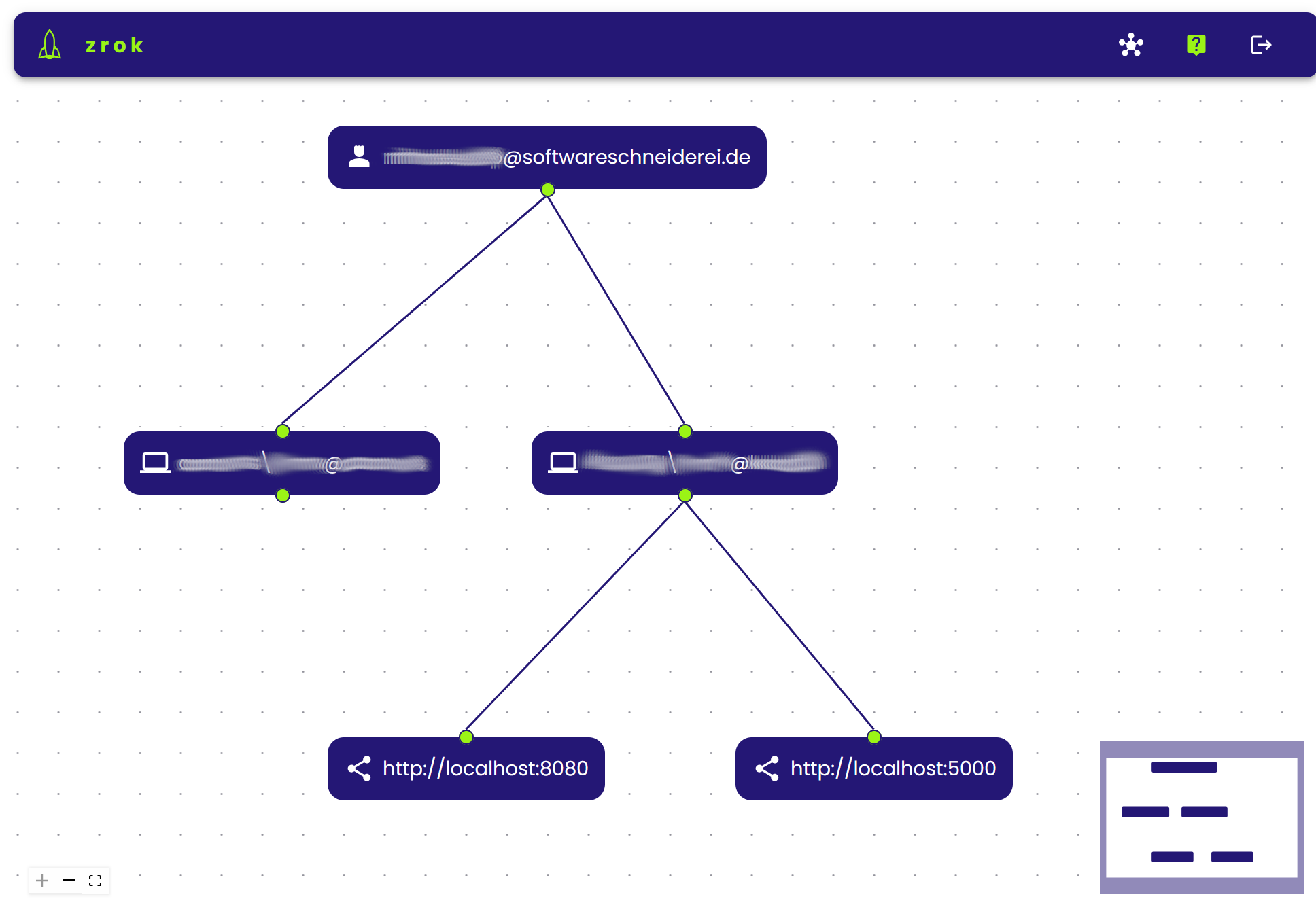
Your service is then accessible under https://mydevinstance.share.zrok.io/ and you may monitor accesses in the terminal or on the webpage above.
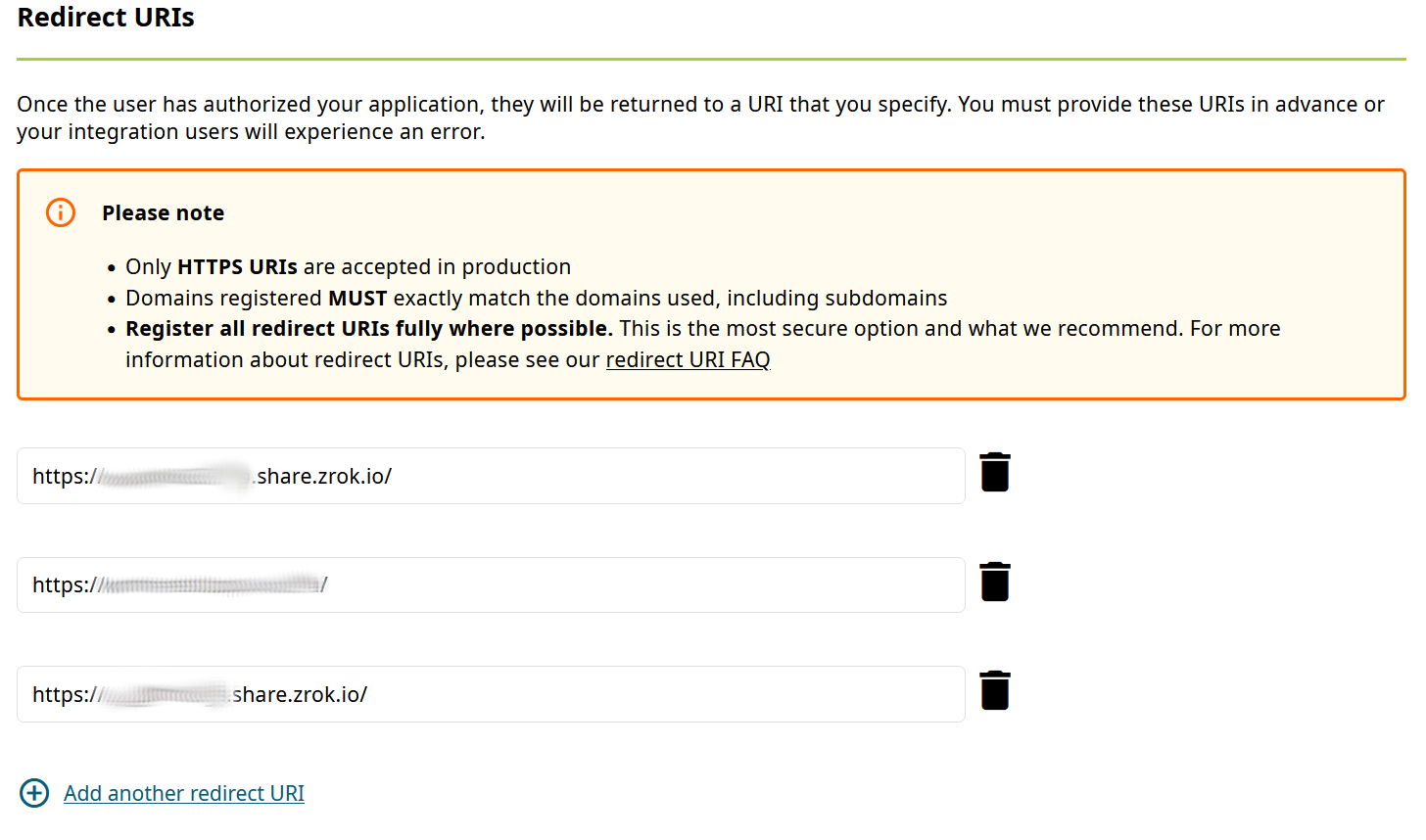
That enables you to use your local service for development against other services, like OAuth or OpenID single-sign-on (SSO), here with ORCID:
Conclusion
Using zrok developers may continue to ignore HTTPS for their local development instances while still being able to expose them privately or publicly including transparent SSL support.
That way you can integrate easily with other services expecting secured public endpoint or collaborate with others transparently without VPNs, tunnels or other means.
 Schneide Blog