Always apply the Principle Of Least Astonishment to yourself, too

Great principles have the property that while they can be stated in a concise form, they have far-reaching consequences one can fully appreciate after many years of encountering them.

One of these things is what is known as the Principle of Least Astonishment / Principle of Least Surprise (see here or here). As stated there, in a context of user interface design, its upshot is “Never surprise the user!”. Within that context, it is easily understandable as straightforward for everyone that has ever used any piece of software and notices that never once was he glad that the piece didn’t work as suggested. Or did you ever feel that way?

Surprise is a tool for willful suspension, for entertainment, a tool of unnecessary complication; exact what you do not want in the things that are supposed to make your job easy.

Now we can all agree about that, and go home. Right? But of course, there’s a large difference between grasping a concept in its most superficial manifestation, and its evasive, underlying sense.

Consider any software project that cannot be simplified to a mere single-purpose-module with a clear progression, i.e. what would rather be a script. Consider any software that is not just a script. You might have a backend component with loads of requirements, you have some database, some caching functionality, then you want a new frontend in some fancy fresh web technology, and there’s going to be some conflict of interests in your developer team.

There will be some rather smart ways of accomplishing something and there will be rather nonsmart ways. How do you know which will be which? So there, follow your principle: Never surprise anyone. Not only your end user. Do not surprise any other team member with something “clever”. In most situations,

  1. it’s probably not clever at all
  2. the team member being fooled by you is yourself

Collaboration is a good tool to let that conflict naturally arise. I mean the good kind of conflict, not the mistrust, denial of competency, “Ctrl+A and Delete everything you ever wrote!”-kind of conflict. Just the one where someone would tell you “hm. that behaviour is… astonishing.”

But you don’t have a team member in every small project you do. So just remember to admit the factor of surprise in every thing you leave behind. Do not think “as of right now, I understand this thing, ergo this is not of any surprise to anyone, ever”. Think, “when I leave this code for two months and return, will there be anything… of surprise?”

This principle has many manifestations. As one of Jakob Nielsen’s usability heuristics, it’s called “Recognition rather than Recall”. In a more universal way of improving human performance and clarity, it’s called “Reduce Cognitive Load”. It has a wide range of applicability from user interfaces to state management, database structures, or general software architecture. I like the focus of “Surprise”, because it should be rather easy for you to admit feeling surprised, even by your own doing.

My favorite C++20 feature

As I evolved my programming style away from mutating long-lived “big” objects and structures and towards are more functional and data-oriented style based mainly on pure functions, I also find myself needing a lot more structs. These naturally occur as return types for functions with ‘richer’ output if you do not want to use std::tuple or other ad-hoc types everywhere. If you see a program as a sequence of data-transformations, I guess the structs are the immediate representations encoded in the type system.

Let my first clarify what I mean by structs, as opposed to what the language says: A type that has all public data members, obeys the rule of zero, and is valid in any configuration. A typical struct v3 { float x{},y{},z{};}; 3d vector is a struct, std::vector is not.

These types are great. You can copy them around, use them with structured binding, they correctly propagate constness, and they are a great fit to pass them through layers of functions calls. And, when used as function parameters, they are great for evolving your program over time, because you can just change the single struct, as opposed to every function call that uses this parameter combination. Or you can easily batch, or otherwise ‘delay’, calls by recording the function parameters. Just throw the parameters into a container and execute the code later.

And with C++20, they got even better, because now you can use them with my favorite new feature: designated initializers, which allows you to use the member names at the initialization site and use RAII. E.g., for a struct that symbolizes an http request: struct http_request { http_method method; std::string url; std::vector<header_entry> headers; }; You can now initialize it like this:

auto request = http_request{
  .method = http_method::get,
  .uri = "localhost:7634",
  .headers = { { .name = "Authorization", .value = "Bearer TOKEN" } },
};

You can even use this directly as a parameter without repeating the type name, de facto giving your named parameters for a pair of extra curlys:

run_request({
    .method = http_method::get,
    .uri = "localhost:7634",
    .headers = { { .name = "Authorization", .value = "Bearer TOKEN" } },
});

You can, of course, combine this named-parameter style-struct with other function parameters in your API, but like with lambdas, I think they are most readable as the last parameter. Hence, also like with lambdas, you probably never want to have more than one at each call-site. I’m very happy with this new feature and it’s already making the code using my APIs a lot more readable.

Converting character sets in an Oracle database

I recently had to correct text data stored in an Oracle database with a wrong character set. A bug in one of our applications caused text data to be stored in the ISO 8859-1 West European character encoding. The database, however, is configured to work with UTF-8 encoded strings. The bug was fixed, but the existing data had to be corrected afterwards. If you ever encounter the same problem you can use Oracle’s CONVERT() function to fix the data. The syntax is as follows:

CONVERT(text, to_charset, from_charset)

First you have to find out Oracle’s names of the desired source and target character sets. You can look them up in this table. In my case the the character set names are 'UTF8' and 'WE8ISO8859P1' (for Western European 8-bit ISO-8859-1). You can check the function by selecting from DUAL:

SELECT CONVERT('ä ö ü Ä Ö Ü ß', 'UTF8', 'WE8ISO8859P1') FROM DUAL;

If the result shows the same scrambled characters you see in the data you know that you have chosen the correct character set names:

The other direction should unscramble the characters again:

Finally, you can convert your data:

UPDATE example_table
  SET text_column=CONVERT(text_column, 'WE8ISO8859P1', 'UTF8');

Improving Windows Terminal

As mentioned in my earlier post about hidden gems in the Windows 10 eco system a very welcomed addition is Windows Terminal. Finally we get a well performing and capable terminal program that not only supports our beloved tabs and Unicode/UTF-8 but also a whole bunch of shells: CMD, PowerShell, WSL and even Git Bash.

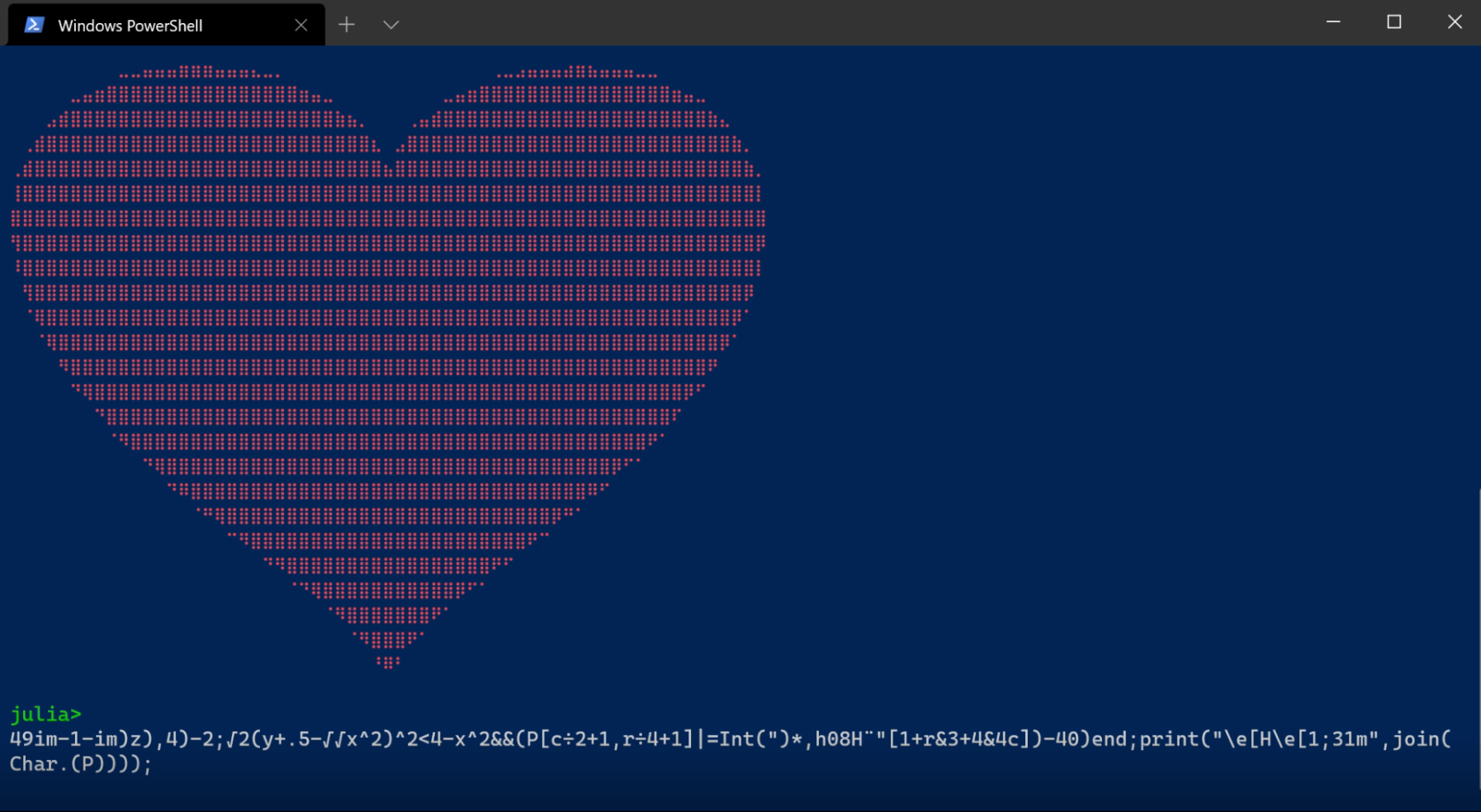
See this video of a small ASCII-art code golf written in Julia and executed in a Windows Terminal PowerShell:The really curious may try running the code in the standard CMD-Terminal or the built-in PowerShell-Terminal…

But now on to some more productive tipps for getting more out of the already great Windows Terminal.

Adding a profile per Shell

One great thing in Windows Terminal is that you can provide different profiles for all of the shells you want to use in it. That means you can provide visual clues like Icons, Fonts and Color Schemes to instantly visually recognize what shell you are in (or what shell hides behind which tab). You can also set a whole bunch of other parameters like transparency, starting directory and behaviour of the tab title.

Nowadays most of this profile stuff can simply be configured using the built-in windows terminal settings GUI but you also have the option to edit the JSON-configuration file directly or copy it to a new machine for faster setup.

Here is my settings.json provided for inspiration. Feel free to use and modify it as you like. You will have to fix some paths and provide icons yourself.

Pimping it up with oh-my-posh

If that is still not enough for you there are a prompt theme engine like oh-my-posh using a command like

Install-Module oh-my-posh -Scope CurrentUser

and try different themes with Set-PoshPrompt -Theme <name>. Using your customized settings for a specific Windows Terminal profile can be done by specifying a commandline to execute expressions defined in a file:

powershell.exe -noprofile -noexit -command \"invoke-expression '. ''C:/Users/mmv/Documents/PowerShell/PoshGit.ps1

where PoshGit.ps1 contains the commands to set up the prompt:

Import-Module oh-my-posh

$DefaultUser = 'Your Name'

Set-PoshPrompt -Theme blueish

Even Microsoft has some tutorials for highly customized shells and prompts

How does my Window Terminal look like?

Because seeing is believing take a look at my setup below, which is based on the instructions and settings.json above:

I hope you will give Windows Terminal a try and wish a lot of fun with customizing it to fit your needs. I feel it makes working with a command prompt on Windows much more enjoyable than before and helps to speed you up when using many terminal windows/tabs.

A final hint

You may think, that you cannot run Windows Terminal as an administrator but the option appears if you click the downward-arrow in the start menu: