Setting up clangd on Windows

clangd is a language server that allows other programs to access introspection and refactoring capabilities for C++ via the language server protocol. It was originally meant for code editors. For example, VS Code can use it via this extension, and provide functions like “Go to definition”, “rename”. With LLMs and their harnesses, they can give those capabilities to agents which otherwise navigate code-bases via the equivalent of Windows Notepad, e.g. by reading and grep’ing. For example, for pi.dev, there are these extensions that can use clangd.

How it works

clangd is usually run by the host application, which communicates with it by sending and receiving json-rpc fragments via stdin/stdout. It can either be kept running as a continuous service and serve from memory, or keep its preprocessed info persisted to disk and use that from per-request instances/processes.

Install clangd

Go to https://github.com/llvm/llvm-project/releases, and download the Windows installer for LLVM. At the time of this writing, the version is 23.1.2. Install that. By default, the executables will go into C:\Program Files\LLVM\bin.

Add that to your PATH, e.g. by pressing Win+R and running rundll32.exe sysdm.cpl,EditEnvironmentVariables. It should be sufficient to add it for your user.

Setup your project

Make sure the CMake variable CMAKE_EXPORT_COMPILE_COMMANDS is set to ON, which will generate a compile_commands.json in your build folder. This file contains the compiler invocations for your project, which clangd needs to correctly interpret your code.

Note that the CMake documentation specifically mentions that CMAKE_EXPORT_COMPILE_COMMANDS does not work well with unity builds. This is a shame, because they rock.

Drop a file called .clangd in your project root where to find that file. Since I usually use conan and their layout, my builds go in build/Debug or build/Release. Here, I can only pick one at a time:

  CompileFlags:
    CompilationDatabase: "build/Debug"

At this point, you should be able to use clangd on your code. There are many other things you can configure in that file, e.g. whether to store the persistent index I mentioned above.

Try it out!

The VS Code extension I mentioned at the top is a good way to check if everything is working as expected. Hovering over an identifier should give you some nice info about it:
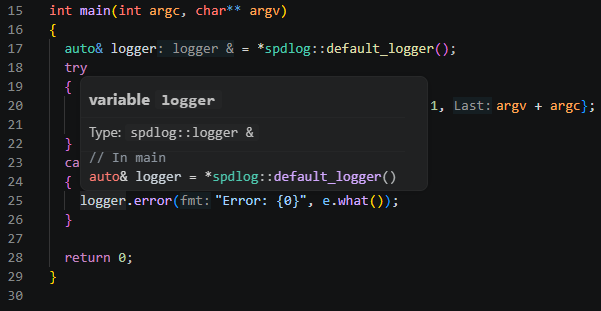
Code snippet in C++ showing the declaration of a logger variable using the spdlog library and error handling in a try-catch block.

Creating functors with lambda factories in C++

Back before C++11, the recommended way to customize the behavior of an algorithm was to write a functor-struct, e.g. a small struct overloading operator(). E.g. for sorting by a specific key:

struct key_less {
  bool operator()(T const& lhs, T const& rhs) const { return lhs.key < rhs.key; }
};

// ... later
std::sort(c.begin(), c.end(), key_less{});

Of course, the same logic could be implemented with a free function, but that was often advised against because it was harder for the compiler to inline. Either way, if you had to supply some context variables, you were stuck with the verbose functor struct anyways. And it made it even more verbose. Something like this was common:

struct indirect_less {
  indirect_less(std::vector<int> const& indirection)
  : indirection_(indirection) {}

  bool operator()(T const& lhs, T const& rhs) const
  { return indirection_[lhs.key] < indirection_[rhs.key]; }

private:
  std::vector<int> const& indirection_;
};

That all changed, of course, when lambdas were added to the language, and you could write the same thing as:

auto indirect_less = [&](T const& lhs, T const& rhs)
  { return indirection[lhs.key] < indirection[rhs.key]; };

At least as long as the indirection std::vector<> is in the local scope. But what if you wanted to reuse some more complicated functors in different contexts? In that case, I often found myself reverting back to the old struct pattern. Until recently I discovered there’s a lot nicer way, and I ask myself how I missed that for so long: functor factories. E.g.

auto make_indirect_less(std::vector const& indirection) {
  return [&](T const& lhs, T const& rhs) { /* ... */ };
}

Much better than the struct! This has been possible since C++14’s return type deduction, so a pretty long time. Still, I do not think I have come across this pattern before. What about you?

Project paths in launch.vs.json with CMake presets

Today I was struggling with a relatively simple task in Visual Studio 2022: pass a file path in my source code folder to my running application. I am, as usual, using VS’s CMake mode, but also using conan 2.x and hence CMake presets. That last part is relevant, because apparently, it changes the way that .vs/launch.vs.json gets its data for macro support.

To make things a little more concrete, take a look at this, non-working, .vs/launch.vs.json:

{
  "version": "0.2.1",
  "defaults": {},
  "configurations": [
    {
      "type": "default",
      "project": "CMakeLists.txt",
      "projectTarget": "application.exe (src\\app\\application.exe)",
      "name": "application.exe (src\\app\\application.exe)",
      "env": {
        "CONFIG_FILE": "MY_SOURCE_FOLDER/the_file.conf"
      }
    }
  ]
}

Now I want MY_SOURCE_FOLDER in the env section there to reference my actual source folder. Ideally, you’d use something like ${sourceDir}, but VS 2022 was quick to tell me that it failed evaluation for that variable.

I did, however, find an indirect way to get access to that variable. The sparse documentation really only hints at that, but you can actually access ${sourceDir} in the CMake presets, e.g. CMakeUsersPresets.json or CMakePresets.json. You can then put it in an environment variable that you can access in .vs/launch.vs.json. Like this in your preset:

{
  ...
  "configurePresets": [
    {
      ...
      "environment": {
        "PROJECT_ROOT": "${sourceDir}"
      }
    }
  ],
  ...
}

and then use it as ${env.PROJECT_ROOT} in your launch config:

{
  "version": "0.2.1",
  "defaults": {},
  "configurations": [
    {
      "type": "default",
      "project": "CMakeLists.txt",
      "projectTarget": "application.exe (src\\app\\application.exe)",
      "name": "application.exe (src\\app\\application.exe)",
      "env": {
        "CONFIG_FILE": "${env.PROJECT_ROOT}/the_file.conf"
      }
    }
  ]
}

Hope this spares someone the trouble of figuring this out yourself!

Dockerized toolchain in CLion with Conan

In the olden times it was relatively hard to develop C++ projects cross-platform. You had to deal with cross-compiling, different compilers and versions of them, implementation-defined and unspecified behaviour, build system issues and lacking dependency management.

Recent compilers mitigated many problems and tools like CMAKE and Conan really helped with build issues and dependencies. Nevertheless, C++ – its compilers and their output – is platform-dependent and thus platform differences still exist and shine through. But with the advent of containerization and many development tools supporting “dev containers” or “dockerized toolchains” this also became much easier and feasible.

CLion’s dockerized toolchain

CLions dockerized toolchain is really easy to setup. After that you can build and run your application on the platform of your choice, e.g. a Debian container running your IDE on a Windows machine. This is all fine and easy for a simple CMake-based hello-world project.

In real projects there are some pitfalls and additional steps to do to make it work seamlessly with Conan as your dependency manager.

Expanding the simple case to dependencies with Conan

First of all your container needs to be able to run Conan. Here is a simple Dockerfile that helps getting started:

FROM debian:bookworm AS toolchain

RUN DEBIAN_FRONTEND=noninteractive apt-get update && apt-get -y dist-upgrade
RUN DEBIAN_FRONTEND=noninteractive apt-get update && apt-get -y install \
  cmake \
  debhelper \
  ninja-build \
  pipx \
  git \
  lsb-release \
  python3 \
  python3-dev \
  pkg-config \
  gdb

RUN PIPX_BIN_DIR=/usr/local/bin pipx install conan

# This allows us to automatically use the conan context from our dockerized toolchain that we populated on the development
# machine
ENV CONAN_HOME=/tmp/my-project/.conan2

The important thing here is that you set CONAN_HOME to the directory CLion uses to mount your project. By default CLion will mount your project root directory to /tmp/<project_name> into the dev container.

If you have some dependencies you need to build/export yourself, you have to run the conan commands using your container image with a bind mount so that the conan artifacts reside on your host machine because CLion tends to use short-lived containers for the toolchain. So we create a build_dependencies.sh script

#!/usr/bin/env bash

# Clone and export conan-omniorb
rm -rf conan-omniorb
git clone -b conan2/4.2.3 https://github.com/softwareschneiderei/conan-omniorb.git
conan export ./conan-omniorb

# Clone and export conan-cpptango
rm -rf conan-cpptango
git clone -b conan2/9.3.6 https://github.com/softwareschneiderei/conan-cpptango.git
conan export ./conan-cpptango

and put it in the docker command:

CMD chmod +x build_environment.sh && ./build_environment.sh

Now we can run the container to setup our Conan context once using a bind-mount like -v C:\repositories\my-project\.conan2:/tmp/my-project/.conan2.

If you have done everything correctly, especially the correct locations for the Conan artifacts you can use your dockerized toolchain and develop transparently regardless of host and target platforms.

I hope this helps someone fighting multiplatform development using C++ and Conan with CLion.

I have changed my stance on “using” in C++ headers

I used to be pretty strictly against using either C++ using-directives or -declarations from within header files. It kind of stuck with me as a no-go. But that has changed in recent years.

There are now good cases where using can go into a header. For example, I do not really like putting things like…

using namespace std::string_literals;
using namespace std::string_view_literals;
using namespace std::chrono_literals;

…at the beginning of each source file. Did you know that you can pull all those (and some more) in with a single using namespace std::literals? Either way, in my newer projects, these usually go into one of the more prominent headers. Same goes for other literal operators such as those from the SI library. And so do using declarations for common vocabulary types. E.g. 2D or 3D vector types , in math heavy projects. Of course, they always go after the specific #include(s) the using is referencing. The benefits of doing that usually outweigh the danger of name-clashes and weird order dependencies.

There are cases where I still avoid using in headers however, and that is when the given header is ‘public’, i.e. being consumed by something that is not under my organization’s control. In that case, you better leave that decision to the library consumer.

Efficient integer powers of floating-point numbers in C++

Given a floating-point number x, it is quite easy to square it: x = x * x;, or x *= x;. Similarly, to find its cube, you can use x = x * x * x;.

However, when raising it to the 4’th power, things get more interesting: There’s the naive way: x = x * x * x * x;. And the slightly obscure way x *= x; x *= x; which saves a multiplication.

When raining to the 8’th power, the naive way really loses its appeal: x = x * x * x * x * x * x * x * x; versus x *= x; x *= x; x *= x;, that’s 7 multiplications version just 3. This process can easily be extended for raising a number to any power-of-two N, and will only use O(log(n)) multiplications.

The algorithm can also easily be extended to work with any integer power. This works by decomposing the number into product of power-of-twos. Luckily, that’s exactly what the binary representation so readily available on any computer is. For example, let us try x to the power of 20. That’s 16+4, i.e. 10100 in binary.

x *= x; // x is the original x^2 after this
x *= x; // x is the original x^4 after this
result = x;
x *= x; // x is the original x^8 after this
x *= x; // x is the original x^16 after this
result *= x;

Now let us throw this into some C++ code, with the power being a constant. That way, the optimizer can take out all the loops and generate just the optimal sequence of multiplications when the power is known at compile time.

template <unsigned int y> float nth_power(float x)
{
  auto p = y;
  auto result = ((p & 1) != 0) ? x : 1.f;
  while(p > 0)
  {
    x *= x;
    p = p >> 1;
    if ((p & 1) != 0)
      result *= x;
  }

  return result;
}

Interestingly, the big compilers do a very different job optimizing this. GCC optimizes out the loops with -O2 exactly up to nth_power<15>, but continues to do so with -O3 on higher powers. clang reliably takes out the loops even with just -O2. MSVC doesn’t seem to eliminate the loops at all, nor does it remove the multiplication with 1.f if the lowest bit is not set. Let me know if you find an implementation that MSVC can optimize! All tested on the compiler explorer godbolt.org.

My conan 2 Consumer Workflow

A great many things changed in the transition from conan 1.x to conan 2.x. For me, as an application-developer first, the main thing was how I consume packages. The two IDEs I use the most in C++ are Visual Studio and CLion, so I needed a good workflow with those. For Visual Studio, I am using its CMake integration, otherwise known as “folder mode”, which lets you directly open a project with a CMakeLists.txt file in it, instead of generating a solution and opening that. The deciding factor for me is that that uses Ninja as a build tool instead of MSBuild, which often is a lot faster. I have had projects with 3.5x build-time speed ups. As an added bonus, CLion supports very much the same workflow, which reduces friction when switching between platforms.

Visual Studio

First, we’re going to need some local profiles. I typically treat them as ‘build configurations’, with one profile for debug and release on each platform. I put them under version control with the project. A good starting point to create them is conan profile detect, which guesses your environment. To create a profile to a file, go to your project folder and use something like:

conan profile detect --name ./windows_release

Note the ./ in the name, which will instruct conan to create a profile in the current working directory instead of in your user settings. For me, this generates the following profile:

[settings]
arch=x86_64
build_type=Release
compiler=msvc
compiler.cppstd=14
compiler.runtime=dynamic
compiler.version=194
os=Windows

Conan will warn you, that this is only a guess and you should make sure that the values work for you. I usually bump up the compiler.cppstd to at least 20, but the really important change is to change the CMake generator to Ninja, after which the profile should look something like this:

[settings]
arch=x86_64
build_type=Release
compiler=msvc
compiler.cppstd=20
compiler.runtime=dynamic
compiler.version=194
os=Windows

[conf]
tools.cmake.cmaketoolchain:generator=Ninja

Copy and edit the build_type to create a corresponding profile for debug builds.

While conanfile.txt still works for specifying your dependencies, I now recommend directly using conanfile.py from the get go, as some options like overriding dependencies are now exclusive to it. Here’s an example installing the popular logging library spdlog:

from conan import ConanFile
from conan.tools.cmake import cmake_layout


class ProjectRecipe(ConanFile):
    settings = "os", "compiler", "build_type", "arch"
    generators = "CMakeToolchain", "CMakeDeps"

    def requirements(self):
        self.requires("spdlog/1.14.1")

    def layout(self):
        cmake_layout(self)

Note that I am using cmake_layout to setup the folder structure, which will make conan put the files it generates in build/Release for the windows_release profile we created.

Now it is time to install the dependencies using conan install. Make sure you have a clean project before this, e.g. there are no other build/config folders like build/, out/ and .vs/. Specifically, do not open the project in Visual Studio before doing that, as it will create another build setup. You already need the CMakeLists.txt at this point, but it can be empty. For completeness, here’s one that works with the conanfile.py from above:

cmake_minimum_required(VERSION 3.28)
project(ConanExample)

find_package(spdlog CONFIG REQUIRED)

add_executable(conan_example
  main.cpp
)

target_link_libraries(conan_example
  spdlog::spdlog
)

Run this in your project folder:

conan install . -pr:a ./windows_release

This will install the dependencies and even tell you what to put in your CMakeLists.txt to use them. More importantly for the Visual Studio integration, it will create a CMakeUserPresets.json file that will allow Visual Studio to find the prepared build folder once you open the project. If there is no CMakeLists.txt when you call conan install, this file will not be created! Note that you generally do not want this file under version control.

Now that this is setup, you can finally open the project in Visual Studio. You should see a configuration named “conan-release” already available and CMake should run without errors. After this point, you can let conan add new configurations and Visual Studio should automatically pick them up through the CMake user presets.

CLion

The process is essentially the same for CLion, except that the profile will probably look different, depending on the platform. Switching the generator to Ninja is not as essential, but I still like to do it for the speed advantages.

Again, make sure you let conan setup the initial build folders and CMakeUserPresets.json and not the IDE. CLion will then pick them up and work with them like Visual Studio does.

Additional thoughts

I like to create additional script files that I use to setup/update the dependencies. For example, in windows, I create a conan_install.bat file like this:

@echo Installing debug dependencies
conan install . -pr:a conan/windows_debug --build=missing %*
@if %errorlevel% neq 0 exit /b %errorlevel%

@echo Installing release dependencies
conan install . -pr:a conan/windows_release --build=missing %*
@if %errorlevel% neq 0 exit /b %errorlevel%

Have you used other workflows successfully in these or different environments? Let me know about them!

Simple marching squares in C++

Marching squares is an algorithm to find the contour of a scalar field. For example, that can be a height-map and the resulting contour would be lines of a specific height known as ‘isolines’.

At the core of the algorithm is a lookup table that says which line segments to generate for a specific ’tile’ configuration. To make sense of that, you start with a convention on how your tile configuration and the resulting lines are encoded. I typically add a small piece of ASCII-art to explain that:

// c3-e3-c2
// |      |
// e0    e2
// |      |
// c0-e1-c1
//
// c are corner bits, e the edge indices

The input of our lookup table is a bitmask of which of the corners c are ‘in’ or above our isolevel. The output is which tile edges e to connect with line segments. That is either 0, 1 or 2 line segments, so we need to encode that many pairs. You could easily pack that into a 32-bit, but I am using a std::vector<std::uint8_t> for simplicity. Here’s the whole thing:

using config = std::vector<std::uint8_t>;
using config_lookup = std::array<config, 16>;
const config_lookup LOOKUP{
  config{},
  { 0, 1 },
  { 1, 2 },
  { 0, 2 },
  { 2, 3 },
  { 0, 1, 2, 3 },
  { 1, 3 },
  { 0, 3 },
  { 3, 0 },
  { 3, 1 },
  { 1, 2, 3, 0 },
  { 3, 2 },
  { 2, 0 },
  { 2, 1 },
  { 1, 0 },
  config{},
};

I usually want to generate index meshes, so I can easily connect edges later without comparing the floating-point coordinates. So one design goal here was to generate each point only once. Here is the top-level algorithm:

using point_id = std::tuple<int, int, bool>;

std::vector<v2<float>> points;
// Maps construction parameters to existing entries in points
std::unordered_map<point_id, std::uint16_t, key_hash> point_cache;
// Index pairs for the constructed edges
std::vector<std::uint16_t> edges;

auto [ex, ey] = map.size();
auto hx = ex-1;
auto hy = ey-1;

// Construct inner edges
for (int cy = 0; cy < hy; ++cy)
for (int cx = 0; cx < hx; ++cx)
{
  std::uint32_t key = 0;
  if (map(cx, cy) > threshold)
    key |= 1;
  if (map(cx + 1, cy) > threshold)
    key |= 2;
  if (map(cx + 1, cy + 1) > threshold)
    key |= 4;
  if (map(cx, cy + 1) > threshold)
    key |= 8;

  auto const& geometry = LOOKUP[key];

  for (auto each : geometry)
  {
    auto normalized_id = normalize_point(cx, cy, each);
    auto found = point_cache.find(normalized_id);
    if (found != point_cache.end())
    {
      edges.push_back(found->second);
    }
    else
    {
      auto index = static_cast<std::uint16_t>(points.size());
      points.push_back(build_point(map, threshold, normalized_id));
      edges.push_back(index);
      point_cache.insert({ normalized_id, index });
    }
  }
}

For each tile, we first figure out the lookup input-key by testing the 4 corners. We then get-or-create the global point for each edge point from the lookup.
Since each edge in a tile can be accessed from two sides, we first normalize it to have a unique key for our cache:

point_id normalize_point(int cx, int cy, std::uint8_t edge)
{
  switch (edge)
  {
  case 3:
    return { cx, cy + 1, false };
  case 2:
    return { cx + 1, cy, true };
  default:
    return { cx, cy, edge == 0 };
  };
}

When we need to create a point an edge, we interpolate to estimate where exactly the isoline intersects our tile-edge:

v2<float> build_point(raster_adaptor const& map, float threshold, point_id const& p)
{
  auto [x0, y0, vertical] = p;
  int x1 = x0, y1 = y0;
  if (vertical)
    y1++;
  else
    x1++;

  const auto s = map.scale();
  float h0 = map(x0, y0);
  float h1 = map(x1, y1);
  float lambda = (threshold - h0) / (h1 - h0);

  auto result = v2{ x0 * s, y0 * s };
  auto shift = lambda * s;
  if (vertical)
    result[1] += shift;
  else
    result[0] += shift;
  return result;
}

For a height-map, that’s about as good as you can get.

You can, however, sample other scalar field functions with this as well, for example sums of distances. This is not the most sophisticated implementation of marching squares, but it is reasonably simple and can easily be adapted to your needs.

Even better automated instance construction in C++

In the previous articles on automated instance construction (first and second) I showed how you can use constructor-argument deduction to automatically do dependency injection. While that approach worked nicely in general, one little detail was still nagging me: Since construction of the actual objects happens at the end of a recursion, the stack depth in some of those construction could get quite deep. In fact there are an additional Max–actual number of c’tor parameters functions on the stack before the c’tor is called. This effect is even worse when resolving long dependency chains, were those functions are there for each of the dependencies currently being resolved.

The previous code uses an std::index_sequence of the exactly the right length to inject the same number of mimic parameters that are then used to locate dependencies. If we knew the right length, there wouldn’t have to be any recursion around the construction. And that’s actually easy to refactor out, we can just figure out the std::index_sequence first and return, and then use it outside of the recursion:

template <class T, std::size_t Head, std::size_t... Rest>
constexpr auto
injection_parameter_sequence(std::index_sequence<Head, Rest...>,
  decltype(T{ mimic<T>{ Head }, mimic<T>{ Rest }... })* = nullptr)
{
  return std::index_sequence<Head, Rest...>{};
}

template <class T>
constexpr auto injection_parameter_sequence(std::index_sequence<>)
{
  return std::index_sequence<>{};
}

template <class T, std::size_t... Rest>
constexpr auto
injection_parameter_sequence(std::index_sequence<Rest...>)
{
  return injection_parameter_sequence<T>(std::make_index_sequence<sizeof...(Rest) - 1>{});
}

Starting with a “long” index sequence, this overload set returns the smaller index sequence for the construction. We can use a small tool function to actually create the instance:

template <class T, std::size_t... Params>
constexpr auto make_unique_injected_with_sequence(service_provider const& p, std::index_sequence<Params...>)
{
  return std::make_unique<T>(mimic<T>(p, Params)...);
}

Which can be called like this:

template <class T, std::size_t Max = 16> auto make_unique_injected(service_provider const& p)
{
  return make_unique_injected_with_sequence<T>(p,
    injection_parameter_sequence<T>(std::make_index_sequence<Max>{}));
}

Only these last two function will be added to the call stack for each constructor call, which is not a whole lot. This construction has the additional advantage that only these two need to be changed to support different kinds construction, e.g. using std::make_shared instead of std::make_unique.

Improved automated instance construction in C++

In my last blog post, I wrote about how I am automatically deducing constructor parameters in my dependency injection container. The approach had a major drawback: It worked only for 2 or more parameters, since there was an ambiguity with copy- or move-constructors with exactly one parameter.

Right after I wrote that post, I actually found a solution to that problem in the Boost.DI FAQ, which explains how to do that in its CPPnow 2016 slides. It restricts the type conversion operator by using SFINEA on an unused template parameter. I did not even know that was possible! It defines the templated conversion operator very similar to this:

template <class T,
  class = std::enable_if_t<!std::is_same<std::remove_cvref_t<T>, Exclude>{}>>
operator T&() const
{
  return p_->get<std::remove_cvref_t<T>>();
}

Since this is a bit more involved than the bare templated conversion operator from last time, repeating it would be bad. In the last version, I used 3 helper types, the inferred_locator, mimic and the provider_wrapper, but that can be streamlined into one class:

template <typename Exclude> struct mimic
{
  mimic(std::size_t)
  {
  }

  mimic(service_provider const& p, std::size_t)
  : p_(&p)
  {
  }

  template <class T, class = std::enable_if_t<!std::is_same<std::remove_cvref_t<T>, Exclude>{}>> operator T&() const
  {
    return p_->get<std::remove_cvref_t<T>>();
  }

  service_provider const* p_{ nullptr };
};

Note that is uses some unused extra size_t parameters, which make the parameter expansion easier in the next step. Now can use that for the SFINEA in the recursive construction:

// Actual dependency injection..
template <class T, std::size_t Head, std::size_t... Rest> constexpr auto
make_injected_(service_provider const& p, std::index_sequence<Head, Rest...>,
    decltype(T{ mimic<T>{ Head }, mimic<T>{ Rest }... }) * = nullptr)
{
  return std::make_unique(mimic<T>(p, Head), mimic<T>(p, Rest)...);
}

// Trivial no-dependency case
template <class T> constexpr auto
make_injected_(service_provider const& p, std::index_sequence<>)
{
  return std::make_unique<T>();
}

// Fallback to try with fewer parameters
template <class T, std::size_t... Rest> constexpr auto make_injected_(service_provider const& p, std::index_sequence<Rest...>)
{
  return make_injected_<T>(p, std::make_index_sequence<sizeof...(Rest) - 1>{});
}

template <class T, std::size_t Max = 16> auto
make_injected(service_provider const& p)
{
  return make_injected_<T>(p, std::make_index_sequence<Max>{});
}

Just after I found this solution, my former colleague Dirk Reinbach sent me a very neat C++20 variant to restrict the conversion operator via a concept:

template <typename T, typename U>
concept not_is_same = !std::is_same_v<std::remove_cvref_t<T>, std::remove_cvref_t<U>>;

template <typename Exclude> struct mimic
{
  /* other members... */
  template <not_is_same<Exclude> T> operator T&() const
  {
    return p_->get<std::remove_cvref_t<T>>();
  }
};

This works just as well, and is more readable, too. I have not measured, but I guess it’s probably also faster to compile, since all things SFINEA are notoriously slow.