Today I stumbled upon some behavior in C#’s List<> that I found very surprising. I had forgotten about RemoveAll() and basically implemented it myself:
var target = 0;
foreach (var each in list)
{
if (!predicate(each))
list[target++] = each;
}
list.RemoveRange(target, list.Count - target);
Apparently, this is not allowed. You cannot assign to any element in the List<> while you are iterating/enumerating it: The List<> implementation holds a ‘version’ number that is incremented any time a change is made, including assignments. When the Enumerator is advanced via MoveNext it checks for this version and throws the dreaded ‘Collection was modified’ exception.
Except that there shouldn’t really be a problem here, and the modification checking code is basically being too coarse. This code ‘compacts’ the list, copying elements where the predicate evaluates to true to the front of the list, and then cutting off the rest of the elements. There’s never really any doubt what each references. In fact, in other languages, this approach is even considered idiomatic to remove elements while iterating. In ancient C++, this is known as the remove/erase idiom, see also std::erase.
So why did the library designers of C# consider setting a value while iterating a problem? I don’t know, but at least now I have a story to remind of of RemoveAll()‘s existence.
A couple of weeks ago, I ported my game You Are Circle to the browser using Emscripten. Using the conan EMSDK toolchain, this was surprisingly easy to do. The largest engineering effort went into turning the “procedurally generate the level” background thread into a coroutine that I could execute in the main thread while showing the loading screen, since threads are not super well supported (and require enabling a beta feature on itch.io). I already had a renderer abstraction targeting OpenGL 4.1, which is roughly on feature parity with OpenGL ES 3.0, which is what you see WebGL2 as from Emscripten. And that just worked out of the box and things were fine for a while. Until they weren’t.
60FPS to 2FPS
Last week I finally released a new feature: breakable rocks. These are attached to the level walls and can be destroyed for power-ups. I tested this on my machine and everything seemed to be working fine. But some people soon started complaining about unplayable performance in the web build, in the range of 1-2 FPS, coming from a smooth 60 FPS on the same machine. So I took out my laptop and tested it there, and lo and behold, it was very slow indeed. On chrome, even the background music was stuttering. I did some other ‘optimization’ work in that patch, but after ruling that out as the culprit via bisection, I quickly narrowed it down to the rendering of the new breakable rocks.
The rocks are circled in red in this screenshot:
As you can see, everything is very low-poly. The rocks are rendered in two parts, a black background hiding the normal level background and the white outline. If I removed the background rendering, everything was fine (except for the ‘transparent’ rocks).
Now it’s important to know that the rendering is all but optimized at this point. I often use the most basic thing given my infrastructure that I can get away with until I see a problem. In this case, I have some thingies internally that let me draw in a pretty immediate mode way: Just upload the geometry to the GPU and render it. Every frame. At the moment, I do this with almost all the geometry, visible or not, every frame. That was fast enough, and makes it trivial to change what’s being rendered when the rock is broken. The white outline is actually more geometry generated by my line mesher than the rock-background. But that was not causing any catastrophic slow-downs, while the background was. So what was the difference? The line geometry was batched on the CPU, while I was issuing a separate draw-call for each of those rocks. To give some numbers: there were about 100 of those rocks, with each of with up to 11 triangles.
Suspecting the draw call overhead, I tried batching, e.g. merging, all the rock geometry into a single mesh and rendering it with a single draw call. That seemed to work well enough. And that is the version currently released.
Deep Dive
But the problem kept nagging at me after I released the fix. Yes, draw calls can have a lot of overhead, especially in Emscripten. But going from 60FPS to 2FPS still seemed pretty steep, and I did not fully understand why it was so extremely bad. After trying Firefox’s Gecko Profiler, which was recommended in the Emscripten docs, I finally got an idea what was causing the problem. The graphics thread was indeed very busy, and showing a lot of time in MaxForRange<>. That profiler is actually pretty cool, and you can jump directly into the Firefox source code from there to get an idea what’s going on.
Geometry is often specified via one level of indirection: The actual ‘per Point’- a.k.a. Vertex-Array and a list of indices pointing into that, with each triplet defining a triangle. This is a form of compression, and can also help the CPU avoid duplicate work by caching. But it also means that the indices can be invalid, e.g. there can be out-of-bounds indices. And browsers cannot allow that fore safety reasons, so they check the validity before actually issuing a rendering command on the GPU. MaxForRange<> is part of the machinery to do just that via its caller GetIndexedFetchMaxVert. It determines the max index of a section of an index buffer. When issuing a draw call, that max-index is checked against the size of the per-point-data to avoid out-of-range accesses.
This employs a caching scheme: For a given range in the indices, the result is cached, so it doesn’t have to be evaluated again for repeated calls on the same buffer. Also, I suspect to make this cache ‘hit’ more often, the max-index is first retrieved for the whole of the current index buffer, and only if that cannot guarantee valid access, is the subrange even checked. See the calls to GetIndexedFetchMaxVert in WebGLContext::DrawElementsInstanced. When something in the index list is changed from the user side, this cache is completely evicted.
The way that I stream my geometry data in my renderer is by using “big” (=4mb) per-frame buffers for vertex and index data that I gradually fill in some kind of emulated “immediate mode”. In the specific instance for the rocks, this looks like this:
for (auto& each : rock)
{
auto vertex_source = per_frame_buffer.transfer_vertex_data(each.vertex_data);
auto index_source = per_frame_buffer.transfer_index_data(each.index_data);
device.draw(vertex_source, index_source, ...);
}
The combination of all that turned out to be deadly for performance, and again shows why caching is one of the two hard things in IT. The code essentially becomes:
for (auto& each : rock)
{
auto vertex_source = per_frame_buffer.transfer_vertex_data(each.vertex_data);
invalidate_per_frame_index_buffer_cache();
auto index_source = per_frame_buffer.transfer_index_data(each.index_data);
So for my 100 or so small rocks, the whole loop went through about 400mb of extra data per frame, or ~24gb per second. That’s quite something.
That also explains why merging the geometry helped, as it drastically reduced the amount of cache invalidations/refills. But now that the problem was understood, another option became apparent. Reorder the streamed buffer updates and draw calls, so that all the updates happen before all the draw calls.
Open questions
I am still not sure what the optimal way to stream geometry in WebGL is, but I suspect reordering the updates/draws and keeping the index buffer as small as possible might prove useful. So if you have any proven idea, I’d love to hear it.
I am also not entirely sure why I did not notice this catastrophic slow-down on my developer machine. I suspect it’s just because my CPU has big L2 and L3 caches that made the extra index scans very fast. I suspect I will see the performance problem in the profiler.
Back before C++11, the recommended way to customize the behavior of an algorithm was to write a functor-struct, e.g. a small struct overloading operator(). E.g. for sorting by a specific key:
Of course, the same logic could be implemented with a free function, but that was often advised against because it was harder for the compiler to inline. Either way, if you had to supply some context variables, you were stuck with the verbose functor struct anyways. And it made it even more verbose. Something like this was common:
That all changed, of course, when lambdas were added to the language, and you could write the same thing as:
auto indirect_less = [&](T const& lhs, T const& rhs)
  { return indirection[lhs.key] < indirection[rhs.key]; };
At least as long as the indirection std::vector<> is in the local scope. But what if you wanted to reuse some more complicated functors in different contexts? In that case, I often found myself reverting back to the old struct pattern. Until recently I discovered there’s a lot nicer way, and I ask myself how I missed that for so long: functor factories. E.g.
auto make_indirect_less(std::vector const& indirection) {
  return [&](T const& lhs, T const& rhs) { /* ... */ };
}
Much better than the struct! This has been possible since C++14’s return type deduction, so a pretty long time. Still, I do not think I have come across this pattern before. What about you?
Today I was struggling with a relatively simple task in Visual Studio 2022: pass a file path in my source code folder to my running application. I am, as usual, using VS’s CMake mode, but also using conan 2.x and hence CMake presets. That last part is relevant, because apparently, it changes the way that .vs/launch.vs.json gets its data for macro support.
To make things a little more concrete, take a look at this, non-working, .vs/launch.vs.json:
Now I want MY_SOURCE_FOLDER in the env section there to reference my actual source folder. Ideally, you’d use something like ${sourceDir}, but VS 2022 was quick to tell me that it failed evaluation for that variable.
I did, however, find an indirect way to get access to that variable. The sparse documentation really only hints at that, but you can actually access ${sourceDir} in the CMake presets, e.g. CMakeUsersPresets.json or CMakePresets.json. You can then put it in an environment variable that you can access in .vs/launch.vs.json. Like this in your preset:
In the olden times it was relatively hard to develop C++ projects cross-platform. You had to deal with cross-compiling, different compilers and versions of them, implementation-defined and unspecified behaviour, build system issues and lacking dependency management.
Recent compilers mitigated many problems and tools like CMAKE and Conan really helped with build issues and dependencies. Nevertheless, C++ – its compilers and their output – is platform-dependent and thus platform differences still exist and shine through. But with the advent of containerization and many development tools supporting “dev containers” or “dockerized toolchains” this also became much easier and feasible.
CLion’s dockerized toolchain
CLions dockerized toolchain is really easy to setup. After that you can build and run your application on the platform of your choice, e.g. a Debian container running your IDE on a Windows machine. This is all fine and easy for a simple CMake-based hello-world project.
In real projects there are some pitfalls and additional steps to do to make it work seamlessly with Conan as your dependency manager.
Expanding the simple case to dependencies with Conan
First of all your container needs to be able to run Conan. Here is a simple Dockerfile that helps getting started:
FROM debian:bookworm AS toolchain

RUN DEBIAN_FRONTEND=noninteractive apt-get update && apt-get -y dist-upgrade
RUN DEBIAN_FRONTEND=noninteractive apt-get update && apt-get -y install \
  cmake \
  debhelper \
  ninja-build \
  pipx \
  git \
  lsb-release \
  python3 \
  python3-dev \
  pkg-config \
  gdb

RUN PIPX_BIN_DIR=/usr/local/bin pipx install conan

# This allows us to automatically use the conan context from our dockerized toolchain that we populated on the development
# machine
ENV CONAN_HOME=/tmp/my-project/.conan2
The important thing here is that you set CONAN_HOME to the directory CLion uses to mount your project. By default CLion will mount your project root directory to /tmp/<project_name> into the dev container.
If you have some dependencies you need to build/export yourself, you have to run the conan commands using your container image with a bind mount so that the conan artifacts reside on your host machine because CLion tends to use short-lived containers for the toolchain. So we create a build_dependencies.sh script
Now we can run the container to setup our Conan context once using a bind-mount like -v C:\repositories\my-project\.conan2:/tmp/my-project/.conan2.
If you have done everything correctly, especially the correct locations for the Conan artifacts you can use your dockerized toolchain and develop transparently regardless of host and target platforms.
I hope this helps someone fighting multiplatform development using C++ and Conan with CLion.
A common way to draw circles with any kind of vector graphics API is by approximating it with a regular polygon, e.g. as a regular polygon with 32 sides. The problem with this approach is that it might look good in one resolution, but crude in another, as the approximation becomes more visible. So how do you pick the right number of sides for the job? For that, let’s look at the error that this approximation has.
A whole bunch of math
I define the ‘error’ of the approximation as the maximum difference between the ideal circle shape and the approximation. In other words, it’s the difference of the inner radius and the outer radius of the regular polygon. Conveniently, with a step angle the inner radius is just the outer radius multiplied by the cosine of half of that: . So the error is . I find it convenient to use relative error for the following, and set :
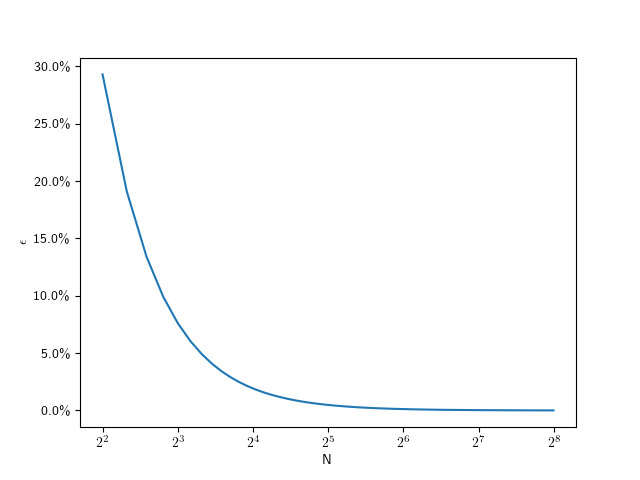
The following plot shows that value for going from 4 to 256:
As you can see, this looks hyperbolic and the error falls off rather fast with an increasing number of subdivisions. This function lets use figure out the error for a given number of subdivisions, but what we really want is he inverse of that: Which number of subdivisions do we need for the error to be less than a given value. For example, assuming a 1080p screen, and a half-pixel error on a full-size () circle, that means we should aim for a relative error of . So we can solve the error equation above for N. Since the number of subdivisions should be an integer, we round it up:
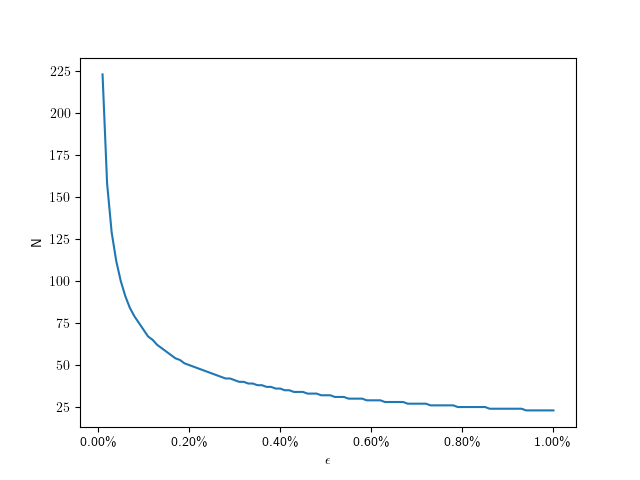
So for we need only 71 divisions. The following plot shows the number of subdivisions for error values from to :
Here are some specific values:
0.01%
223
0.1%
71
0.2%
50
0.4%
36
0.6%
29
0.8%
25
1.0%
23
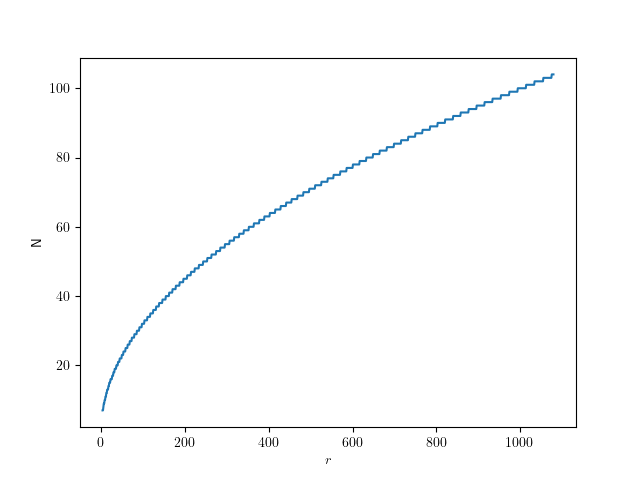
Assuming a fixed half-pixel error, we can plug in to get:
The following graph shows that function for radii up to full-size QHD circles:
Give me code
Here’s the corresponding code in C++, if you just want to figure out the number of segments for a given radius:
CMake has an option, CMAKE_UNITY_BUILD, to automatically turn your builds into unity-builds, which is essentially combining multiple source files into one. This is supposed to make your builds more efficient. You can just enable enable it while executing the configuration step of your CMake builds, so it is really easy to test. It might just work without any problems. Here are some examples with actual numbers of what that does with build times.
Project A
Let us first start with a relatively small project. It is a real project we have been developing, that reads sensor data, transports it over the network and displays it using SDL and Dear ImGui. I’m compiling it with Visual Studio (v17.13.6) in CMake folder mode, using build insights to track the actual time used. For each configuration, I’m doing a clean rebuild 3 times. The steps are the number of build statements that ninja runs.
Unity Build
#Steps
Time 1
Time 2
Time 3
OFF
40
13.3s
13.4s
13.6s
ON
28
10.9s
10.7s
9.7s
That’s a nice, but not massive, speedup of 124,3% for the median times.
Project A*
Project A has a relatively high number of non-compile steps: 1 step is code generation, 6 steps are static library linking, and 7 steps are executable linking. That’s a total of 14 non-compile steps, which are not directly affected by switching to unity builds. 5 of the executables in Project A are non-essential, basically little test programs. So in an effort to decrease the relative number of non-compile steps, I disabled those for the next test. Each of those also came with an additional source file, so the total number of steps decreased by 10. This really only decreased the relative amount of non-compile steps from 35% to 30%, but the numbers changes quite a bit:
Unity Build
#Steps
Time 1
Time 2
Time 3
OFF
30
9.9s
10.0s
9.7s
ON
18
9.0s
8.8s
9.1s
Now the speedup for the median times was only 110%.
Project B
Project B is another real project, but much bigger than Project A, and much slower to compile. It’s a hardware orchestration system with a web interface. As the project size increases, the chance for something breaking when enabling unity builds also increases. In no particular order:
Include guards really have to be there, even if that particular header was not previously included multiple times
Object files will get a lot bigger, requiring /bigobj to be enabled
Globally scoped symbols will name-clash across files. This is especially true for static globals or things in unnamed namespaces, which basically don’t do their job anymore. More subtly, things moved into the global namespace will also clash, such as the classes with the same name moved into the global namespace via using namespace.
In general, that last point will require the most work to resolve. If all fails, you can disable unity build on a target via set_target_properties(the_target PROPERTIES UNITY_BUILD OFF) or even just skip specific files for unity build inclusion via SKIP_UNITY_BUILD_INCLUSION. In Project B, I only had to do this for files generated by CMakeRC. Here are the results:
Unity Build
#Steps
Time 1
Time 2
Time 3
OFF
416
279.4s
279.3s
284,0s
ON
118
73.2s
76.6s
74.5s
That’s a massive speedup of 375%, just for enabling a build-time switch.
When to use this
Once your project has a certain size, I’d say definitely use this on your CI pipeline, especially if you’re not doing incremental builds. It’s not just time, but also energy saved. And faster feedback cycles are always great. Enabling it on developer machines is another matter: it can be quite confusing when the files you’re editing do not correspond to what the build system is building. Also, developers usually do more incremental builds where the advantages are not as high. I’ve also used hybrid approaches where I enable unity builds only for code that doesn’t change that often, and I’m quite satisfied with that. Definitely add an option to turn that off for debugging though. Have you had similar experiences with unity builds? Do tell!
I often use std::string_view via the sv suffix for string constants in my code. If I need to associate something with those constants at runtime, I put it in an std::unordered_map with the constants as the keys.
Just a few days ago, I was using and std::unordered_map<std::string, ...> and wanted to .find(...) something in it with such a string constant. But that didn’t compile. From long ago, I remember that the type must be identical, and since there is no implicit conversion from std::string_view to std::string, I made that explicit to get it to compile. But wait. Didn’t C++ add support for using a different type than the key_type for the lookup? Indeed it did, in P0919R3 and P1690R1 from last decade. All major compilers seem to support it too. Then why wasn’t this working? It turns out that it’s not enabled by default, you need to explicitly enable it by supplying a special hasher. Here’s how I do it:
This is almost the same code as the sample given in the first of the two proposals. The using is_transparent = void; is how the feature is enabled and was changed in the second proposal.
I used to be pretty strictly against using either C++ using-directives or -declarations from within header files. It kind of stuck with me as a no-go. But that has changed in recent years.
There are now good cases where using can go into a header. For example, I do not really like putting things like…
using namespace std::string_literals;
using namespace std::string_view_literals;
using namespace std::chrono_literals;
…at the beginning of each source file. Did you know that you can pull all those (and some more) in with a single using namespace std::literals? Either way, in my newer projects, these usually go into one of the more prominent headers. Same goes for other literal operators such as those from the SI library. And so do using declarations for common vocabulary types. E.g. 2D or 3D vector types , in math heavy projects. Of course, they always go after the specific #include(s) the using is referencing. The benefits of doing that usually outweigh the danger of name-clashes and weird order dependencies.
There are cases where I still avoid using in headers however, and that is when the given header is ‘public’, i.e. being consumed by something that is not under my organization’s control. In that case, you better leave that decision to the library consumer.
Given a floating-point number x, it is quite easy to square it: x = x * x;, or x *= x;. Similarly, to find its cube, you can use x = x * x * x;.
However, when raising it to the 4’th power, things get more interesting: There’s the naive way: x = x * x * x * x;. And the slightly obscure way x *= x; x *= x; which saves a multiplication.
When raining to the 8’th power, the naive way really loses its appeal: x = x * x * x * x * x * x * x * x; versus x *= x; x *= x; x *= x;, that’s 7 multiplications version just 3. This process can easily be extended for raising a number to any power-of-two N, and will only use O(log(n)) multiplications.
The algorithm can also easily be extended to work with any integer power. This works by decomposing the number into product of power-of-twos. Luckily, that’s exactly what the binary representation so readily available on any computer is. For example, let us try x to the power of 20. That’s 16+4, i.e. 10100 in binary.
x *= x; // x is the original x^2 after this
x *= x; // x is the original x^4 after this
result = x;
x *= x; // x is the original x^8 after this
x *= x; // x is the original x^16 after this
result *= x;
Now let us throw this into some C++ code, with the power being a constant. That way, the optimizer can take out all the loops and generate just the optimal sequence of multiplications when the power is known at compile time.
template <unsigned int y> float nth_power(float x)
{
  auto p = y;
  auto result = ((p & 1) != 0) ? x : 1.f;
  while(p > 0)
  {
    x *= x;
    p = p >> 1;
    if ((p & 1) != 0)
      result *= x;
  }

  return result;
}
Interestingly, the big compilers do a very different job optimizing this. GCC optimizes out the loops with -O2 exactly up to nth_power<15>, but continues to do so with -O3 on higher powers. clang reliably takes out the loops even with just -O2. MSVC doesn’t seem to eliminate the loops at all, nor does it remove the multiplication with 1.f if the lowest bit is not set. Let me know if you find an implementation that MSVC can optimize! All tested on the compiler explorer godbolt.org.



 for the job? For that, let’s look at the error that this approximation has.
 the inner radius is just the outer radius
  multiplied by the cosine of half of that:
  . So the error is
  . I find it convenient to use relative error
  for the following, and set
  :
:
 ) circle, that means we should aim for a relative error of
  . So we can solve the error equation above for N. Since the number of subdivisions should be an integer, we round it up:
 to
to  :
:
 to get:

 Schneide Blog