Keep your ovens clean

If you have build dependencies that require the build system to be altered, like registered DLLs, there is a workaround that might save you from snowflaking all your machines.

Let’s assume for a moment that you are a baker, producing different types of pastries in your small bakery. The production process is always the same: prepare the dough, put it in the oven, wait some time and retrieve the most delicious buns or bread. If we can abstract the real baking process to these steps, it’s the same as with software: prepare the sourcecode, put it in the compiler, wait some time and retrieve the most delicious binary or executable. There is only one difference: The oven of the baker is a self-contained, closed system, while our compilers require a distinct system setup around them in order to produce anything edible. The oven is independent from the kitchen around it, the compiler is depedent on the environment. To finish the analogy, what would a baker say if he can’t bake bread in his oven unless he nurtures a certain type of yeast in his kitchen?

A most unpleasant case

While developing a platform dependent application recently, we met a most unpleasant case of build dependency on a third-party library. It was an old dynamic link library (DLL) that requires registering in the windows registry. There was no other way than to register the DLL using the regsrv32 utility. If you didn’t do this, the build process would abort with an error stating unmet dependencies. If you ran the resulting program on a machine without registered DLL, it would crash with a runtime error complaining about the missing registry entry. And by the way, there are two totally independent regsrv32 utilities on a 64-bit windows system, one for 32-bit and one for 64-bit registrations. No, the name of the latter one isn’t regsvr64, that would be way too easy.

We accepted the fact that you need to prepare your system if you want to run the program, but we quarreled a lot with the nuisance that you need to alter your system just to build the software. This process of alteration is called snowflaking in the DevOp mentality and it’s not a desired activity. We would need to alter every build machine in our continuous integration cluster that comes into contact with the project. And we would need to de-snowflake them again afterwards, because this kind of tinkering adds up to inscrutable side-effects very fast.

A practicable workaround

We found a way around the abovementioned snowflaking for our build servers. It’s not a solution, it’s only a workaround, as it solves the immediate problem but produces some lesser problems on the way. Let’s look at what we did.

At first, our situation could be described with this module diagram:

dependency1We couldn’t modify the problematic DLL itself, it was a given binary. But we could wrap it in our own DLL. Wrapping less pleasant things into something you can control is a proven technique even in baking, by the way. We now had a system layout that looks like this:

dependency2Nothing gained so far, just that we now have a layer outside our system that can provide the functionality of the DLL and is actually under our control. The wrapper really does nothing on its own but to forward each call to the DLL. To profit from this indirection, we need to introduce another module, like this:

dependency3The second module provides the same interface as the first, but does nothing, not even forwarding anywhere. It’s a complete stub, just there to be uncomplicated during the build process. The goal is to build the system using this “empty” DLL and then replace it with the “problematic” DLL afterwards. The only question is: how do we build the problematic DLL? Here’s the workaround part of the solution: We actually had to compile the problematic DLL on a snowflaked system and add it to the project repository. Good thing our target system’s specification is known, so we only need to do this for one platform. Because we are reasonably sure that the DLL interface will not change over time (it had every opportunity in the last ten years and didn’t use it), we can assume that the interface of our two wrapper DLLs also won’t change. So it’s not too problematic to check in a precompiled binary that needs to satisfy an interface that’s reproduced with every build cycle. Still, we need to keep an eye on the method signatures of our two wrapper DLLs. If one of them changes, the modification needs to be replicated on the other wrapper, too. It’s a classic duplication.

When we balanced the duplication in the interfaces of the two wrapper DLLs against the snowflaking of every CI and developer machine, we found our aversion against snow outweighing the other negative aspects. Your mileage may vary.

Conclusion

We kept our build ovens clean by introducing a wrapping layer around the problematic depedency and then using the benefits of indirection by switching to a non-problematic stub during the build cycle. The technique is very old, but still use- and powerful.

Packaging kernel modules/drivers using DKMS

Hardware drivers on linux need to fit to the running kernel. When drivers you need are not part of the distribution in use you need to build and install them yourself. While this may be ok to do once or twice it soon becomes tedious doing it after every kernel update.

The Dynamic Kernel Module Support (DKMS) may help in such a situation: The module source code is installed on the target machine and can be rebuilt and installed automatically when a new kernel is installed. While veterans may be willing to manually maintain their hardware drivers with DKMS end user do not care about the underlying system that keeps their hardware working. They want to manage their software updates using the tools of their distribution and everything should be working automagically.

I want to show you how to package a kernel driver as an RPM package hiding all of the complexities of DKMS from the user. This requires several steps:

  1. Preparing/patching the driver (aka kernel module) to include dkms.conf and follow the required conventions of DKMS
  2. Creating a RPM spec-file to install the source, tool chain and integrate the module source with DKMS

While there is native support for RPM packaging in DKMS I found the following procedure more intuitive and flexible.

Preparing the module source

You need at least a small file called dkms.conf to describe the module source to the DKMS system. It usually looks like that:

PACKAGE_NAME="menable"
PACKAGE_VERSION=3.9.18.4.0.7
BUILT_MODULE_NAME[0]="menable"
DEST_MODULE_LOCATION[0]="/extra"
AUTOINSTALL="yes"

Also make sure that the source tarball extracts into the directory /usr/src/$PACKAGE_NAME-$PACKAGE_VERSION ! If you do not like /usr/src as a location for your kernel modules you can configure it in /etc/dkms/framework.conf.

Preparing the spec file

Since we are not building a binary and package it but install source code, register, build and install it on the target machine the spec file looks a bit different than usual: We have no build step, instead we just install the source tree and potentially additional files like udev rules or documentation and perform all DKMS work in the postinstall and preuninstall scripts. All that means, that we build a noarch-RPM an depend on dkms, kernel sources and a compiler.

Preparation section

Here we unpack and patch the module source, e.g.:

Source: %{module}-%{version}.tar.bz2
Patch0: menable-dkms.patch
Patch1: menable-fix-for-kernel-3-8.patch

%prep
%setup -n %{module}-%{version} -q
%patch0 -p0
%patch1 -p1

Install section

Basically we just copy the source tree to /usr/src in our build root. In this example we have to install some additional files, too.

%install
rm -rf %{buildroot}
mkdir -p %{buildroot}/usr/src/%{module}-%{version}/
cp -r * %{buildroot}/usr/src/%{module}-%{version}
mkdir -p %{buildroot}/etc/udev/rules.d/
install udev/10-siso.rules %{buildroot}/etc/udev/rules.d/
mkdir -p %{buildroot}/sbin/
install udev/men_path_id udev/men_uiq %{buildroot}/sbin/

Post-install section

In the post-install script of the RPM we add our module to the DKMS system build and install it:

occurrences=/usr/sbin/dkms status | grep "%{module}" | grep "%{version}" | wc -l
if [ ! occurrences > 0 ];
then
    /usr/sbin/dkms add -m %{module} -v %{version}
fi
/usr/sbin/dkms build -m %{module} -v %{version}
/usr/sbin/dkms install -m %{module} -v %{version}
exit 0

Pre-uninstall section

We need to remove our module from DKMS if the user uninstalls our package to leave the system in a clean state. So we need a pre-uninstall script like this:

/usr/sbin/dkms remove -m %{module} -v %{version} --all
exit 0

Conclusion

Packaging kernel modules using DKMS and RPM is not really hard and provides huge benefits to your users. There are some little quirks like the post-install and pre-uninstall scripts but after you got that working you (and your users) are rewarded with a great, fully integrated experience. You can use the full spec file of the driver in the above example as a template for your driver packages.

MSBuild Basics

MSBuild is Microsoft’s build system for Visual Studio. Visual Studio project files (*.csproj, *.vbproj) do not only describe the project structure, but are also build scripts for MSBuild. They’re executed when you click the run button in the IDE, but they can also be called via the MSBuild command line utility.

> MSBuild.exe Project.csproj

These project files / build scripts are in XML format, comparable to Ant scripts in the Java land.

Edit project files

You can edit these files in any text editor, of course. But if you want to edit them within Visual Studio, you have to unload the project first:

  • Right click on the project in the Solution Explorer -> Unload Project
  • Right click on the project in the Solution Explorer -> Edit MyProject.csproj

After you’re done editing you can reload the project again via the context menu.

Targets and tasks

The concepts of MSBuild are comparable to many other build systems: a build script contains a set of named targets, and each target consists of a sequence of task calls.

A project can have one or more default targets, referenced by the DefaultTargets attribute of the Project root element:

<Project DefaultTargets="Build" ...>

Multiple targets can be separated by semicolons.

Targets are declared via Target tags containig the task calls:

  <Target Name="Clean">
    <Delete Files="xyz.tmp" />
    ...
  </Target>

MSBuild comes with a set of common tasks, such as Message, Copy, Delete, Exec, …

If you need more tasks you should have a look at these community provided task collections:

Both are available as NuGet packages and can be checked into your code repository alongside the project for self-containment. For the Extension Pack you have to set the ExtensionTasksPath property correctly before importing the tasks, for example:

<PropertyGroup>
  <ExtensionTasksPath Condition="'$(ExtensionTasksPath)' == ''">$(MSBuildProjectDirectory)\packages\MSBuild.Extension.Pack.1.5.0\tools\net40</ExtensionTasksPath>
</PropertyGroup>

<Import Project="$(ExtensionTasksPath)MSBuild.ExtensionPack.tasks">

Properties

Properties are defined within PropertyGroup tags, containing one or many property tags. The names of these tags are the property names and the tag contents are the property values. Properties are referenced via $(PropertyName). A property definition can have an optional Condition attribute, which determines whether a property should be set or not. The condition ‘$(PropertyName)’ == ”, for example, checks if a property is not yet set.

Here’s an example build target that uses the ZIP compression task from the Extension Pack and some properties to create a ZIP file artifact from the build results:

<Target Name="AfterBuild">
  <MSBuild.ExtensionPack.Compression.Zip TaskAction="Create" CompressPath="$(OutputPath)" ZipFileName="bin\$(ProjectName)-$(BuildNumber).zip" />
</Target>

You can also set property values from the outside via the MSBuild call:

> MSBuild.exe /t:Build /p:Configuration=Release;BuildNumber=1234 Project.csproj

  • The /t switch determines which targets to run. Multiple targets can be separated by semicolons.
  • The /p switch sets properties in the form of PropertyName=value, also separated by semicolons.

This way you can pass environment variables like $BUILD_NUMBER from your Continuous Integration system (e.g. Jenkins) to your build script:

> MSBuild.exe /t:Build /p:Configuration=Release;BuildNumber=$BUILD_NUMBER Project.csproj

Now you could use the MSBuild.ExtensionPack.Framework.AssemblyInfo task to write the $(BuildNumber) property into your AssemblyInfo file.

CMake as a project model

One thing I actually like about Maven is its attempt to create a project model, conventions and a basic project structure. It allows easy integration IDEs, build servers and so on. For projects in C/C++ I find CMake an attractive way to specify the project model.

Despite its name CMake is not really a build system but more of a cross-platform project description with an integrated build system generator. Cross-platform means not only operating system (OS) here but development environment in general. CMake thus can generate project files for MS Visual Studio 20xx, Eclipse CDT, Code::Blocks, KDevelop and the like. QtCreator can even import a CMake-based project natively which brings you up to speed in almost no time.

CMake allows you organise your project in modules and manage your external dependencies. It does not impose as strict rules as Maven does and lacks an own artifact repository infrastructure but you can use the CMake package definitions or pkg-config information many projects provide.

Packaging and deployment with CPack allows you to deliver releases of your project the way your user would expect it: Depending on the target platform you can package your software as a Windows installer executable (using NSIS), several options for Mac OS X (like Package Maker or Bundle) and the popular DEB and RPM package formats for Linux Distributions.

Conclusion

CMake is more than just another build system. It is a flexible tool to define your project and integrate it with your favorite development tools. It can support the whole project lifecyle from initial creation and normal development to deployment and delivery of your software to the user.

Integrating googletest in CMake-based projects and Jenkins

In my – admittedly limited – perception unit testing in C++ projects does not seem as widespread as in Java or the dynamic languages like Ruby or Python. Therefore I would like to show how easy it can be to integrate unit testing in a CMake-based project and a continuous integration (CI) server. I will briefly cover why we picked googletest, adding unit testing to the build process and publishing the results.

Why we chose googletest

There are a plethora of unit testing frameworks for C++ making it difficult to choose the right one for your needs. Here are our reasons for googletest:

  • Easy publishing of result because of JUnit-compatible XML output. Many other frameworks need either a Jenkins-plugin or a XSLT-script to make that work.
  • Moderate compiler requirements and cross-platform support. This rules out xUnit++ and to a certain degree boost.test because they need quite modern compilers.
  • Easy to use and integrate. Since our projects use CMake as a build system googletest really shines here. CppUnit fails because of its verbose syntax and manual test registration.
  • No external dependencies. It is recommended to put googletest into your source tree and build it together with your project. This kind of self-containment is really what we love. With many of the other frameworks it is not as easy, CxxTest even requiring a Perl interpreter.

Integrating googletest into CMake project

  1. Putting googletest into your source tree
  2. Adding googletest to your toplevel CMakeLists.txt to build it as part of your project:
    add_subdirectory(gtest-1.7.0)
  3. Adding the directory with your (future) tests to your toplevel CMakeLists.txt:
    add_subdirectory(test)
  4. Creating a CMakeLists.txt for the test executables:
    include_directories(${gtest_SOURCE_DIR}/include)
    set(test_sources
    # files containing the actual tests
    )
    add_executable(sample_tests ${test_sources})
    target_link_libraries(sample_tests gtest_main)
    
  5. Implementing the actual tests like so (@see examples):
    #include "gtest/gtest.h"
    
    TEST(SampleTest, AssertionTrue) {
        ASSERT_EQ(1, 1);
    }
    

Integrating test execution and result publishing in Jenkins

  1. Additional build step with shell execution containing something like:
    cd build_dir && test/sample_tests --gtest_output="xml:testresults.xml"
  2. Activate “Publish JUnit test results” post-build action.

Conclusion

The setup of a unit testing environment for a C++ project is easier than many developers think. Using CMake, googletest and Jenkins makes it very similar to unit testing in Java projects.

Building RPM packages of SCons-based projects

Easy delivery and installation of a project helps massively with user acceptance. Take a look at all the app stores and user friendly package managers. For quite some of our Linux specific projects we build RPM-Packages using a build farm and the Jenkins continuous integration (CI) server. Sometimes we have to package dependencies which are not available for the used distributions. Some days ago we packaged some projects that were using the SCons build system. Using SCons is quite simple but there is one caveat to make it work nicely with rpmbuild: You have to fiddle with the installation prefixes. Let’s have a look at the build and install stanza of the SPEC-file:

# build stanza
%build
scons PREFIX=/usr LIBDIR=%_libdir all

# install stanza
%install
rm -rf $RPM_BUILD_ROOT
scons PREFIX=/usr LIBDIR=%_libdir install --install-sandbox="$RPM_BUILD_ROOT"

The two crucial parts here are:

  1. Setting the correct prefixes in build and install because the build could use configured paths which have to match the situation of the installed result
  2. The --install-sandbox command line switch which tells SCons to install everything under the specified location instead of directly to the system. This allows rpmbuild to put the artifacts into the package using the correct layout.

Using the above advice it should be quite easy to build nicely working RPM packages out of projects using SCons.

Building Visual C++ Projects with CMake

In previous post my colleague showed how to create RPM packages with CMake. As a really versatile tool it is also able to create and build Visual Studio projects on Windows. This property makes it very valuable when you want to integrate your project into a CI cycle(in our case Jenkins).

Prerequisites:

To be able to compile anything following packages needed to be installed beforehand:

  •  CMake. It is helpful to put it in the PATH environment variable so that absolute paths aren’t needed.
  • Microsoft Windows SDK for Windows 7 and .NET Framework 4 (the web installer or  the ISOs).  The part “.NET Framework 4” is very important, since when the SDK for the .NET Framework 3.5 is installed you will get following parse error for your *.vcxproject files:

    error MSB4066: The attribute “Label” in element is unrecognized

    at the following position:

    <ItemGroup Label=”ProjectConfigurations”>

    Probably equally important is the bitness of the installed SDK. The x64 ISO differs only in one letter from the x86 one. Look for the X if want 64 bit.

  • .NET Framework 4, necessary to make msbuild run

It is possible that you encounter following message during your SDK setup:

A problem occurred while installing selected Windows SDK components. Installation of the “Microsoft Windows SDK for Windows 7” product has reported the following error: Please refer to Samples\Setup\HTML\ConfigDetails.htm document for further information. Please attempt to resolve the problem and then start Windows SDK setup again. If you continue to have problems with this issue, please visit the SDK team support page at http://go.microsoft.com/fwlink/?LinkId=130245. Click the View Log button to review the installation log. To exit, click Finish.

The reason behind this wordy and less informative error message were the Visual C++ Redistributables installed on the system. As suggested by Microsoft KB article removing them all helped.

Makefiles:

For CMake to build anything you need to have a CMakeLists.txt file in your project. For a tutorial on how to use CMake, look at this page. Here is a simple CMakeLists.txt to get you started:

project(MyProject)
 cmake_minimum_required(VERSION 2.6)
 set(source_files
 main.cpp
 )
 include_directories(
 ${CMAKE_CURRENT_SOURCE_DIR}
 )
 add_executable(MyProject ${source_files})

Building:

To build a project there are few steps necessary. You can enter them in your CI directy or put them in a batch file.

call "%ProgramFiles%\Microsoft SDKs\Windows\v7.1\Bin\SetEnv.cmd" /Release /x86

With this call all necessary environment variables are set. Be careful on 64 bit platforms as jenkins slave executes this call in a 32 bit context and so “%ProgramFiles%” is resolved to “ProgramFiles (x86)” where the SDK does not lie.

del CMakeCache.txt

This command is not strictly necessary, but it prevents you from working with outdated generated files when you change your configuration.

cmake -G "Visual Studio 10" .

Generates a Visual Studio 2010 Solution. Every change to the solution and the project files will be gone when you call it, so make sure you track all necessary files in the CMakeLists.txt.

cmake --build . --target ALL_BUILD --config Release

The final step. It will net you the MyProject.exe binary. The target parameter is equal to the name of the project in the solution and the config parameter is one of the solution configurations.

Final words:

The hardest and most time consuming part was the setup of prerequisites. Generic, not informative error messages are the worst you can do to a clueless customer. But… when you are done with it, you are only two small steps apart from an automatically built executable.

1-Click Deployment of RPMs with Jenkins

In one of my previous posts we learned how to build and package our projects as RPM packages. How do we get our shiny packages to our users? If we host our own RPM repository, we can use our extisting CI infrastructure (jenkins in our case) for that. Here are the steps in detail:

Convention for the RPM location in our jobs

To reduce the work needed for our deployment job we define a location where each job puts the RPM artifacts after a successful build. Typically we use something like $workspace/build_dir for that. Because we are using matrix build for different target plattforms, we need to use the same naming conventions for our job axes, too!

Job for RPM deployment

Because of the above convention we can use one parameterized job to deploy the packages of different build jobs. We use the JOBNAME of the build job as our only parameter:

Deploy-RPM-Jobname-Parameter

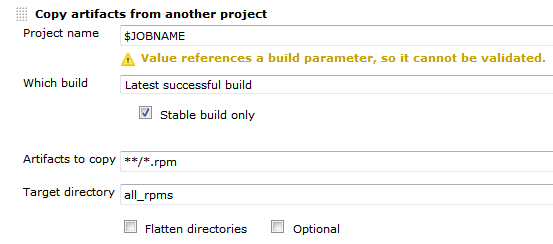
First the deploy job needs to get all the rpms from the build job. We can do this using the Copy Artifact plugin like so:Deploy-RPM-Copy-Artifacts

Since we are usually building for several distributions and processor architectures, we have a complete directory tree in our target directory. We are using a small shell script to copy all the packages to our repository using rsync. Finally we can update the remote repository over ssh. See the complete shell script below:

for i in suse-12.2 suse-12.1 suse-11.4 suse-11.3
do
  rm -rf $i
  dir32=$i/RPMS/i686
  dir64=$i/RPMS/x86_64
  mkdir -p $dir32
  mkdir -p $dir64
  versionlabel=`echo $i | sed 's/[-\.]//g'`
  if [ -e all_rpms/Architecture\=32bit\,Distribution\=$versionlabel/build_dir/ ]
  then
    cp all_rpms/Architecture\=32bit\,Distribution\=$versionlabel/build_dir/* $dir32
  fi
  if [ -e all_rpms/Architecture\=64bit\,Distribution\=$versionlabel/build_dir/ ]
  then
    cp all_rpms/Architecture\=64bit\,Distribution\=$versionlabel/build_dir/* $dir64
  fi
  rsync -e "ssh" -avz $i/* root@repository-server:/srv/www/htdocs/repo/$i/
  ssh root@repository-server "createrepo /srv/www/htdocs/repo/$i/RPMS"
done

Conclusion

With a few small tricks and scripts we can deploy the artifacts of our build jobs to the RPM repository and thus deliver a new software release at the push of a button. You could let the deployment job run automatically after a successful build, but we like to have more control over the actual software we release to our users.

Building Windows C++ Projects with CMake and Jenkins

An short and easy way to build Windows C++ Software with CMake in Jenkins (with the restriction to support Visual Studio 8).

The C++ programming environment where I feel most comfortable is GCC/Linux (lately with some clang here and there). In terms of build systems I use cmake whenever possible. This environment also makes it easy to use Jenkins as CI server and RPM for deployment and distribution tasks.

So when presented with the task to set up a C++ windows project in Jenkins I tried to do it the same way as much as possible.

The Goal:

A Jenkins job should be set up that builds a windows c++ project on a Windows 7 build slave. For reasons that I will not get into here, compatibility with Visual Studio 8 is required.

The first step was to download and install the correct Windows SDK. This provides all that is needed to build C++ stuff under windows.

Then, after installation of cmake, the first naive try looked like this (in an “execute Windows Batch file” build step)

cmake . -DCMAKE_BUILD_TYPE=Release

This cannot work of course, because cmake will not find compilers and stuff.

Problem: Build Environment

When I do cmake builds manually, i.e. not in Jenkins, I open the Visual Studio 2005 Command Prompt which is a normal windows command shell with all environment variables set. So I tried to do that in Jenkins, too:

call “c:\Program Files\Microsoft SDKs\Windows\v6.0\Bin\SetEnv.Cmd” /Release /x86

cmake . -DCMAKE_BUILD_TYPE=Release

This also did not work and even worse, produced strange (to me, at least) error messages like:

‘Cmd’ is not recognized as an internal or external command, operable program or batch file.

The system cannot find the batch label specified – Set_x86

After some digging, I found the solution: a feature of windows batch programming called delayed expansion, which has to be enabled for SetEnv.Cmd to work correctly.

Solution: SetEnv.cmd and delayed expansion

setlocal enabledelayedexpansion

call “c:\Program Files\Microsoft SDKs\Windows\v6.0\Bin\SetEnv.Cmd” /Release /x86

cmake . -DCMAKE_BUILD_TYPE=Release

nmake

Yes! With this little trick it worked perfectly. And feels almost as with GCC/CMake under Linux:  nice, short and easy.

Your own CI-based RPM build farm, part 3

In my previous post we learned how to build RPM packages of your software for multiple versions of your target distribution(s). Now I want to present a way of automating the build process and building packages on/for all target platforms. You should have a look at the openSUSE build service to see if it already fits your needs. Then you can stop reading here :-).

We needed better control over the platforms and the process, so we setup a build farm based on the Jenkins continuous integration (CI) server ourselves. The big picture consists of the following components:

  • build slaves allowing a jenkins user to do unattended builds of the packages
  • Jenkins continuous integration server using matrix builds with build slaves for each target platform
  • build script orchestrating the build of all our self-maintained packages
  • jenkins job to deploy the packages to our RPM repository

Preparing the build slaves

Standard installations of openSUSE need some minor tweaks so they can be used as Jenkins build slaves doing unattended RPM package builds. Here are the changes we needed to make it work properly:

  1. Add a user account for the builds, e.g. useradd -m -d /home/jenkins jenkins and setup a password with passwd jenkins.
  2. Change sshd configuration to allow password authentication and restart sshd.
  3. We will link the SOURCES and SPECS directories of /usr/src/packages to the working copy of our repository, so we need to delete the existing directories: rm -r /usr/src/packages/SPECS /usr/src/packages/SOURCES /usr/src/packages/RPMS /usr/src/packages/SRPMS.
  4. Allow non-priviledged users to work with /usr/src/packages with chmod -R o+rwx /usr/src/packages.
  5. Copy the ssh public key for our git repository to the build account in ~/.ssh/id_rsa
  6. Test ssh access on the slave as our build user with ssh -v git@repository. With this step we confirm the host authenticity one time so that future public key ssh interactions work unattended!
  7. Configure git identity on the slave with git config --global user.name "jenkins@build###-$$"; git config --global user.email "jenkins@buildfarm.myorg.net".
  8. Add privileges for the build user needed for our build process in /etc/sudoers: jenkins ALL = (root) NOPASSWD:/usr/bin/zypper,/bin/rpm

Configuring the build slaves

Linux build slaves over ssh are quite easily configured using Jenkins’ web interface. We add labels denoting the distribution release and architecture to be easily able to setup our matrix builds. Then we setup our matrix build as a new job with the usual parameters for source code management (in our case git) etc.

Our configuration matrix has the two axes Architecture and OpenSuseRelease and uses the labels of the build slaves. Our only build step here is calling the script orchestrating the build of our rpm packages.

Putting together the build script

Our build script essentially sets up a clean environment, builds package after package installing build prerequisites if needed. We use small utility functions (functions.sh) for building a package, installing packages from repository, installing freshly built packages and removing installed RPM. The script contains roughly the following phases:

  1. Figure out some quirks about the environment, e.g. openSUSE release number or architecture to build.
  2. Clean the environment by removing previously installed self-built packages.
  3. Setting up the build environment, e.g. linking folder from /usr/src/packages to our working copy or installing compilers, headers and the like.
  4. Building the packages and installing them locally if they are a dependency of packages yet to be built.

Here is a shortened example of our build script:

#!/bin/bash

RPM_BUILD_ROOT=/usr/src/packages
if [ "i686" = `uname -m` ]
then
  ARCH=i586
else
  ARCH=`uname -m`
fi
SUSE_RELEASE=`cat /etc/SuSE-release | sed '/^[openSUSE|CODENAME]/d' | sed 's/VERSION =//g' | tr -d '[:blank:]' | sed 's/\.//g'`

source functions.sh

# setup build environment
ensureDirectoryLinks
# force a repository refresh without checking the signature
sudo zypper -n --no-gpg-checks refresh -f OUR_REPO
# remove previously built and installed packages
removeRPM libomniORB4.1
removeRPM omniNotify2
# install needed tools
installFromRepo c++-compiler
if [ $SUSE_RELEASE -lt 121 ]
then
  installFromRepo java-1_6_0-sun-devel
else
  installFromRepo jdk
fi
installFromRepo log4j
buildRPM omniORB
installRPM $ARCH/libomniORB4.1
installRPM $ARCH/omniORB-devel
installRPM $ARCH/omniORB-servers
buildAndInstallRPM omniNotify2 $ARCH

Deploying our packages via Jenkins

We setup a second Jenkins job to deploy successfully built RPM packages to our internal repository. We use the Copy Artifacts plugin to fetch the rpms from our build job and put them into a directory like all_rpms. Then we add a build step to execute a script like this:

for i in suse-12.1 suse-11.4 suse-11.3
do
  rm -rf $i
  mkdir -p $i
  versionlabel=`echo $i | sed 's/[-\.]//g'`
  cp -r "all_rpms/Architecture=32bit,OpenSuseRelease=$versionlabel/RPMS" $i
  cp -r "all_rpms/Architecture=64bit,OpenSuseRelease=$versionlabel/RPMS" $i
  cp -r "all_rpms/Architecture=64bit,OpenSuseRelease=$versionlabel/SRPMS" $i
  rsync -e "ssh" -avz $i/* root@rpmrepository.intranet:/srv/www/htdocs/OUR_REPO/$i/
  ssh root@rpmrepository.intranet "createrepo /srv/www/htdocs/OUR_REPO/$i/RPMS"

Summary

With a setup like this we can perform an automatic build of all our RPM packages on several targetplatform everytime we update one of the packages. After a successful build we can deploy our new packages to our RPM repository making them available for our whole organisation. There is an initial amount of work to be done but the rewards are easy, unattended package updates with deployment just one button click away.