Packaging RPMs for a variety of target platforms, part 2

In part 1 of our series covering the RPM package management system we learned the basics and built a template SPEC file for packaging software. Now I want to give you some deeper advice on building packages for different openSUSE releases, architectures and build systems. This includes hints for projects using cmake, qmake, python, automake/autoconf, both platform dependent and independent.

Use existing makros and definitions

RPM provides a rich set of macros for generic access to directory paths and programs providing better portability over different operating system releases. Some popular examples are /usr/lib vs. /usr/lib64 and python2.6 vs. python2.7. Here is an exerpt of macros we use frequently:

  • %_lib and %_libdir for selection of the right directory for architecture dependent files; usually [/usr/]lib or [/usr/]lib64.
  • %py_sitedir for the destination of python libraries and %py_requires for build and runtime dependencies of python projects.
  • %setup, %patch[#], %configure, %{__python} etc. for preparation of the build and execution of helper programs.
  • %{buildroot} for the destination directory of the build artifacts during the build

Use conditionals to enable building on different distros and releases

Sometimes you have to use %if conditional clauses to change the behaviour depending on

  • operating system version
    %if %suse_version < 1210
      Requires: libmysqlclient16
    %else
      Requires: libmysqlclient18
    %endif
    
  • operating system vendor
    %if "%{_vendor}" == "suse"
    BuildRequires: klogd rsyslog
    %endif
    

because package names differ or different dependencies are needed.

Try to be as lenient as possible in your requirement specifications enabling the build on more different target platforms, e.g. use BuildRequires: c++_compiler instead of BuildRequires: g++-4.5. Depend on virtual packages if possible and specify the versions with < or > instead of = whenever reasonable.

Always use a version number when specifying a virtual package

RPM does a good job in checking dependencies of both, the requirements you specify and the implicit dependencies your package is linked against. But if you specify a virtual package be sure to also provide a version number if you want version checking for the virtual package. Leaving it out will never let you force a newer version of the virtual package if one of your packages requires it.

Build tool specific advices

  • qmake: We needed to specify the INSTALL_ROOT issuing make, e.g.:
    qmake
    make INSTALL_ROOT=%{buildroot}/usr
    
  • autotools: If the project has a sane build system nothing is easier to package with RPM:
    %build
    %configure
    make
    
    %install
    %makeinstall
    
  • cmake: You may need to specify some directory paths with -D. Most of the time we used something like:
    %build
    cmake -DCMAKE_INSTALL_PREFIX=%{_prefix} -Dlib_dir=%_lib -G "Unix Makefiles" .
    make
    

Working with patches

When packaging projects you do not fully control, it may be neccessary to patch the project source to be able to build the package for your target systems. We always keep the original source archive around and use diff to generate the patches. The typical workflow to generate a patch is the following:

  1. extract source archive to source-x.y.z
  2. copy extracted source archive to a second directory: cp -r source-x.y.z source-x.y.z-patched
  3. make changes in source-x.y.z-patched
  4. generate patch with: cd source-x.y.z; diff -Naur . ../source-x.y.z-patched > ../my_patch.patch

It is often a good idea to keep separate patches for different changes to the project source. We usually generate separate patches if we need to change the build system, some architecture or compiler specific patches to the source, control-scripts and so on.

Applying the patch is specified in the patch metadata fields and the prep-section of the SPEC file:

Patch0: my_patch.patch
Patch1: %{name}-%{version}-build.patch

...

%prep
%setup -q # unpack as usual
%patch0 -p0
%patch1 -p0

Conclusion
RPM packaging provides many useful tools and abstractions to build and package projects for a wide variety of RPM-based operation systems and releases. Knowing the macros and conditional clauses helps in keeping your packages portable.

In the next and last part of this series we will automate building the packages for different target platforms and deploying them to a repository server.

How to accidentally kill your CI build time

At one of our customers I do C++ consulting in a mid-sized project which uses cmake as build system. A clean build on our Jenkins CI server takes about 40 minutes (including unit tests) which is way too long to be considered “fast feedback” in an agile kind of way.

Because of that, we do clean builds only 2 times a day – some time during the night and during lunch break. The rest of the day the CI server only does a “svn update” and a normal “make”, which takes about 3-10 minutes depending on what files have been changed.

With C++ there are lots of ways to unnecessarily lengthen your build time. The most important factor is, of course, #include dependencies. One has to be very (very) disciplined in adding #include directives in header files. Otherwise, the whole world suddenly gets rebuild when some small header file somewhere in a little corner of the code has been changed.

And I have to say, for the most part, this project is in pretty good shape with regard to #include dependencies.

So what the hell has suddenly increased our build time from 3-10 minutes to 20-25 minutes? was what I was thinking some time last week while waiting for the CI server to spit out new latest and greatest rpm packages. For some reason, our normal, rest-of-the-day build started to compile what felt like everything in our main package even on the slightest code change in a remote .cpp file.

What happened?

In order to have the build time available (e.g. to show in an “about” box), we use a preprocessor symbol like REVISION_DATE which gets filled in a CMakeLists.txt file. The whole thing looks like this:

...
EXEC_PROGRAM(date ARGS '+%F_%T' OUTPUT_VARIABLE REVISION_DATE)
...
ADD_DEFINITIONS(-DREVISION_DATE=\"${REVISION_DATE}\")
...

Since the beginning of the time these lines of CMake code lived in a small sub-sub-..-directory with little to no incomming dependencies. Then, at some point, it became necessary to have the REVISION_DATE symbol at some other place, too, which led to a move of the above code into the CMakeLists.txt file of the main package.

The value of command date +%F_%T changes every second which leads to a changed REVISION_DATE on every build – which is what we initially intended. What changes, too, of course, is the value of the ADD_DEFINITIONS directive. And as CMake is very strict with the slightest change in this value, every make target below that line gets rebuild – which in our case was everything in the main package.

So there! Build time killing creatures are lurking everywhere in our C/C++ projects. Always be aware of them!

Improved Version of CMake Builder for Hudson

Introducing version 1.5 of cmake builder plugin for Hudson.

Today I just want to give a small round-up of the improvements made on the cmake builder plugin since my last blog post. Back then, version 1.2 was released to support master/slave configurations. As of yesterday, we are at version 1.5 which contains the following improvements/bug-fixes:

  • Bug: The drop-down box for selecting the build type didn’t remember its value. This was fixed with a patch by Atte Timonen.
  • Improvement: Also included in Atte’s patch was the propagation of environment variables to the cmake command which now allows to do parameterized builds. A big thank’s to Atte!
  • Improvement: The install command gets only executed when install directory and install command is given. Before, the build was either broken or $WORKSPACE was used automatically as install directory. Thanks to Dat Chu for his feedback.
  • Improvement: The one-line ‘Other CMake Arguments’ field can get full pretty quickly, so it was changed to a multi-line text-area.

Thank’s again for the feedback, and have fun with the new version!

CMake Builder Plugin in Master/Slave Setups

Making the CMake Builder plugin for Hudson behave in master/slave settings.

The first versions of the cmake builder plugin were developed more or less only driven by our own needs. As people began to use it an issue came up that we hadn’t considered yet: distributed builds, a.k.a master/slave mode. So on our first OSLD in 2010 I looked into the plugin and began to rectify the situation.

My test setup consisted of a hudson master on WindowsXP box which was connected via SSH to a slave node in a Ubuntu virtual machine. The first errors were easy to find. The plugin tried to find all configured paths on the windows host and not on the ubuntu slave.

Experience from our previous Crap4J plugin development and a quick read here brought me on the right track. It’s not a good idea to use just java.io.File if you want your plugin to be master/slave capable – use hudson.FilePath instead.

So after replacing all java.io.File occurrences with hudson.FilePath the situation was much better. The plugin handled all paths correctly but still produced errors when calling cmake. I quickly discovered that java.lang.Process and java.lang.ProcessBuilder were used to call “cmake -version”. Again, not a good idea – hudson.Launcher is your friend here.

After replacing Process with Launcher I had only one strange error left. The following launcher call using a nice fluent interface wouldn’t execute on the remote machine but insisted to execute locally.

launcher.launch().cmds(cmakeCall).envs(environmentVars)
   .stdout(listener).pwd(workDir).join();

When I changed it to the seemingly equal statement

launcher.launch(cmakeCall, environmentVars,
    listener.getLogger(), workDir).join();

it worked like a charm.

After all those changes I proudly present the newest version of CMake Builder Plugin which is now ready to be used in distributed environments.

Only one little unpleasantness still exists, though: when configuring the make and install commands the plugin tries to find the executables on the PATH of host machine. For now, you can just ignore the error message. I try to look into it, soon. Apart from that, have fun with the new version.

Speed up your buildbox, Part IV: Beyond the box

This is the fourth and last part of a series on how to boost your build box without much effort. This episode talks about possible measures to increase the build performance when a single box isn’t enough.

© Friedberg - Fotolia.comIn the first three parts of our effort to speed up our buildbox, we replaced the harddisk with a RAM disk, upgraded the CPU to the top-notch model and installed plenty of fast RAM. This brought the build time down from 03:30 minutes to around 02:00 minutes. The CPU frequency was the biggest time saving factor in our case study. Two minutes is as fast as the build can get for our project without fiddling with the actual build process. It’s sufficient for our case, but it may not for yours.

Even top speed is too slow

Lets assume we maxed out the hardware and still have a build duration far beyond the magical ten minutes mark. What can we do now? There are two viable options at hand if you can exclude the possibility that your build process is really inefficient and needs optimization. In the latter case, it would be better to revise the process instead of the build infrastructure.

Two ways to speed up your build infrastructure

You can go down one or both of two general paths to speed up your build process. To understand the examples, lets assume the build takes 20 minutes to run on your top-notch build box.

  • Add more build boxes. This is the classical “parallelize it!” approach. It won’t speed up the individual build process, but enable more processes to run at the same time. This approach wont change anything if your team does seldom check-ins, which in itself is an anti-pattern to continuous integration. But if your team commits changes every ten minutes, having at least two build boxes will prevent the second committer from waiting 30 minutes on the CI results. Instead, the results will always be there after 20 minutes. You haven’t exactly sped up your build process, but the maximal waiting time of your committers. For details on the implementation, see below at “Growing a build park“.
  • Chop up your build process. This is known as “staging” or “pipelining” your build. This won’t speed up the individual build process, either, but deliver certain partial results of your build earlier. Lets assume you can split your build process into four distinct stages: compile, unit test, integration test, package. Whenever a stage yields a result, the comitter gets feedback immediately. In our example, this might be every 5 minutes. This has several disadvantages, as for example discussed in the article “The pipeline of doom” by Julian Simpson, but can lower the waiting time for specific aspects of your build drastically. You haven’t exactly sped up your build process, but the response time for partial results and therefore the average waiting time of your committer. For details on the implementation, see below at “Installing a build pipeline“.

Growing a build park

If you want to reduce the initial waiting delay of a build before it gets processed or increase the throughput of builds, the build farm pattern is your way to go. By adding slave build machines to your build master, you can distribute the workload on more shoulders. The best way to set up your infrastructure is to introduce a dedicated master box that only delegates actual builds to its slaves. The master box handles the archivation of build artifacts and deals with the web server requests, while the slaves only perform build tasks. The master box can be of average power, with increased storage size, while the slaves should be ultra-fast, without the need of big disks. Solid state disks or even RAM disks of the slaves can be tuned to actual workspace sizes, as it is all that needs to be stored there.

Distributed builds with Hudson

The Hudson continuous integration server has a strength in setting up these master/slave scenarios. It’s ridiculously easy to set up a build slave. You basically only need to click on a link to start the slave process. If you happen to have a standard build, everything needed gets downloaded automatically. If you want your slaves to operate automatically, you can install a windows daemon, provide a SSH account or write your own script. Usually, slaves are set up in a matter of minutes without hassle. A great idea is to turn powerful collegue boxes into build slaves (aka CI zombies) by booting an USB stick. The best way to start with master/slave builds is to turn your current PC into a hudson slave right now by using the Java Web Start method.

Installing a build pipeline

If you are interested in early but incomplete feedback from your build box, staging your build will help you out. If partitioned right, you’ll receive a series of answers on specific questions from your build process. The questions may be like:

  1. Will it compile?
  2. Will it pass the unit tests?
  3. Will it function (pass the integration tests)?
  4. Will it blend?

Ok, the last question is rather unlikely to be answered by your build box. The overall build process will not be any faster, but basic safety test results are reported earlier. If you combine this approach with distributed builds, there is the possibility to designate specifically tuned machines to different stages. The Hudson continuous integration server has the ability to tag a slave with different labels. You can then configure your build to only run on slaves with the desired label assigned.

Staged builds with Hudson

Staging with the Hudson continuous integration server isn’t as easy as the master/slave feature, but there are some plugins that allow for more complex setups. You might experience some functionality that’s still under development, but basic staging is possible even today. In combination with specialized slave build boxes, this approach can lower your build duration. It is a a complex endeavour, though.

Conclusion

Once your single build box is maxed out but still not fast enough, you enter a different realm of continuous integration infrastructure setups. Speeding up a build process beyond the single box isn’t as easy as installing more RAM. But with a fair amount of planning, you have a fair chance to improve the situation. Note that you won’t primarily lower build duration, but increase throughput and utilize partitioning and specialization. These are different measures and might not affect the wall clock time of your build. The combination of staging and distribution is the most powerful setup, but will result in the most complex infrastructure to maintain. Before entering this realm, be sure to apply any possible optimization to your build process. Because you’ll not leave that realm again soon.

What’s your story on build optimization beyond the box? Drop us a comment.

Speed up your buildbox, Part III: Memory

This is the third part of a series on how to boost your build box without much effort. This episode talks about the effects of faster and more RAM.

© Friedberg - Fotolia.comIn the first and second part of our effort to speed up our buildbox, we replaced the harddisk with a RAM disk and swapped in a bigger CPU. This brought the build time down from 03:30 minutes to 02:00 minutes.

Boosting the memory

When we began the journey, we wanted to undercut the 02:00 minutes threshold. The last component that directly impacts performance of our box was the memory. We started out with 4 GB of DDR2-800 modules. To have a feeling for the effects, we upgraded to 4 GB of DDR2-1066 first and then added another 4 GB, resulting in 8 GB of RAM. We expected the performance gain to be small, but noticeable. The RAM disk, for example, is directly affected by memory speed.

As much, but faster

The first upgrade brought the first surprise: Upgrading from DDR2-800 to DDR2-1066 modules didn’t change anything. It’s not that the mainboard or CPU doesn’t support the faster RAM, it just seems to be fast enough, despite the data bus clock rate. Our build process still took 02:00 minutes, reproducible and without exception.

Filling all the banks

The mainboard can load up to 16 GB of RAM, but our budget just allowed to buy 8 GB of DDR2-1066 RAM. We installed it and ran the same 32 bit Ubuntu Linux as before. The build process took 02:00 minutes, which was expected now.

Changing to 64bit

We changed to boot harddisk, installed a 64 bit Ubuntu Linux and ran the build again. Still 02:00 minutes. The switch to 64 bit wasn’t a big deal with Java, but some of the included native libraries complained about the change. Recompiling them solved the issue.

Finally reaching the target

As a last measure, we increased the maximum memory of the build JVM to the biggest value it would accept. This was -Xmx2600m, a surplus of 600 MB to the original setting. This sped up the build process by five seconds, it took 01:55 minutes now.

Conclusion and perspective

We’ve reached our anticipated target of less than two minutes build time. We exceeded our original budget of 500 EUR, but bought some parts that finally weren’t used in the build box, but elsewhere. The two parts that made the whole difference were the CPU and some more memory to spend it on the RAM disk.

If you want to speed up your single build box, aim for the CPU/RAM combo and try to install a RAM disk to perform all the work on.

This leads me to the perspective of the next part of the series: If you plugged in the most expensive CPU and enormous amounts of RAM to speed up your buildbox, you still aren’t done. You should invest some time to look into distributed builds. Hudson as our continuous integration server provides nearly instant “build slave” support. With this feature, you can set up a whole build farm to further increase your build throughput.

Stay tuned for “Part IV: Beyond the box”

CMake Builder Plugin Reloaded

A few months ago I set out to build my first hudson plugin. It was an interesting, sometimes difficult journey which came to a good end with the CMake Builder Plugin, a build tool which can be used to build cmake projects with hudson. The feature set of this first version was somewhat limited since I applied the scratch-my-own-itch approach – which by the time meant only support for GNU Make under Linux.

As expected, it wasn’t long until feature requests and enhancement suggestions came up in the comments of my corresponding blog post. So in order to make the plugin more widely useable I used our second  Open Source Love Day to add some nice little features.

Update: I used our latest OSLD to make the plugin behave in master/slave setups. Check it out!

Let’s take a walk through the configuration of version 1.0 :

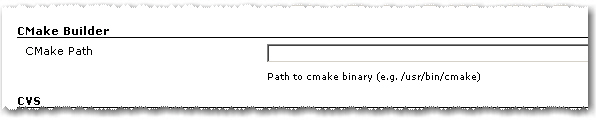
Path to cmake executable

1. As in the first version you have to set the path to the cmake executable if it’s not already in the current PATH.

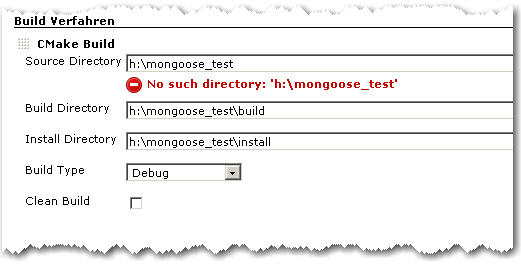
2. The build configuration starts as in the first version with Source Directory, Build Directory and Install Directory.

CMake Builder Configuration Page

3. The Build Type can now be selected more conveniently by a combo box.

4. If Clean Build is checked, the Build Dir gets deleted on every build

Advanced Configuration Page

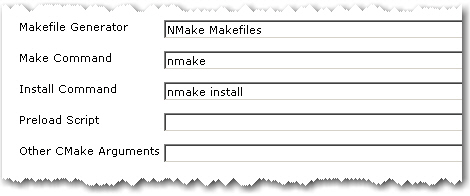
5. The advanced configuration part starts with Makefile Generator parameter which can be used to utilize the corresponding cmake feature.

6. The next two parameters Make Command and Install Command can be used if make tools other than GNU Make should be used

7. Parameter Preload Script can be used to point to a suitable cmake pre-load script file. This gets added to the cmake call as parameter of the -C switch.

8. Other CMake Arguments can be used to set arbitrary additional cmake parameters.

The cmake call will then be build like this:

/path/to/cmake  \
   -C </path/to/preload/script/if/given   \
   -G <Makefile Generator>  \
   -DCMAKE_INSTALL_PREFIX=<Install Dir> \
   -DCMAKE_BUILD_TYPE=<Build Type>  \
   <Other CMake Args>  \
   <Source Dir>

After that, the given Make and Install Commands are used to build and install the project.

With all these new configuration elements, the CMake Builder Plugin should now be applicable in nearly every project context. If it is still not useable in your particular setting, please let me know. Needless to say, feedback of any kind is always appreciated.

Speed up your buildbox, Part II: Processor

This is the second part of a series on how to boost your build box without much effort. This episode talks about the effects of different processors.

© Friedberg - Fotolia.comIn the first part of our effort to speed up our buildbox, we replaced the spindle harddisk with a Solid State Disk (SSD) and finally, a RAM disk. This brought the build time down from 03:30 minutes to 02:50 minutes.

The Central Performance Unit

The next step on our journey to a faster buildbox was to replace the processor. Our initial processor was an Intel Core2 Duo E6750 with 2.67 GHz. To our pleasure, the processor socket, namely the LGA775 socket, is extremely versatile in supporting different processors. We had no problem in plugging in faster dual or even quad core processors, except upgrading the BIOS.

Taking the 3 GHz mark

The next processor to try out was an Intel Core2 Duo E8500 with 3.17 GHz operating frequency. The L2 cache went up from 4 MB to 6 MB.

The build time went down immediately from 02:50 minutes to 02:20 minutes. That’s nearly 20 percent less build time. And it’s perfectly linear with the CPU speed increase (also nearly 20 percent).

As a result: Investing in CPU clock power seems to pay off. The higher the frequency, the lower the build time.

Doubling the cores

Fortunately, the LGA775 socket supports quad core processors, too. We plugged in a Core2 Quad Q9550 with 2.8 GHz and ran the build again.

The result was astonishing: Despite the lower frequency, the build time dropped from 02:20 minutes to 02:00 minutes. We can’t really explain this one with basic math like the frequency coupling of the dual cores.

If your build is perfectly multithreaded, something javac isn’t, you’ll notice an even bigger speedup.

To sum it up: you can’t have enough GHz or processor cores when running a build.

Reviewing the result

We replaced the harddisk with RAM and upgraded the processor to meet the current performance threshold. This brought us from a starting 03:30 minutes build time to 02:00 minutes now. The CPU is the major player in this game, so upgrade it first.

Outlook on the third part

But what about the RAM? We really wanted to know what happens when we replace the RAM with bigger and faster one. Read more about this experiment in the third part of the series, coming soon.

Speed up your buildbox, Part I: Introduction & Harddisk

This is the first part of a series on how to boost your build box without much effort. This episode talks about the effects of different harddisks.

W© Friedberg - Fotolia.come actively use Hudson as our continuous integration server software. It has a nice little feature called “build history trend” that shows the duration of all archived builds. One of our major projects started out small and fast with a build duration of 01:20 minutes. One and a half year later, it reached for the 04:00 minute hurdle. It wasn’t a surprise to us, as the build has more than four times the work now and the hardware staid the same.

But a question emerged: How can we speed up our build?

Applying optimization: The basic maths

We did a quick review of our ant build scripts to ensure there’s nothing fundamentally wrong with them and then decided which road to follow first: Optimizing the build scripts or boosting the hardware? There is only one pragmatic answer to us: boost the hardware as long as it stays reasonable in price. Every optimization in the build script would need its time (which isn’t cheap) and possibly increase the script complexity (which is very expensive later on).

Optimizing the hardware

So we went on the journey to make a fast buildbox even faster. We started out with a dual core processor (2.6 GHz), a decent-but-standard harddisk and 4 GB of memory. We replaced every part on its own to see the effect. The journey includes:

Our goal is to cut our build time down by 50 percent, to a little less than 02:00 minutes. We don’t want to spend more than 500 EUR for new hardware. So now, after this introduction:

Part I: Replacing the harddisk

Our buildbox starts with a more or less normal harddisk (0.5 TB), certified for continuous usage. We could have bought just another normal harddisk of a newer generation, but that doesn’t cut it in our experience (we didn’t verify specifically, though).

Calling the carnivores

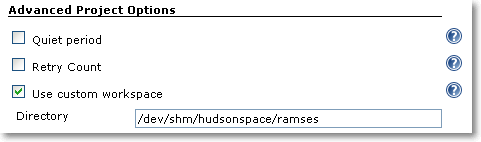
If you need to upgrade your harddisk, you can buy yourself a VelociRaptor drive and be pretty much assured that you’ll notice the difference. We had pleasant experiences with this kind of fast-spinning drives before, but this time, we wanted to go a step further and try a fast Solid State Disk (SSD). As you only need to relocate the working directories (called workspaces in hudson terminology) of your projects to the new disk, the capacity isn’t important as long as it’s greater than your project sizes. You can just plug your new disk in the buildbox and format it with a high performance file system. As our buildbox runs on Linux, relocating the workspace is just setting a symbolic link. You do not even tell hudson about it. If you happen to run on Windows, check out the “use custom workspace” setting on your job’s configuration page.

An investment of about 200 EUR and 15 minutes of installation later, we had the result: The build average before was 03:30 minutes and now 03:10 minutes. That’s not a big leap forward, as others found out, too. It’s not that the SSD was bad, it performed exceptionally well in the benchmarks, but the harddisk wasn’t the bottleneck. To further proof our assumption, we installed the fastest harddrive you can get: the RAM disk.

Only pretend to use the disk

Linux (like other unixoid systems) has the great feature of an emulated harddisk right in your memory. On Debian/Ubuntu systems, this emulated drive is mounted at /dev/shm and has a capacity of half your total physical memory. It grows dynamically, so you don’t have to worry about its initial size. But you have to check if your workspace fits into it. Our buildbox had 4 GB of RAM and 2 GB were enough to contain the hudson workspace. We configured hudson to build there (you can use symbolic links or the “custom workspace” setting as shown in the picture) and got the result: The build average went down to 02:50 minutes.

custom_workspace

Review on the results

That’s as far as we could speed up our buildbox by just replacing the harddisk. Down from 03:30 minutes to 02:50 minutes, a reduction of 40 seconds or 20 percent. In fact, we even cheated as the buildbox doesn’t use an harddisk anymore for building. With Linux, it’s incredibly easy to utilize a RAM disk as long as you have enough RAM to loan. For Windows systems, there are several software products that can do the same. If you don’t want to loan your RAM, you can look into HyperDrives, but for a price!

So we conclude that the fastest harddisk is an emulated one and even then, its effect on the build time is limited.

Stay tuned for the next episode of our journey to a faster buildbox, when we apply a faster CPU.

Don’t trust micro versions

Normally you would think, that upgrading a third party dependency where its micro version (after the second dot, like x in 2.3.x) changes should make your software work (even) better and not break it. Sadly enough it can easily happen. Some time ago we stumbled over a subtle change in the JNDI implementation of the Jetty webserver and servlet container: In version 6.1.11 you specified (or at least could specify) JNDI resources in jetty-env.xml with URLs like jdbc/myDatabase. After the update to 6.1.12 the specified resource could not be found anymore. Digging through code changelogs and the like provided a solution that finally worked with 6.1.12: java:comp/env/jdbc/myDatabase. The bad thing is that the latter does not work with 6.1.11 so that our configuration became micro-version-dependent on Jetty.

It seems that a new feature around JETTY-725 in the update from 6.1.11 to 6.1.12 broke our software.

Conclusion

Always make sure that your dependencies are fixed for your software releases and test your software everytime when upgrading a dependency. Do not trust some automatic dependency update system or the version numbers of a project. In the end they are just numbers and should indicate the impact of the changes but you never can be sure the changes do not break something for you.