Risk First, but Not Pain First

At our company, we have an approach to project management that we call “risk first”. It means that we try to solve the hardest problems very early during development, so that we don’t fall into the “effort spent, but no real progress” trap.

One thing I want to add to my blog entry from 2018 (linked above) is that “risk” should not be conflated with “pain”. I mention it because the distinction wasn’t clear to me until recently. I try to explain what I mean.

When you approach a project in a “risk first” manner, it doesn’t feel good for quite a time. You try to stay ahead of the problem that seems overwhelming if the project isn’t trivial. Tackling the risk evokes feelings of uncertainty, doubt and even frustration. But it doesn’t hurt.

Feeling “pain” in a project has another origin. I managed several projects at once that were painful: The customers were difficult, erratic or not within reach. The requirements were unclear. My assessment was that the projects themselves are risky and every task I began had the properties of a risky task, too. But because the customers couldn’t support my work on the tasks, I made near to no progress and often had to backtrack. The tasks became more riskier the more I worked on them.

My insight was that most of my work schedule revolved around cycling through the painful projects that I wrongly classified as risky and working on their tasks that made no real progress. Hopping from painful task to painful task doesn’t feel good at all. And because the cycle of “stuck” projects is so prominent, it eclipses the lower risk projects with more relaxed deadlines and unstressed customers.

My current remedy is to budget for a maximum amount of pain per period. Each painful project only gets carefully limited attention and is alleviated by lower-risk work in more painfree projects. With this approach, there is progress in most projects and my project management focus isn’t locked on the stuck projects. You can say that I take “time off” from the more stressful situations.

I found myself in this trap because I couldn’t properly distinguish between “risk” and “pain”. Both don’t feel good, but you can work on the first with attention and effort. The level of pain in a project is nearly unswayable by your actions. You can only control your level of exposure to it.

This is where I hope for your thoughts:

  • Can you follow my distinction between “risk” and “pain”?
  • What are your indications that a task is “painful”?
  • Have you found means to decrease the level of pain in a project?

Write us a comment or even your own blog entry on the topic!

Don’t Just Blink at Me

I have a lot of electronic devices that essentially only do one thing. A flashlight, a hair trimmer, a razor, a toothbrush, some smoke detectors and a handful of power banks and other energy storage devices. They have a few things in common:

  • They have their own rechargeable battery
  • They store a (more or less) complex internal state
  • They have exactly one status LED
  • They try to communicate with me using the LED

The razor is an exception, because it has a lot more signal lights than just the LED, but I include it as the positive example. The LED of the razor changes its color to show what it wants from me.

All other devices try to convey meaning by different styles of blinking. Let’s take the hair trimmer as the negative example: It blinks when it is happy because it is fed energy. The blinking stops to indicate that it is fully loaded.

The flashlight blinks when it is unhappy and hungry. It will stop blinking when it is fed. It never indicates that it has enough, you have to guess.

The smoke detectors flash shortly once in a while to show that they are still on duty. They might flash more vigorously if they get hungry. But they have another means to get the message across: They sound a short alarm. You’ll feed them instantly and always have a spare battery at hands.

The point of this story is that it is impossible to decipher a blinking LED. What does it mean? The device is busy and I don’t need to do something? The device is on the verge of starvation and I should intervene? It’s the most ambiguous signal I can think of.

If there were a standard that blinking means the desire for human intervention, I would learn the signal and adhere to it. But nearly half of my devices blink when they are busy and don’t need anything from me. And some try to talk to me in morse.

I’m not going to learn dozens of LED signal dialects. If a device wants to be understood, it should be designed in an understandable way. Give it a color-changing LED and we can talk:

  • Steady green: I’m happy.
  • Steady orange: I’m content, but it could be better. You might allocate some care for me.
  • Steady red: Please care for me.
  • Blinking red: Attention! I need urgent care.

What does this interaction design rant have to do with software development?

I often see the same categorical error in the design of software user interfaces. And while manufacturers of cheap consumer electronics can argue that a multi-color LED is more expensive, we software developers can’t really hide behind costs.

Anything that pops up, slides in or just blinks on my screen better has a damn good reason to try to grab my attention. Grabbing not only my attention but also my input focus is the upmost interruption, comparable to the alarm signal of the smoke detector. I blogged recently about a blocking dialog that shows up unprompted and informs about some random unprompted background work.

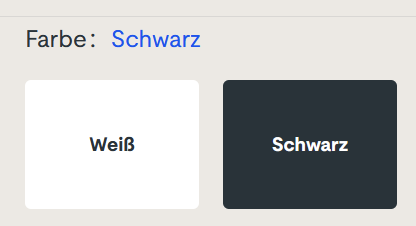
But there is another type of ambiguous signal that I see more often than I like. It is silent and tries to shift the blame for the inevitable frustration on you: The vague selection field:

Sorry for the german text, I didn’t find it on an english website. The german website this is from is still online, so if you can find it, you can try it yourself. I won’t link it here, though. (Maybe search for “steckdosenleiste klemmbar” and roam the results)

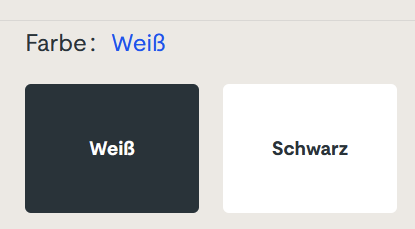
Let me describe your experience: you can select the color of a product, either white or black. The selected color is stated above, inexplicably written in the color blue. The selected field is “highlighted” black. Or is it? Maybe the white field is the highlighted one? And why is the selection field for the color black presented in mostly white?

The selection is not communicating properly, but I feel intimidated and stupid by a simple choice between two colors.

You can probably think of dozens of improvements and that’s fine. But the designer was certainly restricted by a corporate design rulebook and had to use three colors only: blue, white and black. You decide if he used his potential successfully.

Which brings me back to the introductory example: Give an engineer a single color LED and he will implement an elaborate morse code scheme to make the most of it. The problem is the initial restriction, not the shenanigans that follow.

How We Incidentally Increased Our Display Count Up to Five per Workplace

At the beginning of the year 2023, we had the plan to improve our office desk setup in two ways:

  • All desks should be electrically height-adjustable
  • All computers should be attached to the desk and not sitting on the floor

Had we known just how much turbulence this plan brings, we might have reconsidered it. But we finally finalized the project last week, just a few days before the year was over.

This blog entry tries to recap the story of the improvement project and mentions some particular products. We really use those products and are not affiliated with the manufacturers.

Our company has ten desks on two floors. A quick survey revealed that we have five electrically height-adjustable desks already in use. The remaining five desks were not really adjustable. Our plan was to move the five existing desks on one floor and equip the second floor with brand new ones. And because we wanted to achieve the second improvement in the same step, we switched the desk model.

Our new office tables are larger than before (180×80 cm instead of 160×80 cm) and definitely leeter. They are so leet, they are even called LeetDesks. Yes, we exchanged our boring classic office desks with modern pro-gaming desks. Our reasoning is that gaming is hard work, too. The nice thing is that the LeetDesks can be equipped with additional accessories like cable trays, monitor arms and the PC holder that would achieve our second goal.

So we ordered five individually configured gaming desks last year. Deconstructing the existing desks and assembling the new ones was an ongoing task. We bought a new cordless screwdriver after the first table.

When the team began to realize that we are really adjusting our work environment from ground up, new ideas emerged. The idea with the most impact was the change from workstation PC to “notebook desk”. Instead of a dedicated office PC in addition to the mobile work notebook, the office desk should accomodate the notebook in the best possible manner.

Ok, we swapped the PC holder with a notebook holder, no big deal. But how do you connect a notebook with many displays? We bought the only docking station that we could find that can drive three 4k displays over displayport cable: The Icy Box IB-DK2254AC. The fourth display is connected via HDMI directly with the notebook.

Now, the “pandemic setup” of displays is extended by a fifth display on one side: The integrated notebook display can be used to host the e-mails exclusively or show the company chat.

Request for picture requests: I don’t have an action shot of a five-displays workplace right now. But if you are interested how the setup looks like, leave us a comment and we try to supply one later.

Because the distance between displays and computer is now fixed-length and much shorter because the docking station adds its cable length, all the existing cables were too long. We had installed cables with a length of 3 meters to enable full vertical maneuverability. Now we switched back to 2 meters (or even shorter).

Not all of our notebooks were capable of driving that many pixels. Some older models had chipset graphics that gave up after the first external display. So we replaced them with newer models with dedicated notebook graphic cards.

Six of ten desks are now converted to notebook desks, which leaves four desks with PC holders and classic tower PCs. Traditionally, our PCs live in a “normal size” tower case, the Fractal Design Define series. This case is too big and too heavy for the PC holder. So we had to transplant the remaining PCs to a smaller case, the Fractal Design Defince Compact. We transplanted two of them and replaced the other ones a little bit sooner with new computers.

There were even more minor improvements that resulted in additional purchases, but those aren’t directly focussed on a single desk. So let’s recap:

We wanted our desks to be electrically height-adjustable and our floor free of computers. We ended up buying five new desks, six new docking stations, three new notebooks, two new computers, two empty computer cases, a bunch of notebook holders and many, many cables. The amount of cables that is necessary to operate a modern computer desk is astonishing.

We deconstructed, assembled, connected and hauled many days. The project ran the whole length of 2023 and racked up material costs north of 20k EUR.

But now, the floor is unobstructed and our work stance can change from minute to minute. And we increased our display count once more!

Improving search for special content

Nowadays many applications are very complex or handle so much data that users need and expect a fast and powerful search functionality. Popular search engine you can leverage are ElasticSearch and Solr. They both use Lucene for index management under the hood and provide a similar functionality regarding indexing and text search.

In previous posts I already gave some advice on using and improving search in your applications using these engines. For example a how-to for .NET (core) with ElasticSearch and using n-grams or wildcard fields for substring search.

Even if these frameworks work really great implementing a great search functionality can be quite hard, especially when handling special data like DOIs, IP-Adresses, Hostnames and other text containing special characters.

What’s the deal with special characters?

The standard analyzers are tuned for dealing with natural language based texts. So they split words on punctuation, whitespace and certain special characters. These are usually filtered out and not indexed. So if you index something like my-cool-hostname the dashes and the complete string will not land in the index only leaving the separate parts my, cool and hostname.

The problem with that is, that neither an exact match nor a substring like my-cool will yield any results. That is not what your users will expect…

Making your search work with special data

There are several ways to improve your search functionality for fields or texts containing different kinds of non-language strings. Here are some simple options that will improve or fix handling problematic cases and make your search work as expected by your users.

My examples use ElasticSearch features and wording, so they may be called differently for other search engines.

Using a keyword field

If you only need an exact match on some weird data field like a DOI 10.1000/182 containing punctuation and slashes, where a user normally just copy & pastes the search string from somewhere using a keyword field for indexing instead of the text type might be the better option. Usually this is easy to implement and fast for indexing and searching.

Using multiple index fields for one data field

ElasticSearch also offers the possibility to index the same data using multiple index fields. So you can keep sub-string features while adding exact match or special character support by adding different index fields like keyword above or an index field using a different analyzer (see this option below). This is called multi-field in ElasticSearch. Using multi-fields can also be used to improve sorting and scoring matches.

Using different analyzers

As I mentioned before the standard analyzers for text fields use tokenization rules and character filters useful for natural language. Sometimes you want to keep words together or preserve special characters. To implement an appropriate search for hostnames or IP addresses you could for example use a custom analyzer with a whitespace or pattern tokenizer.

Conclusion

Default full text search works great out-of-the-box in many cases. However, there are many cases of special, structured data where you need to fine-tune the way the index gets populated.

Many approaches can be combined using different analyzers and indexing a data in several ways.

There is a lot you can do to provide awesome search capabilities to your users but that requires quite some knowledge of the way the search engines work and about the data you want to be searchable.

Many Algorithms Benefit From a Partition in Two Phases

When I program code that solves a specific problem, I often design the algorithm in a way that mirrors my approach to solving the problem in the real world. That’s not a bad idea – the resulting algorithm can be thought through in a straightforward manner. But it lacks in one area: The separation of specification and execution. And for a computer, separating these two things has immediate advantages.

Let me explain the concept on a minimal coding challenge. The original challenge can be found here (by the way, codewars.com, despite the militaristic theming, is an abundant source of fun coding exercises):

Write a function that takes in a string of one or more words, and returns the same string, but with all five or more letter words reversed

Stop gninnipS My sdroW!

If you don’t want to be spoiled for this specific kata, please don’t read any further. The solution I use to explain the concept isn’t very elegant, though:

public static String reverseLongWords(String sentence) {
String result = "";
for (String each : sentence.split(" ")) {
if (each.length() >= 5) {
result += new StringBuilder(each).reverse().toString();
} else {
result += each;
}
result += " ";
}
return result.trim();
}

Please don’t mind the use of simple string concatenation or the clumsy way of string reversal. My point arises in the last two lines. Because we collect our words, reversed or not, directly in the result, we have to awkwardly remove the unnecessary blank that we just appended from it.

One reason for this subsequent correction is the missing separation in the two phases (specification and execution). Instead, we determine what strings the result should contain and build the result in one step.

Let’s separate the two phases, first in theory and then in code. We know how a specification of a sentence can look like because we already use one in the for loop. If we want to specify the resulting sentence without really building it, we need to store the words without their separators. The result of our specification phase would be a list of words, reversed or not. The execution phase takes our specification and transforms it into the required result. In our case, we just put blanks between the words:

public static String reverseLongWords2(String sentence) {
// building the render model (specification phase)
List<String> renderModel = new ArrayList<String>();
for (String each : sentence.split(" ")) {
if (each.length() >= 5) {
renderModel.add(new StringBuilder(each).reverse().toString());
} else {
renderModel.add(each);
}
}

// rendering the model (execution phase)
return String.join(" ", renderModel);
}

The resulting code is very similar, with one crucial difference: The first phase doesn’t create the result, but a model of it. We can call this model a “render model” and the execution phase the “render stage”. It sounds a little bit excessive for such a small task, but this is really the heart of the idea. When you separate your algorithm into the two phases, you’ll get a render model between them.

This render model has some advantages: You can test it independently from the actual representation. You can add transformation steps more easily before you commit it to the target format. If you need to build the render model iteratively, it can provide helpful methods that would be missing in the target format.

Another advantage: Your execution/render phase is more independent from the previous work. Imagine that we would want our words comma separated, not blank separated. The first algorithms relies on a hidden dependency between the blank character and the trim() method. In the second algorithm, you only need to change the rendering part of the code. It can work independently from the previous logic.

This way to partition an algorithm varies from the straightforward way that humans use when we perform the task in the real world. We tend to keep at least a partial render model in our head alongside the rendered result. If we would do the word spinning ourselves, but with the commas, we would recognize or “just know” that we write the last word and not include the trailing comma. This “just knowing” is information from our mental render model.

In my experience, it pays off to refactor an algorithm into a variation that uses the two phases or design it like this from the start. Revealing the hidden dependencies in the logic is a beneficial influence on the defect rate. Making the rendering step independent promotes testability and evolvability. It seems more work at first, but in my case, that was just adaptation effort caused by my problem solving habits.

Naming table columns in user interface

A few days ago, I had a conversation with a customer regarding naming. They had created a file containing definitions for numerous tables and their corresponding column names for a new user interface. Some names consisted of entire sentences, with words like “from” and “to“.

I found myself dissatisfied with some of these names and thought about why I don’t like them and how to make them nicer.

Guidelines for simplifying names

To me, column names should resemble key points rather than complete sentences. So I’ve compiled a few guidelines that can help you in transforming sentences to key points.

  1. Eliminate filler words: Remove words like verbs and adjectives if they don’t carry relevant information.
  2. Remove articles.
  3. Remove words without additional information. For example, if the information is already included in another word.
  4. Remove information already included in the table name.
  5. Sometimes it makes sense to change the order of the remaining words.

An example

In our example, the table name is “CW 39” and the column name is “The only day of Monday of CW 39 before CW 40“.

1. Remove all filler words: 
The information about there being only one Monday per week is widely known and unnecessary here. Therefore, the new column name is:
The day of Monday of CW 39 before CW 40

2. Remove articles:
The article “The” can be removed. So the new column name is: 
Day of Monday CW 39 before CW 40

3. Remove words without additional information:
The information that it’s about a day is already part of the word ‘Monday’. It’s also obvious, that CW 39 comes before CW 40. So the new column name is: 
Monday CW 39

4. Remove information already included in the table name:
The table name “CW 39” already tells the reader that all columns contain information on this CW. So the new column name is:
Monday

It is much better to read, isn’t it?

Conclusion

After the reformatting, the table became significantly smaller. The names are easier to read, and the understanding is faster as there’s no need to decipher the true meaning within a lengthy sentence.

Thus, it’s a huge advantage to keep the names as short as possible without losing essential information.

JavaScript – some less known Gems

I guess we can all agree that the most fun part of anything related to JavaScript is reading foreign JavaScript code 🙂

But while most of any hardness in understanding foreign (especially older) code lies in the every-year-fluctuations in common style – I also can’t really tell why I have this urge to change each “function” to a “const” declaration nowadays – once in a while you stumble across some feature, that is just too arcane.

Which means that it’s at least worth knowing about – after that, you can decide for yourself whether these enter your active vocabulary.

So these are some of my recent findings. Feel free to add.

Labelled Loops

JavaScript allows you to label any statement with a unique identifier. This is probably not a surprise for any Svelte developer (the $:… syntax is exactly that), but it is most useful in loops, because you can break or continue an outer loop using this:

// "outer" is the label here

outer: for (...) {
  for (...) {
    ...
    if (weAreDone()) break outer;
  }
}

It might have some old-school “GOTO” vibes indeed, and one can argue that in most cases there might be a more concise solution right around the corner, but especially if you have a tricky lookup algorithm, this might come handy one day.

Comma Operator

While I wondered for some years who on earth actually uses the Comma operator in C/C++, just a few weeks ago I found out that JavaScript actually has the same thing.

It allows you to execute some expression, ignoring it’s return value and directly execute the next statement in that same expression.

// (expr1, expr2) does evaluate expr1 and expr2 and return expr2.

const a = (b = 5, 3);
// a is now 3, but b = 5;

let a, b;
for (a = 0, b = 0; a + b < 3; a++, b++) { console.log(a, b) }
// output:
// 0 0
// 1 1

However, I would not advise using this thing ever. I mean, if you have some complicated expression where you decide just to do some step before evaluating some crucial other step – maybe it’s time to refactor the whole method.

void Operator

The void operator is like a special case of the comma operator in that it evaluates something and then returns undefined.

const a = calculateStuff(); // a might be whatever
const b = void calcaluteStuff(); // b is undefined

const c = (calculateStuff(), undefined); // c is identical to b, see above

This is e.g. an expression that I found while having to read some minified React code. So it might be of a certain use if you want to minify the number of letters in your code, but a more readable way would be just defining a function evaluating calculateStuff(), then returning without a return value.

However, the MDN web docs (referenced again here) give some real use cases of that operator, so if you are into that cryptic knowledge, go right ahead.

Bitwise NOT as a “found in List” check

Recently, I was weirded out by having to look at a list inclusion check in the likes of:

const list = ["a", "b"];
if (~list.indexOf("a")) {
  alert("found");
}

And this piece of code will actualy reach the alert, while it might leave you in wonders what the “~” is doing here. Unless you are used to very low-level bit arithmetic, in which case you’d directly recognize the bitwise NOT. It’s the operator that inverts every bit of a binary representation of a number to it’s opposite.

And the whole magic here lies in that for normal numbers (or BigInt), this is mathematically the same as

~a = -a - 1;

especially:
~-1 = 0
~0 = -1

and that for JavaScript, 0 is a falsy value while any other number is a truthy one. So this code above is used just to explicitly distinguish whether indexOf() returned “-1”, which it does if the object in question was not found.

So there you have it, but I’d rather use the way more readable

if (list.includes("a")) {...}
Bonus: console.log() styling

Now this does not really fit to the other operations above, but nevertheless I hear of people who did not know that before, so I’ll just drop it.

If there is any argument of console.log() starting with “%c”, it will take the next argument as a styling instruction instead of normally printing it. That is, the next argument needs to be a valid string that could also appear in a HTML stlye=”…” attribute, as

console.log("%cSo Big!", "font-size: 100pt; color: magenta");

Now, considering that console.log() is really only the most rudimentary way to output some statements for debugging (and one usually neglects the other ones like console.time(), console.timeEnd(), console.table()), this is not the next biggest thing that your imaginary Crypto Blockchain AI SaaS startup just needed, but it’s neverless good to know if you need some distinction in your logs.

Conclusion: Do whatever you like with that knowledge

While there are many things that one might love or hate about JavaScript – e.g. you might like the boolean-coercion via !! or you might hate the ??= or you might, with a mission, peddle generation expressions with function*/yield to your team – or or or… – there are always some more things that even after some years just look weird to my trained eye.

I guess it’s not completely wrong to thing that such expressions are occult for a specific reason in that there are only a handful of legit use cases for these, and forcing occult expression in a code that exceeds script size might cause some serious pain in the future.

But nevertheless, knowledge is power, so have a nice powerful evening.

The Asylum Now Chooses Its Own Endeavors

There is a classic book from 1998 about interaction design and user experience called “The Inmates Are Running the Asylum” by Alan Cooper. It essentially points out that technology that is too hard to understand or handle is a self-chosen burden. We humans decided that our technology should be the way it is. We are the inmates of our digital (or technological) asylum and we built it ourselves.

There is another classic law of software design and software evolution, called Zawinski’s law:

Every program attempts to expand until it can read mail. Those programs which cannot so expand are replaced by ones which can.

Jamie Zawinski, 1995

If you interpret the law with some degree of freedom, that might mean that e-mail client applications are the pinnacle of software evolution, because they are designed to perform the one task every other application sets out to achieve.

You might think that an e-mail client can lean back and relax, knowing that it won’t be replaced and doesn’t need to adapt. It can concentrate on the one task it is asked to do, provide the perfect service and be the most essential tool for any digital worker.

But, for reasons that baffle me, my e-mail client apparently has better things to do than to deal with those pesky mails that I receive or want to send.

Let me tell you about my e-mail client. It is a Thunderbird running on Windows. If you want to attribute all the problems I’m about to point out to these two decisions, you probably miss the greater point that I’m trying to make with this blog post. It isn’t about Thunderbird or e-mail clients, it is about a software ecosystem that strays from its original intent: To serve the human operator.

Every morning, I open my e-mail client and let it run on a secondary monitor, just visible in my peripheral vision. Most of the day, it has nothing to do. I suspect that this causes boredom, because sometimes, it shows this dialog window out of the blue:

There are a few things wrong with this dialog:

  1. I didn’t ask for a folder compaction, so it is not necessary to tell me to “try again later”.
  2. Because I didn’t ask for anything, it surprises me that Thunderbird needs my interaction with a modal dialog in order to proceed with… doing nothing?
  3. If there is “another operation” that causes problems, I can only help if it has a name. Without more details given, I can only deduce that my Inbox is involved.
  4. My only choice is to close the modal dialog window. I cannot interact with Thunderbird until I dismiss the dialog. I cannot choose to “retry” or “view details”, even if I had resolved the unnamed problem outside of Thunderbird.

Think about what really happens here from an interaction design viewpoint: I command my e-mail client to stand ready to receive or send e-mails. It suddenly decides that something else is important, too. It does the thing and fails. It fails in such a grandiose manner that it needs to inform me about it and blocks all other interaction until I acknowledge its failure. It cannot fail silently and it cannot display the alert notification in a non-modal manner. My e-mail client suddenly commands me to click an arbitrary button or else… it won’t do my e-mail stuff anymore.

The digital asylum isn’t there to serve the inmates, the inmates are there to serve the asylum. Thunderbird doesn’t help me doing my e-maily things, I need to support Thunderbird to do its own things. The assistant involves the boss for secondary (or even less important) tasks.

The problem is that I recognize this inversion of involvement all the time:

  • The windows operating system decides that it needs to update right now. My job is to keep the machine running under all circumstances. Once I ran from one train to the next with the updating notebook in my hands, carefully keeping the lid open and the updates running.
  • My text editor might open the file I want to edit later, but first I need to decide if the latest update is more important right now. I cannot imagine the scenario when an update of a text editor is so crucial that it needs to happen before my work.
  • My IDE is “reconstructing the skeletons” or “re-indexing the files” whenever it sees fit. My job is to wait until this clearly more important work is done. I can see that these things help me do my thing later. But I want to do my thing now, maybe with slightly less help for a while.

Sometimes, I feel more like a precatory guest than the root administrator on my own machine. I can use it in the gaps between computer stuff when all applications decide that they generously grant me some computation time.

It’s not that there aren’t clear rules how computers should behave towards users. The ISO norm 9241-110 is very on point about this:

Users should always be able to direct their interaction with the product. They retain control over when to begin, interrupt, or end actions.

https://www.usability.de/en/usability-user-experience/glossary/controllability.html

We just choose to ignore our own rules.

We build a digital asylum for ourselves that is complicated and hard to grasp. Then we demote ourselves to guests in the very same asylum that we built and after that, we let the asylum choose its own endeavors.

If you translate this behaviour in the real world, you would call it “not customer-centered”. It would be the barkeeper that cleans all the glasses before you can order your drink. It would be the teacher that delays all student questions to the end of the lecture. Or it would be the supermarket that you can only enter after they stored all the new products on the shelves, several hours after “being open”.

By the way, if you want to help me with my mutinous Thunderbird: The problem is already solved. It is just a striking example of the “controllability violations” that I wanted to describe.

You probably have another good example of “inversed involvement” that you can tell us in the comments.

Time travel with Oracle database’s Flashback Queries

Oracle’s database management system offers a feature known as Flashback Queries, allowing users to peek into the past and retrieve data as it existed at a previous point in time. This functionality can eliminate the need for manual data restoration from backups, making it a useful asset for both developers and database administrators.

Enabling Flashback Queries

Before using Flashback Queries, ensure that the database has the required configuration. Firstly, confirm that the database’s DB_FLASHBACK_RETENTION_TARGET parameter is appropriately set. This parameter defines the period for which historical data is retained. Adjust it based on your organization’s data retention policies. Before making changes, you can check its current value:

SHOW PARAMETER DB_FLASHBACK_RETENTION_TARGET;

Use the ALTER SYSTEM command to set the parameter. For example, to set it to retain data for 7 days:

ALTER SYSTEM SET DB_FLASHBACK_RETENTION_TARGET=10080 SCOPE=BOTH;

10080 is the retention period in minutes (7 days × 24 hours × 60 minutes). Please note that setting the parameter to a higher value consumes more space in the flashback recovery area, so consider your storage constraints. SCOPE=BOTH ensures that the change persists across database restarts, i.e. it changes the value both in memory and in the server parameter file.

To enable Flashback Queries for a specific table, execute the ALTER TABLE command with the FLASHBACK option:

ALTER TABLE table_name FLASHBACK ARCHIVE;

This setup allows Oracle to maintain historical changes for the specified table.

Using Flashback Queries

Consider a scenario where an employee accidentally updates critical data in the employees table. With Flashback Queries, you can rectify the mistake:

SELECT * FROM employees AS OF TIMESTAMP TO_TIMESTAMP('2023-11-10 15:00:00', 'YYYY-MM-DD HH24:MI:SS');

This query retrieves the data from the employees table as it existed before the erroneous update.

You can also recover dropped tables if they are still within the retention period:

FLASHBACK TABLE orders TO BEFORE DROP;

This command restores the dropped table and its data.

Flashback Queries offer a mechanism to navigate through time within a database, providing a simple way to recover historical data or inspect changes. They stand as a useful asset in the arsenal of database administrators and developers, fostering greater confidence in managing data.

Using JSON-Schema for data exchange

Several years ago XML was a quite popular document format – mostly due to its schema validation possibilities and clearly defined structure. Many libraries made working with such data documents possible (not really nice or a pleasure…) and humans could read them if need be. XML as a text format is programming language agnostic and processable in practically all useful programming environments.

Working with XML always was more of a pain for me. Fortunately, since then a lot of time passed and alternatives like JSON, YAML and TOML arised. All of them have their strengths and weaknesses and can fill similar roles as XML.

In general they have 2 things in common compared to XML:

  1. superiour readability
  2. lacking validation compared to XML schema

Nowadays, JSON is very widespread due to the popularity of JavaScript and perhaps the most used data exchange format across the internet. Despite having some syntactic quirks like its strictness about commas and forbidding of comments it is imho quite a good format. It is concise, human-readable, flexible and relatively simple. Many languages treat it like nested dictionaries so understanding and working with JSON is easy.

The main drawback is missing documentation and validation.

Enter JSON schema

JSON schema is a specification with accompanying libraries to fix the major issues about JSON. You define a schema of your data documents in JSON and put it in separate files. This adds the missing features to your JSON data documents I complained about: documentation and the possibility of automatic validation.

How does a simple JSON schema file look like? Let us have a look:

{
  "$schema": "https://json-schema.org/draft/2020-12/schema",
  "$id": "https://cars.softwareschneiderei.com/car.schema.json",
  "title": "Car",
  "description": "Describing some important properties of a car",
  "type": "object",
  "properties": {
    "manufacturer": {
      "description": "The company producing the car.",
      "type": "string"
    },
    "model": {
      "description": "The name of the car model.",
      "type": "string"
    },
    "engineType": {
      "description": "One of the available engine types.",
      "enum": [
        "gasoline",
        "diesel",
        "hybrid",
        "electric"
      ]
    },
    "availableColors": {
      "description": "The colors the car is available in. Some colors may increase the price.",
      "type": "array",
      "items": {
        "type": "string"
      },
      "minItems": 1,
      "uniqueItems": true
    },
    "price": {
      "description": "The price tag in € including VAT. The price is optional.",
      "type": "number"
    }
  },
  "required": [
    "manufacturer",
    "model",
    "engine",
    "availableColors"
  ]
}

A valid data document could look like below:

{
  "manufacturer": "Porsche",
  "model": "911 Turbo",
  "engineType": "gasoline",
  "availableColors": [ "black", "blue", "red", "yellow", "white" ],
  "price": 150000
}

I think we can easily see how the documentation helps to understand the data, for example regarding the price property. The Java code to validate the data may look similar to this:

public void processCarData(String carFileName) { 
  var schemaDefinition = Json.decodeValue(readFile("car.schema.json"));
  JsonSchema schema = JsonSchema.of((JsonObject) schemaDefinition);
  var schemaValidator = Validator.create(schema, new JsonSchemaOptions()
      .setDraft(Draft.DRAFT202012)
      .setBaseUri("https://cars.softwareschneiderei.com"));
  var car = Json.decodeValue(readFile(carFileName));

  if (!schemaValidator.validate(car).getValid()) {
    throw new IllegalArgumentException("The format of the car data is invalid.");
  }
  // Data valid, work with it...
}

Conclusion

As depicted above JSON schema fills some important gaps when using JSON as an data exchange format. It offers helpful tools to document data structure and to validate data against a definition written in JSON itself.

That way we can safely work with the data, document the structure and still maintain the other good properties of JSON like interoperability, human-readability and data effienciency.