How We Incidentally Increased Our Display Count Up to Five per Workplace

At the beginning of the year 2023, we had the plan to improve our office desk setup in two ways:

  • All desks should be electrically height-adjustable
  • All computers should be attached to the desk and not sitting on the floor

Had we known just how much turbulence this plan brings, we might have reconsidered it. But we finally finalized the project last week, just a few days before the year was over.

This blog entry tries to recap the story of the improvement project and mentions some particular products. We really use those products and are not affiliated with the manufacturers.

Our company has ten desks on two floors. A quick survey revealed that we have five electrically height-adjustable desks already in use. The remaining five desks were not really adjustable. Our plan was to move the five existing desks on one floor and equip the second floor with brand new ones. And because we wanted to achieve the second improvement in the same step, we switched the desk model.

Our new office tables are larger than before (180×80 cm instead of 160×80 cm) and definitely leeter. They are so leet, they are even called LeetDesks. Yes, we exchanged our boring classic office desks with modern pro-gaming desks. Our reasoning is that gaming is hard work, too. The nice thing is that the LeetDesks can be equipped with additional accessories like cable trays, monitor arms and the PC holder that would achieve our second goal.

So we ordered five individually configured gaming desks last year. Deconstructing the existing desks and assembling the new ones was an ongoing task. We bought a new cordless screwdriver after the first table.

When the team began to realize that we are really adjusting our work environment from ground up, new ideas emerged. The idea with the most impact was the change from workstation PC to “notebook desk”. Instead of a dedicated office PC in addition to the mobile work notebook, the office desk should accomodate the notebook in the best possible manner.

Ok, we swapped the PC holder with a notebook holder, no big deal. But how do you connect a notebook with many displays? We bought the only docking station that we could find that can drive three 4k displays over displayport cable: The Icy Box IB-DK2254AC. The fourth display is connected via HDMI directly with the notebook.

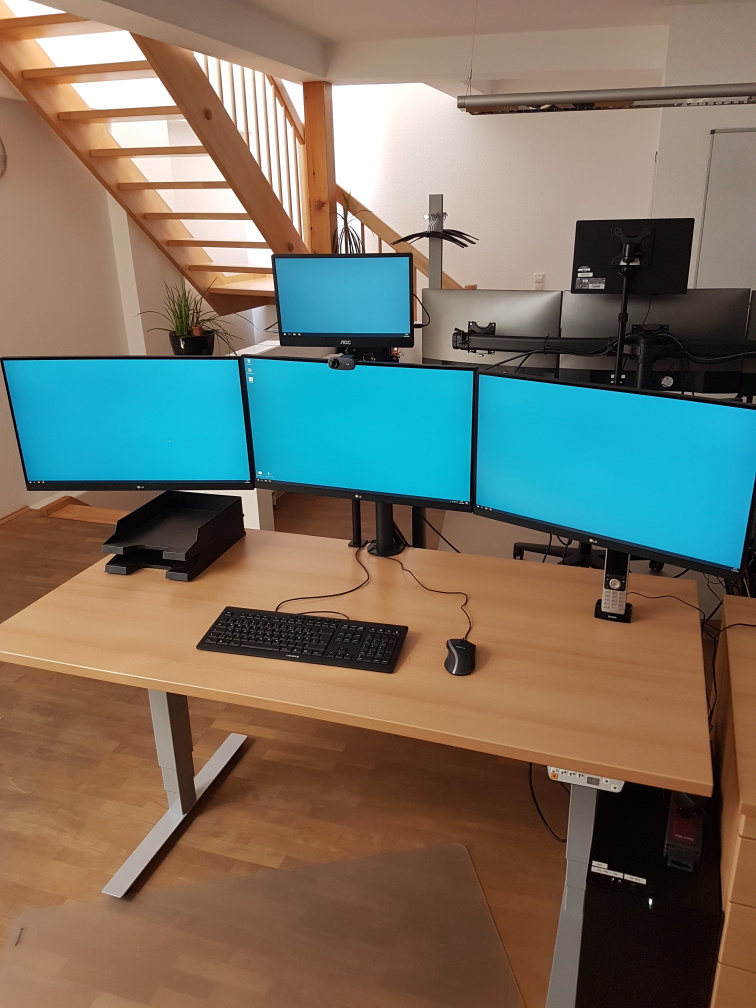
Now, the “pandemic setup” of displays is extended by a fifth display on one side: The integrated notebook display can be used to host the e-mails exclusively or show the company chat.

Request for picture requests: I don’t have an action shot of a five-displays workplace right now. But if you are interested how the setup looks like, leave us a comment and we try to supply one later.

Because the distance between displays and computer is now fixed-length and much shorter because the docking station adds its cable length, all the existing cables were too long. We had installed cables with a length of 3 meters to enable full vertical maneuverability. Now we switched back to 2 meters (or even shorter).

Not all of our notebooks were capable of driving that many pixels. Some older models had chipset graphics that gave up after the first external display. So we replaced them with newer models with dedicated notebook graphic cards.

Six of ten desks are now converted to notebook desks, which leaves four desks with PC holders and classic tower PCs. Traditionally, our PCs live in a “normal size” tower case, the Fractal Design Define series. This case is too big and too heavy for the PC holder. So we had to transplant the remaining PCs to a smaller case, the Fractal Design Defince Compact. We transplanted two of them and replaced the other ones a little bit sooner with new computers.

There were even more minor improvements that resulted in additional purchases, but those aren’t directly focussed on a single desk. So let’s recap:

We wanted our desks to be electrically height-adjustable and our floor free of computers. We ended up buying five new desks, six new docking stations, three new notebooks, two new computers, two empty computer cases, a bunch of notebook holders and many, many cables. The amount of cables that is necessary to operate a modern computer desk is astonishing.

We deconstructed, assembled, connected and hauled many days. The project ran the whole length of 2023 and racked up material costs north of 20k EUR.

But now, the floor is unobstructed and our work stance can change from minute to minute. And we increased our display count once more!

Subtle Effects of Real Hardware

One key aspect of my work is writing software that interacts directly with hardware that consists of sensors and actors. A typical hardware setting is a machine that moves big steel barrels (or “drums”) around.

In order to being able to develop my code without physically sitting right besides the machine, which might include being in a loud, hazardous or plain dangerous environment, my software architecture consists of “hardware components” that can be the real thing or a simulation that acts as real as possible.

I’m writing this kind of software for over twenty years now. But regardless of how many simulations of real hardware I’ve written, there is always a catch or at least a surprise with every new hardware.

For this story, we need to imagine a machine that can lift and rotate steel barrels on command. The machine interface consists of several status bits and some command flags. Two status bits are of importance:

  • isMoving: Indicates if the machine is changing positions or standing still.
  • isInPosition: Because the machine’s movement is bounded by physical limit switches, this flag indicates if the machine has triggered a limit switch and stopped.

I wrote the simulation for this machine and developed the application code that performs a series of movements by waiting for the location to be at a limit switch and then issuing the next movement command. Right before the command is sent, the following condition is checked:

boolean commandCanBeSent = !isMoving && isInPosition;

My application worked perfectly with the simulated hardware. But when we switched to the real hardware, the series of movements worked oftentimes, but not always. After investigating a lot of possible error sources, we boiled it down to the condition above. The condition evaluated to true most of the times, but resulted in false every time the series of movements got stuck.

Expanding the logging capabilities of the code revealed that in the error cases, the signals showed isInPosition as true and at the same time, isMoving as true, too. This is a peculiar machine state: It is at the limit switch, but still moving around?

The explanation originates from the modularity of the machine. The isInPosition flag is controlled by the physical limit switches. If one of them has contact to the moving part, the flag evaluates to true. The isMoving flag is controlled by the engine activity. As long as there is substantial engine power consumption, the flag evaluates to true. The crucial aspect of this signal is that a negative engine power consumption (or engine power generation) is still considered a deviation from zero and results in isMoving as true. Which is kind of correct, because in both cases, there will be a translocation.

But why is the engine sometimes indicating movement after it was stopped by the limit switch? The answer lies in the mass of the steel barrel. If the machine was tested empty (without a barrel), everything worked fine. But by using a heavy barrel, the stopping wasn’t as instant as before. The deceleration of the engine took longer and converted the electrical engine in a generator. The mass of the barrel produced energy in the electrical engine when stopped, and it did so long enough to see the combination isInPosition=true and isMoving=true.

My simulation of an engine with limit switches had not included the mass of the moved object until now. In my simulation, the limit switch stopped the engine instantaneously, without any residual effects.

The bugfix was only a small change: When deciding if the next movement command can be sent, my application now waits for a small duration that isMoving switches to false when isInPosition is already true.

This kind of “dirty signals” is prevalent when dealing with real hardware. The dependence on the barrel mass for the effect to show up was a new one for me. Maybe previous PLC programmers at other machine had filtered them out in their control interfaces. Maybe other signals didn’t rely on engine power consumption or ignored negative consumption. Regardless, I will be more careful when simulating signals that indicate moving masses.

Exploring Tango Admin Devices

We are using the open-source control system framework TANGO in several projects where coordinated control of multiple hardware systems is needed.

What is TANGO good for?

TANGO provides uniform, distributed access and control of heterogeneous hardware devices. It is object-oriented in nature and usually one hardware device is represented by one (or more) software devices.

The device drivers can be written in either C++, Java or Python and client libraries exist for all of these languages. Using a middleware adapter like TangoGQL any language can access the devices.

All that makes TANGO useful for building SCADA systems ranging from a handful controlled devices to several hundreds you want to supervise and control.

Lesser know features of TANGO

All of the above is well known in the TANGO and SCADA community and quite straightforward. What some people may not know is that TANGO automatically provides an Admin-device for each TANGO server (an executable running one or more TANGO devices).

These admin devices have an address of the form dserver/<server_name>/<instance_name> and provide numerous commands for controlling and querying the TANGO device server instance:

You can for example introspect the device server to find available device classes, device instances and needed device properties (think of them as configuration settings).

In addition to introspection you can also control some aspects of the TANGO server like polling and logging. The Admin-device also allows restarting individual devices or even the whole server instance. This can be very useful to apply configuration changes remotely without shell access or something similar to the remote machine.

Wrapping it up

Admin-devices automatically exist and run for each TANGO device server. Using them allows clients to explore what devices are available, what they offer and how they can be configured. They also allow some aspects to be changed remotely at runtime.

We use these features to provide a rich web-base UI for managing the control system in a convenient way instead of relying on the basic tools (like Jive and Astor) that TANGO offers out-of-the-box.

The charged charging switch

In this blog post, I’ll describe my experiences with a certain product (a computer monitor) and its manual. It might serve as an example of how ridiculous a poorly designed customer experience is perceived on the receiving end. Hopefully, it inspires some readers to think about sensible defaults and how to communicate them.

Let’s start with the context. In a previous blog post, I described my journey from one small monitor to four monitors in total (three big ones, one small additional one). Well, it is not just my journey – all of my co-workers have now four computer monitors for their office workplace.

This meant that we bought a lot of smaller monitors in the last months. We decided to go the monoculture route and bought one piece of our favorite model.

It arrived faulty. The only thing that this device did was to indicate “battery full” when the battery status button was pressed (yes, this particular monitor has its own battery for mobile usage). Everything else didn’t work, especially not the power button. The device was a dead fish. I returned it to the supplier.

The replacement unit was also dead on arrival. This puzzled me, because the odds of having two duds in a row seem very small. So I investigated and found an interesting fact: The unpacking and assembly instruction sheet is incomplete. Well, even more than that. It’s plain misleading.

It starts with a big lettered alert that reads “Please follow the illustration and text description strictly when opening the package and installing the display.” It then shows three illustrations of a totally different monitor and ends the instructions at the step when the styrofoam is removed (and no cables attached). At the bottom of the sheet, there’s an explanation: “The machine picture and styrofoam shown are for illustration purpose only and may differ from the actual product”. You can’t make this up.

The manual urges me to follow it “strictly” and then vaguely tells me how to unwrap the monitor from the styrofoam and nothing more. Even better, in the illustrations, there are different options given like “For binding-less, please ignore the untying action” (actual quote!). You can’t follow strictly if given multiple options and hand-wavey instructions. “Unpack the monitor correctly” is more actionable than this manual.

But that was just the beginning. The user manual actually references the correct monitor and gives usage instructions for common use cases, but it lacks a troubleshooting section. The user manual starts with a working device – and my device(s) don’t work. They don’t turn on if the power button is pressed – and it has to be pressed for 3 seconds to turn on the monitor! Yes, the manual is clear on this one: To turn the monitor on by using its power button, you have to press for three, long, “twenty-two”, tedious, “twenty-three”, seconds. That’s like having a light switch, but if you press it in the dark, it requires you to keep pressing because it could be a mistake – do you really want to have the lights on?

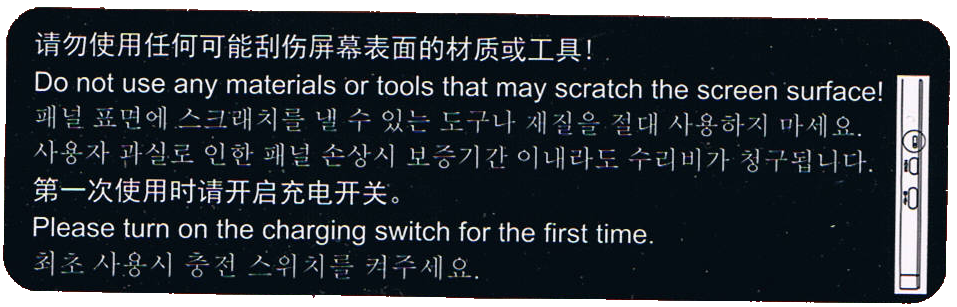
The device is still dead, the manual is no help for my situation, so I inspect the material a little bit more thorough. There is a sticker at the bottom of the monitor (at the opposite side from the power plug and the power button) that catches my eye. I have photographed it, because nobody would believe me otherwise. Here it is:

The first sentence is a no-brainer. But the second one is a head-scratcher: “Please turn on the charging switch for the first time”.

There is no mention of a “charging switch” in the manual. There is no switch labeled “charging” on the device. All the buttons/switches and ports that are present are described in the manual and can’t be interpreted as a “charging switch”.

But if you look at the sticker more closely, you’ll see the illustration at the right side. In reality, it is 3 mm wide and 18 mm in height. It is very small. Even smaller are the depicted things – they resemble the input ports on the right side! From the bottom up, there is a USB-C port, a micro-HDMI port and something that is encircled in the illustration. The circle is probably our hint that this is indeed the “charging switch” mentioned on the sticker.

I searched for the switch and only found a notch in the plastic, about 3 mm wide. Only by using a magnifying glass did I find a small black plastic knob at the bottom of the notch (2 mm deep). The knob is probably one square-millimeter tiny. It was situated more to the top of the notch.

I have built electronics since the early nineties. I know how to solder and recognize all kinds of electronic parts. This thing was a DIP-switch, but one of the smallest ones I’ve ever seen. And it wasn’t labeled at all. The only hint we get to search for it is the illustration on the sticker.

So – is it in the “on” position? I decided to find out by moving it down. A paper clip wire was too big to fit, so I used the smallest screwdriver my micro-mechanic screwdriver set would offer. Just a bit smaller and I would have resorted to an actual hair. The DIP-switch moved half a millimeter down and got stuck more to the bottom of the notch.

The monitor suddenly worked – after the three second pressing. The unlabeled “on” position of the unlabeled “charging switch” that you have to manipulate by using the smallest metal rod that you can find in an electronics lab is at the bottom. Good to know.

I won’t reiterate the madness that we just experienced. It gets even worse, so buckle up.

Right now, I have a working monitor that is actually pleasing to use. I buy it again – the same routine. I wonder if I should report the trick to the supplier.

We have more than two workplaces, so I buy the monitor – the same product for the same price – again, but five times now.

I get five packages with identical content. Well, nearly identical. The stickers are different!

Three monitors have the same sticker as seen above. One of them needs to be switched to turn on, the other two were already in the “on” position.

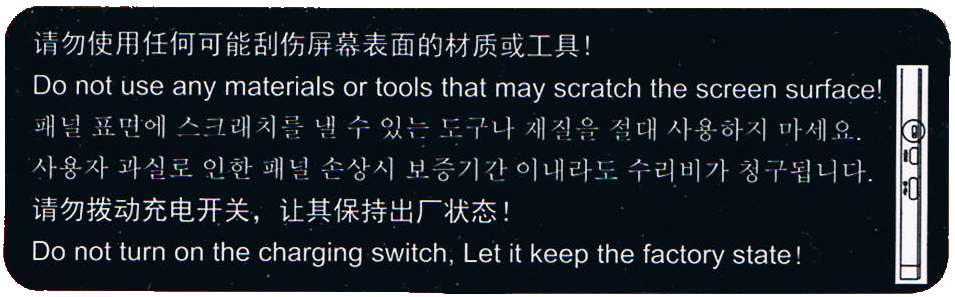
But the other two monitors have a different sticker:

Both monitors were already in the “on” position, so nothing needed to be done. But this sticker tells you to leave the charging switch alone – A switch that is never mentioned in the manual, that is so small that you probably miss it even if you search for it and that needs special equipment to be changed. That’s as if my refrigerator came with a warning sticker not to disable a particular fuse when this fuse is safely hidden away in the internals of the refrigerators electronics and never mentioned in the manual. Why point it out if my only job is to ignore it?

Remember the first manual that “strictly” tells a vague story? This is the same logic. And it gets even better with the second sentence, the one with an exclamation mark! “Let it keep the factory state!” means that it is turned off when coming from the factory? Or does it mean to keep it in the state that is delivered, regardless of the monitor being functional or disabled by it?

I still don’t know what the “on” position of this switch really is and now I’m even more confused than before.

My mind invented this elaborate fantasy story about a factory that produces monitors. One engineer is tasked with designing the charging functionality and adds the “charging switch” to enable or disable the whole feature. But she/he forgets to remove it before the blueprint is committed into production and now the switch is part of the consumer product. The DIP switch is on the “off” position by default from its producer. This renders the first batches of monitors useless because the documentation doesn’t mention the magic switch that needs to be flipped once to have the monitors turn on. The return rates are horrendous and management gets involved. They decide to get rid of the problem by applying a quick fix – the first sticker. This sentences their customers to perform a scavenger hunt of subtle hints to have the monitors work. They also install a new production line station – the switch flipper. This person needs training and is only available for the day shift – Half of the monitors leave the factory with the switch in the “on” position, the other half is in the “off” position. The first sticker remains, it is still a mystery, but the return rates are cut in half nearly overnight.

In my story, the original engineer recognizes her/his error and tries to correct it – by reversing the switch positions. The default position (“off”) now enables the feature, while the “on” position disables it. Just by turning the (still unlabeled) positions around, the factory produces ready-to-use monitors without requiring intervention from the customer.

The problem? A lot of customers have now learned the switch-flip trick and deactivate their product. And the switch flipper still deactivates half of the production without noticing. They need to inform their customers! They apply the second sticker, hoping to clear this matter once and for all.

And here I am, having bought 7 monitors so far and received nearly every possible combination of sticker and initial switch position. I am more confused and wary as if they had stuck to their original approach and just updated their manual.

But there is one indicator that might be helpful: The serial number of the monitors start with some letters and then two digits:

  • 79: You get sticker 1 and need to flip the switch
  • 99: You get sticker 2 and need not flip the switch
  • 69: You get sticker 1, but the switch is already flipped

At least that was my observation with the samples at hand.

What can we, as software developers, learn from this disaster?

First, keep an eye on your feature switches! One non-sensible default and you chase that error forever.

Second, don’t compensate the first error by making the complemental error, too. Sometimes, the cure is worse than the disease.

Third, don’t ever not avoid negative logic! Boolean logic is hard enough itself, if you further complicate it, people like me will just resort to guessing and trial-and-error.

Fourth, and that is the most important one for me: Don’t explain things that need no attention from the user. I’m definitely guilty of that one. Often, I want my documentation to be “complete” and to “show all opportunities” when all I do is confuse my users with sentences like “Do not turn on the charging switch. Let it keep the factory state!” and then never mention the “charging switch” anywhere again.

Effective computer names with DNS aliases

If you have a computer in a network, it has a lot of different names and addresses. Most of them are chosen by the manufacturer, like the MAC address of the network device. Some are chosen by you, like the IP address in the local network. And some need to be chosen by you, like the computer’s name in your local DNS (domain name service).

A typical indicator for an under-managed network is the lack of sufficiently obvious computer names in it. You want to connect to the printer? 192.168.0.77 it is. You need to access the network drive? It is reachable under nas-producer-123.local. You can be sure that either of these names change as soon as anything gets modified in the network.

Not every computer in a network needs a never-changing, obvious name. If you connect a notebook for some hours, it can be addressable only by 192.168.0.151 and nobody cares. But there will be computers and similar network devices like printers that stay longer and provide services to others. These are the machines that require a proper name, and probably not only one.

Our approach is a layered one, with four layers:

  • MAC-address, chosen by the manufacturer
  • IP address, chosen by our DHCP
  • Device name, chosen by our DNS
  • Device aliases, chosen by our DNS

Of course, our DHCP and our DNS is told by our administrator what addresses and names to give out. Our IP addresses are partitioned into sections, but that is not relevant to the users.

The device name is a mapping of a name on an IP address. It is chosen by the administrator in case of a server/service machine. It will tell you about the primary service, like “printer0”, “printer1” or “nas0”. It is not a creative name and should not be remembered or used directly. If the machine has a direct user, like a workstation or a notebook, the user gets to choose the name. The only guideline is to keep it short, the rest is personal preference. This name should only be remembered by the user.

On top of the device name, each machine gets one or several additional DNS names, in the form of DNS aliases (CNAME records). These are the names we work with directly and should be remembered. Let’s see some examples:

I want to print on the laser printer: “laserprinter.local” is the correct address. It is an alias to printer0.local which is a mapping to 192.168.0.77 which resolves to a specific MAC address. If the laser printer gets replaced, every entry in this chain will probably change, except for one: the alias will point to the new printer and I don’t have to care much about it (maybe I need to update my driver).

I want to access the network drive: “nas.local” is one possibility. “networkdrive.local” is another one. Both point to “nas0” today and maybe “nas1” tomorrow. I don’t need to care which computer provides the service, because the service alias always points to the correct machine.

I want to connect to my colleague’s workstation: Because we have different naming preferences, I cannot remember that computer’s name. But I also don’t have to, because the computer has an alias: If my colleague’s name is “Joe”, the computer’s alias is “joe.local”, which resolves to his “totallywhackname.local”, which points to the IP address, etc. There is probably no more obvious DNS name than “joe.local”.

Another thing that we do is give a service its purpose as a name. This blog is run by wordpress, so we would have “wordpress.local”, but also “blog.local” which is the correct address to use if you want to access the blog. Should we eventually migrate our blog to another service, the “blog.local” address would point to it, while the “wordpress.local” address would still point to the old blog. The purpose doesn’t change, while the product that provides it might some day.

Of course, maintaining such a rich ecosystem of names and aliases is a lot of work. We don’t type our zone files directly, we use generators that supply us with the required level of comfort and clarity. This is done by one of our internal tools (if you remember the Sunzu blog post, you now know 2 out of our 53 tools). In short, we maintain a table in our wiki, listing all IP addresses and their DNS aliases and linking to the computer’s detail wiki page. From there, the tool scrapes the computer’s name and MAC address and generates configuration files for both the DHCP and DNS services. We can define our whole network in the wiki and have the tool generate the actual settings for us.

That way, the extra effort for the DNS aliases is negligible, while the positive effects are noticeable. Most network modifications can be done without much reconfiguration of dependent services or machines. And it all starts with alias names for your computers.

Developing remotely for Beckhoff ADS on Linux

Today computers are used to control plenty different hardware systems both in laboratories and in the “real” world. Think of simple examples like automatic roller shutters that may be vital in keeping offices cool in summer while allowing for the maximum of light inside when the sun is occluded by clouds.

Most of the time things are way more complicated of course and soon real automation systems come into play providing intricate control and safety-related fail-safe mechanisms. Beckhoff ADS provides a means to communicate with such automation systems, often implemented as programmable logic controllers (PLC).

While many of these systems are Windows-based and provide rich programming environments on Windows they often provide interoperability with other programming languages and operating systems. In case of ADS there is a cross-platform open source C++ library provided by Beckhoff and even a python library (pyads) based on the C library for easy access of ADS devices.

ADS examples

This is great news because it allows you to choose your platform more freely and especially in science many organizations prefer Linux machines in their infrastructure. Here is an example using pyads to read a value from an ADS device:

import pyads

# The ip of the PLC
remote_ip = '192.168.0.55'
# This is the AMS network id. Usually consists of the IP address with .1.1 appended
remote_ads = '192.168.0.55.1.1'
# This is the ads port for the remote SPS controllers.
# Has nothing to do with TCP/IP ports!!!
ads_port = 851
# Set our local AMS network id to the client endpoint
# in the TwinCAT routing configuration
pyads.set_local_address('192.168.11.66.1.1')

with pyads.Connection(remote_ads, ads_port, remote_ip) as plc:
     print(plc.read_by_name('GlobalStructure.live_bit', pyads.PLCTYPE_BOOL))

Remote Access

When developing for our customers using ADS it is often not feasible to have the PLCs and a realistic set of controlled hardware in our own offices. Fortunately it is possible to communicate with the ADS interface of the customers on-site PLC over VPN and SSH-tunneling.

There are some caveats on the way to working remotely against an ADS device, namely the port to be tunneled, the route on the PLC and the correct IPs and NetIds.

SSH-Tunneling the ADS communication

Setting up SSH tunneling is probably the most easy part using putty on Windows or plain OpenSSH local forwarding using config files. The important thing is that you need to tunnel TCP-Port 48898 and not the ADS port 851!

Configuring the PLC route

The ADS endpoint needs a AMS route setup for the machine you SSH into. Otherwise that machine you use to tunnel your requests will not be authorized to communicate to the ADS device. This is well documented and a standard workflow for the automation people but crucial for the remote access to work. We need the AMS Net Id from this step to finally setup the connection.

Connecting remotely using the SSH-Tunnel

After everything is prepared we need to adjust the connection parameters for our ADS client. Taking the example from above this usually means changing remote_ip and the local AMS Net Id:

# The ip the SSH-tunnel is bound to, usually localhost
remote_ip = '127.0.0.1'
# This is the AMS network id of the endpoint. Leave unchanged!
remote_ads = '192.168.0.55.1.1'
# Set our local AMS network id to the client endpoint in the TwinCAT routing config
# This represents our ssh host, not the local machine!
pyads.set_local_address('192.168.0.100.1.1')

Conclusion

Beckhoff ADS provides a state-of-the-art means of communicating to PLCs over the network. With a bit of configuration this can easily be done remotely in addition to on-site in a platform agnostic way.

Our voyage to service separation – Part II

We transformed our evolutionary grown IT landscape to a planned setup. Here is what we learned on the way (part 2/2).

Recap of the situation

In the first part of this blog series, we introduced you to our evolutionary grown IT landscape. We had a room full of snow- flaked servers and no overall concept how to use them. We wanted our services to be self-contained and separated. So we chose the approach of virtualization to host one VM per service on a uniform platform. We chose VirtualBox, Vagrant and Ansible to help us along the way.
This blog entry tells you about the way and our experiences and insights.

The migration

In order to migrate every service you use to its own virtual machine (VM), you’ll need a list or map of your services first. We gathered our list, compared it to reality, adjusted it, reiterated everything, added the forgotten services, drew the map, compared again, drew again and even then missed some services that are painfully obvious in hindsight, like DNS or SMTP. We identified more than 15 distinct services and estimated their resource profile. Then we planned the VM layouts and estimated the required computation power to host all of them. Then we bought the servers.

We started with three powerful hosting servers but soon saw that there is a group of “alpha VMs” with elevated requirements on availability and bought a fourth hosting server with emphasis on redundancy. If some seldom used backoffice service goes down, that’s one thing. The most important services of our company should not go down because of a harddisk failure or such.

Four nearly identical hosting servers to run 15+ VMs on required a repeatable process to set things up. This is where the first tip comes into play:

  • Document everything. Document all the details. Have your Wiki ready and write a step-by-step tutorial for every task you perform. It’s really tedious and probably a bit cumbersome at first, but it will pay of sooner and better than you’d imagine.

We started the migration process with the least important services to get a feeling for the required steps. It turned out later that these services were also the most time-consuming ones. The most essential and seemingly complex services took the least time. We essentially experienced the pareto effect but in reverse: We started with the lowest benefit for the highest cost. But we can give two tips from this experience:

  • Go the extra mile. Just forget about the pareto effect and migrate all services. It’s so much more fun to have a clean IT landscape map than one where most things are tidy but there’s an area marked “here be dragons”.
  • Migration effort and service importance aren’t linked. Our most important service was migrated in about half an hour. Our least important service needed nearly three days. It’s all about the system architecture of the service and if it values self-containment.

The migration took place over the course of a few months with frequent address changes of our tools and an awful lot of communication for cutoff dates. If you need to migrate a service, be very open about the process and make sure that the old service address won’t work after the switch. I cannot count the amount of e-mails I wrote with the subject prefix “IMPORTANT!”. But the transition went smooth and without problems, so we probably added some extra caution that might not have been necessary.

After the migration

When we had migrated our last service in its own VM, there were a lot of old servers without any purpose anymore. We switched them off and got rid of them. Now we had nearly two dozen new servers to care for. One insight we had right after the start of our journey is that virtualized servers require the same amount of administration as physical ones. Just using our old approaches for the new IT landscape wouldn’t cut it. So we invested heavily in automation and scripted everything. Want to set up a new CI build slave? Just add its address into Ansible’s inventory and run the script (“playbook”). All servers need security updates? Just one command and a little wait.

Gears by Pete BirkinshawLearning to automate the administrative tasks in the right way had a steep curve, but it’s the only feasible way. We benefit heavily from the simple fact that we forced ourselves to do it by making it impossible to handle the tasks manually. It’s a “burned bridges” approach, but upon reaching the goal, it really pays off. So another tip:

  • Automate everything. Even if you think you’ll perform this task just a few times – that’s exactly the scenario to automate it to never have to bother with the details again. Automation is key if you want to scale your IT landscape to reasonable sizes.

Reaping the profit

We’ve done the migration and have a fully virtualized setup now. This would not be very beneficial in itself, but opens the door for another level of capabilities we simply couldn’t leverage before. Let me just describe two of them:

  • Rethink your backup strategy. With virtual machines, you can now backup your services on an appliance level. If you wanted to perform this with a real server, you would need to buy the exact same hardware, make exact copies of the harddisks and store this “clone machine” somewhere safe. Creating an appliance level backup means to stop the VM, export it and restart it. You’ll have some downtime, but everything else is just a (big) file.
  • Rethink your service maintainance strategy. We often performed test upgrades to newer versions of our important services on test machines. If the upgrade went well, we would perform it again on the live server and hope for the best. With virtual machines and appliance backups, you can try the upgrade on an exact copy of the live server over and over again. And if you are happy with the result, you just swap your copy with the live server and everything’s fine. No need for duplicated procedures, you always work with the real deal – well, an indistinguishable copy of it.

Conclusion

We’ve migrated our IT landscape from evoluationary to a planned virtualized state in just about a year. We’ve invested weeks of work in it, just to have the same services available as before. From a naive viewpoint, nothing much has changed. So – was it worth it?

The answer is short and clear: Absolutely yes. Even in the short time after the migration, the whole setup performs smoother and more in a planned way than just by chance. The layout can be communicated clearer and on different levels. And every virtual machine has its own use case, to the point and dedicated. We now have an IT landscape that obeys our rules and responds to our needs, whereas before we often needed to make hard compromises.

The positive effects of documentation and automation alone are worth the journey, even if they are mere side effects of the main goal. +1, would migrate again.

Our voyage to service separation – Part I

We transformed our evolutionary grown IT landscape to a planned setup. Here is what we learned on the way.

What you need to know

We are a small software development company with a home-grown IT infrastructure. The euphemism for such a state is “evolutionary grown”, denoting a process that was shaped by the most elementary forces, often implicitely. One such implicit force is laziness: If there is a quick way to do things, it will be done this way. Why invest effort if everything works just fine?
During an internal safety review, we identified our IT landscape as a risk factor. It was designed to meet yesterday’s and perhaps today’s demands, but in no way aligned to our strategic vision. We decided to invest in our IT to bring it to a planned state that we are confident will sustain our demands of tomorrow – or be easily adaptable.

Where we started

Our starting point was a room full of servers that were bought at some point to serve a specific need like “be the build box”. Every server started with a good reason to exist and evolved from there. Some gathered more and more services, some were repurposed and some idled along. We identified only two servers that were essential for the company: one was the continuous integration server master and one hosted nearly all mission-critical services at once. The latter server was also our oldest machine in production usage. It was secured against data loss, but not against outages. So everytime this server went down, our company essentially came to a stop because all services were offline. Luckily, it went down very infrequently, but it still identified as a clear single point of failure.

Where we wanted to go

containersIn April 2014, the heartbleed vulnerability was published. We luckily weren’t affected on a large scale, but took it as a wake-up call to review our IT setup and to develop a strategy to mitigate the effects of disasters similar in scope to heartbleed while we still have time. We wanted to have our IT in a condition where we actually choose which risks we take instead of just hoping for the best. So we sat before a whiteboard and outlined the goals: We wanted to separate and self-contain every essential service, so that the compromising or outage of one service doesn’t affect the others. That means one machine (or container) per service. To gain flexibility, we also planned to separate our IT landscape into two layers: The “metal layer” provides the computation power, while the “appliance layer” realizes the services. We wanted to be able to implement the appliance layer nearly independtly to the metal layer, which means to use some sort of virtualization. In modern words, we wanted to have a “cloud platform” to deploy our service applications on. We just don’t wanted it out on the internet but in our computer center. To sum up, we wanted to separate hardware and software and move every service in its own compartment.

What technologies we chose

We thought about fitting technology for a long time but settled for a small-scale, bottom-up approach: Start with just a few metal machines (hosts) and use a familiar virtualization product. In our case, this meant two standard servers, Linux and Oracle’s VirtualBox to run the virtual computers. There sure are more professional and powerful virtualization products out there, but we had years of experience (and sometimes frustration) with VirtualBox and didn’t want to rely on an unknown technology. It’s not exciting, but works well enough for our use case – and we knew that beforehands.
We decided against any fancy cloud or grid software to combine the hosts to a pool and just planned the hosting of the virtual machines (VMs) statically by hand. This might mean that one host gets bored while another host cannot handle the pressure anymore. It will be our responsibility to take that problem into account. This approach primarily achieves one thing: it keeps everything rather simple. Each host has a list of VMs and that’s it. If we want to migrate a VM to another host, we have to do it manually.
To create the VMs, we used Vagrant, which turned out fine for three-quarters of our machines, but proved toxic for the remaining ones. Vagrant is a very handy tool for developers to quickly launch a VM, but it makes a lot of assumptions that might not match your specific requirements. We essentially abandoned Vagrant after the initial phase.
During the migration phase of our services, we adopted another tool to solve the problem of scaling effects in maintainance. It’s another story to maintain 20+ servers instead of the handful we had beforehands. Luckily, Ansible proved useful to automate most of our normal administration tasks. This transition from manual to automated administration wasn’t part of the original plan, but is one of the biggest payoffs. But that’s stuff for the next blog entry.

What’s next?

In this first part of our story to regain control of our IT landscape, we described the starting point, the plan and the tools. In the next part, you’ll hear about the migration and where we ended up. We will also point out our experiences along the way and hopefully give some useful tips if you think of reshaping your services, too: Click here to read part two of the series.

Creating a GPS network service using a Raspberry Pi – Part 2

In the last article we learnt how to install and access a GPS module in a Raspberry Pi. Next, we want to write a network service that extracts the current location data – latitude, longitude and altitude – from the serial port.

Basics

We use Perl to write a CGI-script running within an Apache 2; both should be installed on the Raspberry Pi. To access the serial port from Perl, we need to include the module Device::SerialPort. Besides, we use the module JSON to generate the HTTP response.

use strict;
use warnings;
use Device::SerialPort;
use JSON;
use CGI::Carp qw(fatalsToBrowser);

Interacting with the serial port

To interact with the serial port in Perl, we instantiate Device::SerialPort and configure it according to our hardware. Then, we can read the data sent by our hardware via device->read(…), for example as follows:

my $device = Device::SerialPort->new('...') or die "Can't open serial port!";
//configuration
...
($count, $result) = $device->read(255);

For the Sparqee GPSv1.0 module, the device can be configured as shown below:

our $device = '/dev/ttyAMA0';
our $baudrate = 9600;

sub GetGPSDevice {
 my $gps = Device::SerialPort->new($device) or return (1, "Can't open serial port '$device'!");
    $gps->baudrate($baudrate);
    $gps->parity('none');
    $gps->databits(8);
    $gps->stopbits(1);
    $gps->write_settings or return (1, 'Could not write settings for serial port device!');
    return (0, $gps);
}

Finding the location line

As described in the previous blog post, the GPS module sends a continuous stream of GPS data; here is an explanation for the single components.

$GPGSA,A,3,17,09,28,08,26,07,15,,,,,,2.4,1.4,1.9*.6,1.7,2.0*3C
$GPRMC,031349.000,A,3355.3471,N,11751.7128,W,0.00,143.39,210314,,,A*76
$GPGGA,031350.000,3355.3471,N,11751.7128,W,1,06,1.7,112.2,M,-33.7,M,,0000*6F
$GPGSA,A,3,17,09,28,08,07,15,,,,,,,2.6,1.7,2.0*3C
$GPGSV,3,1,12,17,67,201,30,09,62,112,28,28,57,022,21,08,55,104,20*7E
$GPGSV,3,2,12,07,25,124,22,15,24,302,30,11,17,052,26,26,49,262,05*73
$GPGSV,3,3,12,30,51,112,31,57,31,122,,01,24,073,,04,05,176,*7E
$GPRMC,031350.000,A,3355.3471,N,11741.7128,W,0.00,143.39,210314,,,A*7E
$GPGGA,031351.000,3355.3471,N,11741.7128,W,1,07,1.4,112.2,M,-33.7,M,,0000*6C

We are only interested in the information about latitude, longitude and altitude, which is part of the line starting with $GPGGA. Assuming that the first parameter contains a correctly configured device, the following subroutine reads the data stream sent by the GPS module, extracts the relevant line and returns it. In detail, it searches for the string $GPGGA in the data stream, buffers all data sent afterwards until the next line starts, and returns the buffer content.

# timeout in seconds
our $timeout = 10;

sub ExtractLocationLine {
    my $gps = $_[0];
    my $count;
    my $result;
    my $buffering = 0;
    my $buffer = '';
    my $limit = time + $timeout;
    while (1) {
        if (time >= $limit) {
           return '';
        }
        ($count, $result) = $gps->read(255);
        if ($count <= 0) {
            next;
        }
        if ($result =~ /^\$GPGGA/) {
            $buffering = 1;
        }
        if ($buffering) {
            my $part = (split /\n/, $result)[0];
            $buffer .= $part;
        }
        if ($buffering and ($result =~ m/\n/g)) {
            return $buffer;
        }
    }
}

Parsing the location line

The $GPGGA-line contains more information than we need. With regular expressions, we can extract the relevant data: $1 is the latitude, $2 is the longitude and $3 is the altitude.

sub ExtractGPSData {
    $_[0] =~ m/\$GPGGA,\d+\.\d+,(\d+\.\d+,[NS]),(\d+\.\d+,[WE]),\d,\d+,\d+\.\d+,(\d+\.\d+,M),.*/;
    return ($1, $2, $3);
}

Putting everything together

Finally, we convert the found data to JSON and print it to the standard output stream in order to write the HTTP response of the CGI script.

sub GetGPSData {
    my ($error, $gps) = GetGPSDevice;
    if ($error) {
        return ToError($gps);
    }
    my $location = ExtractLocationLine($gps);
    if (not $location) {
        return ToError("Timeout: Could not obtain GPS data within $timeout seconds.");
    }
    my ($latitude, $longitude, $altitude) = ExtractGPSData($location);
    if (not ($latitude and $longitude and $altitude)) {
        return ToError("Error extracting GPS data, maybe no lock attained?\n$location");
    }
    return to_json({
        'latitude' => $latitude,
        'longitude' => $longitude,
        'altitude' => $altitude
    });
}

sub ToError {
    return to_json({'error' => $_[0]});
}

binmode(STDOUT, ":utf8");
print "Content-type: application/json; charset=utf-8\n\n".GetGPSData."\n";

Configuration

To execute the Perl script with a HTTP request, we have to place it in the cgi-bin directory; in our case we saved the file at /usr/lib/cgi-bin/gps.pl. Before accessing it, you can ensure that the Apache is configured correctly by checking the file /etc/apache2/sites-available/default; it should contain the following section:

ScriptAlias /cgi-bin/ /usr/lib/cgi-bin/
<Directory "/usr/lib/cgi-bin">
    AllowOverride None
    Options +ExecCGI -MultiViews +SymLinksIfOwnerMatch
    Order allow,deny
    Allow from all
</Directory>

Furthermore, the permissions of the script file have to be adjusted, otherwise the Apache user will not be able to execute it:

sudo chown www-data:www-data /usr/lib/cgi-bin/gps.pl
sudo chmod 0755 /usr/lib/cgi-bin/gps.pl

We also have to add the Apache user to the user group dialout, otherwise it cannot read from the serial port. For this change to come into effect the Raspberry Pi has to be rebooted.

sudo adduser www-data dialout
sudo reboot

Finally, we can check if the script is working by accessing the page <IP address>/cgi-bin/gps.pl. If the Raspberry Pi has no GPS reception, you should see the following output:

{"error":"Error extracting GPS data, maybe no lock attained?\n$GPGGA,121330.326,,,,,0,00,,,M,0.0,M,,0000*53\r"}

When the Raspberry Pi receives GPS data, they should be given in the browser:

{"longitude":"11741.7128,W","latitude":"3355.3471,N","altitude":"112.2,M"}

Last, if you see the following message, you should check whether the Apache user was correctly added to the group dialout.

{"error":"Can't open serial port '/dev/ttyAMA0'!"}

Conclusion

In the last article, we focused on the hardware and its installation. In this part, we learnt how to access the serial port via Perl, wrote a CGI script that extracts and delivers the location information and used the Apache web server to make the data available via network.

Creating a GPS network service using a Raspberry Pi – Part 1

Using sensors is a task we often face in our company. This article series consisting of two parts will show how to install a GPS module in a Raspberry Pi and to provide access to the GPS data over ethernet. This guide is based on a Raspberry Pi Model B Revision 2 and the GPS shield “Sparqee GPSv1.0”. In the first part, we will demonstrate the setup of the hardware and the retrieval of GPS data within the Raspberry Pi.

Hardware configuration

The GPS shield can be connected to the Raspberry Pi by using the pins in the top left corner of the board.

Raspberry Pi B Rev. 2 (Source: Wikipedia)

The Sparqee GPS shield possesses five pins whose purpose can be found on the product page:

Pin Function Voltage I/O
GND Ground connection 0 I
RX Receive 2.5-6V I
TX Transmit 2.5-6V O
2.5-6V Power input 2.5-6V I
EN Enable power module 2.5-6V I

Sparqee GPSv1.0
Sparqee GPSv1.0

We used the following pin configuration for connecting the GPS shield:

GPS Shield Raspberry Pi Pin-Nummer
GND GND 9
RX GPIO14 / UART0 TX 8
TX GPIO15 / UART0 RX 10
2.5-6V +3V3 OUT 1
EN +3V3 OUT 17

You can see the corresponding pin numbers on the Raspberry board in the graphic below. A more detailed guide for the functionality of the different pins can be found here.

Relevant pins of the Raspberry Pi

After attaching the GPS module, our Raspberry Pi looks like this:

Attaching the GPS shield to the Raspberry


GPS data retrieval

The Raspberry GPS communicates with the Sparqee GPS shield over the serial port UART0. However, in Raspbian this port is usually used as serial console, which is why we cannot directly access the GPS shield. To turn this feature off and activate the module, you have to follow these steps:

  1. Edit the file /boot/cmdline.txt and delete all parameters containing the key ttyAMA0:
    console=ttyAMA0,115200 kgdboc=ttyAMA0,115200

    Afterwards, our file contains this text:

    dwc_otg.lpm_enable=0 console=tty1 root=/dev/mmcblk0p2 rootfstype=ext4 elevator=deadline rootwait
    
  2. Edit the file /etc/inittab and comment the following line out:
    T0:23:respawn:/sbin/getty -L ttyAMA0 115200 vt100

    Comments are identified by the hash sign; the result should look as follows:

    #T0:23:respawn:/sbin/getty -L ttyAMA0 115200 vt100
    
  3. Next, we have to reboot the Raspberry Pi:
    sudo reboot
    
  4. Finally, we can test the GPS module with Minicom. The baud rate is 9600 and the device name is /dev/ttyAMA0:
    sudo minicom -b 9600 -D /dev/ttyAMA0 -o
    

    If necessary, you can install Minicom using APT:

    sudo apt-get install minicom


    You can quit Minicom with the key combination strg+a followed by z.

If you succeed, Minicom will continually output a stream of GPS data. Depending on wether the GPS module attains a lock, that is, wether it receives GPS data by a satellite, the output changes. While no data is received, the output remains mostly empty.

$GPGGA,080327.199,,,,,0,00,,,M,0.0,M,,0000*59
$GPGSA,A,1,,,,,,,,,,,,,,,*1E
$GPRMC,080327.199,V,,,,,,,240314,,,N*42
$GPGGA,080328.199,,,,,0,00,,,M,0.0,M,,0000*56
$GPGSA,A,1,,,,,,,,,,,,,,,*1E
$GPRMC,080328.199,V,,,,,,,240314,,,N*4D
$GPGGA,080329.199,,,,,0,00,,,M,0.0,M,,0000*57
$GPGSA,A,1,,,,,,,,,,,,,,,*1E
$GPGSV,3,1,12,02,14,214,29,04,64,182,24,05,00,000,21,10,00,000,23*7E
$GPGSV,3,2,12,12,03,334,26,08,57,094,,23,52,187,,27,52,110,*76
$GPGSV,3,3,12,03,36,332,,09,32,128,,24,27,212,,17,26,350,*7B

Once the GPS module starts receiving a signal, Minicom will display more data as in the example below. If you encounter problems in attaining a GPS lock, it might help to place the Raspberry Pi outside.

$GPGSA,A,3,17,09,28,08,26,07,15,,,,,,2.4,1.4,1.9*.6,1.7,2.0*3C
$GPRMC,031349.000,A,3355.3471,N,11751.7128,W,0.00,143.39,210314,,,A*76
$GPGGA,031350.000,3355.3471,N,11751.7128,W,1,06,1.7,112.2,M,-33.7,M,,0000*6F
$GPGSA,A,3,17,09,28,08,07,15,,,,,,,2.6,1.7,2.0*3C
$GPGSV,3,1,12,17,67,201,30,09,62,112,28,28,57,022,21,08,55,104,20*7E
$GPGSV,3,2,12,07,25,124,22,15,24,302,30,11,17,052,26,26,49,262,05*73
$GPGSV,3,3,12,30,51,112,31,57,31,122,,01,24,073,,04,05,176,*7E
$GPRMC,031350.000,A,3355.3471,N,11741.7128,W,0.00,143.39,210314,,,A*7E
$GPGGA,031351.000,3355.3471,N,11741.7128,W,1,07,1.4,112.2,M,-33.7,M,,0000*6C

A detailed description of the GPS format emitted by the Sparqee GPSv1.0 can be found here. Probably the most important information, the GPS coordinates, is contained by the line starting with $GPGGA: In this case, the module was located at 33° 55.3471′ Latitude North and 117° 41.7128′ Longitude West at an altitude of 112.2 meters above mean sea level.

Conclusion

We demonstrated how to connect a Sparqee GPS shield to a Raspberry Pi and how to display the GPS data via Minicom. In the next part, we will write a network service that extracts and delivers the GPS data from the serial port.