Simple build triggers with secured Jenkins CI

The jenkins continuous integration (CI) server provides several ways to trigger builds remotely, for example from a git hook. Things are easy on an open jenkins instance without security enabled. It gets a little more complicated if you like to protect your jenkins build environment.

Git plugin notify commit url

For git there is the “notifyCommitUrl” you can use in combination with the Poll SCM settings:

$JENKINS_URL/git/notifyCommit?url=http://$REPO/project/myproject.git

Note two things regarding this approach:

  1. The url of the source code repository given as a parameter must match the repository url of the jenkins job.
  2. You have to check the Poll SCM setting, but you do not need to provide a schedule

Another drawback is its restriction to git-hosted jobs.

Jenkins remote access api

Then there is the more general and more modern jenkins remote access api, where you may trigger builds regardless of the source code management system you use.
curl -X POST $JENKINS_URL/job/$JOB_NAME/build?token=$TOKEN

It allows even triggering parameterized builds with HTTP POST requests like:

curl -X POST $JENKINS_URL/job/$JOB_NAME/build \
--user USER:TOKEN \
--data-urlencode json='{"parameter": [{"name":"id", "value":"123"}, {"name":"verbosity", "value":"high"}]}'

Both approaches work great as long as your jenkins instance is not secured and everyone can do everything. Such a setting may be fine in your companies intranet but becomes a no-go in more heterogenious environments or with a public jenkins server.

So the way to go is securing jenkins with user accounts and restricted access. If you do not want to supply username/password as part of the url for doing HTTP BASIC auth and create users just for your repository triggers there is another easy option:

Using the Build Authorization Token Root Plugin!

Build authorization token root plugin

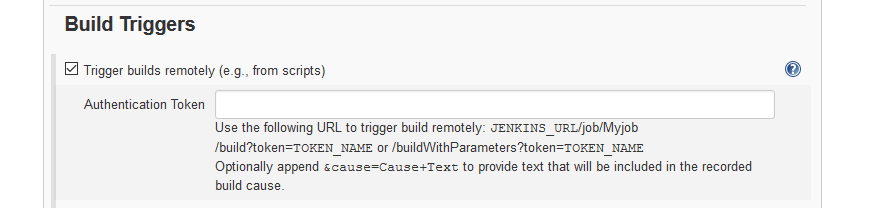
The plugin introduces a configuration setting in the Build triggers section to define an authentication token:

It also exposes a url you can access without being logged in to trigger builds just providing the token specified in the job:

$JENKINS_URL/buildByToken/build?job=$JOB_NAME&token=$TOKEN

Or for parameterized builds something like:

$JENKINS_URL/buildByToken/buildWithParameters?job=$JOB_NAME&token=$TOKEN&Type=Release

Conclusion

The token root plugin does not need HTTP POST requests but also works fine using HTTP GET. It does neither requires a user account nor the awkward Poll SCM setting. In my opinion it is the most simple and pragmatic choice for build triggering on a secured jenkins instance.

Remote development with PyCharm

PyCharm is a fantastic tool for python development. One cool feature that I quite like is its support for remote development. We have quite a few projects that need to interact with special hardware, and that hardware is often not attached to the computer we’re developing on.
In order to test your programs, you still need to run it on that computer though, and doing this without tool support can be especially painful. You need to use a tool like scp or rsync to transmit your code to the target machine and then execute it using ssh. This all results in painfully long and error prone iterations.
Fortunately, PyCharm has tool support in its professional edition. After some setup, it allows you do develop just as you would on a local machine. Here’s a small guide on how to set it up with an ubuntu vagrant virtual machine, connecting over ssh. It work just as nicely on remote computers.

1. Create a new deployment configuration

In the Tools->Deployment->Configurations click the small + in the top left corner. Pick a name and choose the SFTP type.
add_server

In the “Connection” Tab of the newly created configuration, make sure to uncheck “Visible only for this project”. Then, setup your host and login information. The root path is usually a central location you have access to, like your home folder. You can use the “Autodetect” button to set this up.

connection
For my VM, the settings look like this.

On the “Mappings” Tab, set the deployment path for your project. This would be the specific folder of your project within the root you set on the previous page. Clicking the associated “…” button here helps, and even lets you create the target folder on the remote machine if it does not exist yet.

2. Activate the upload

Now check “Tools->Deployment->Automatic Upload”. This will do an upload when you change a file, so you still need to do the initial upload manually via “Tools->Deployment->Upload to “.

3. Create a project interpreter

Now the files are synced up, but the runtime environment is not on the remote machine. Go to the “Project Interpreter” page in File->Settings and click the little gear in the top-right corner. Select “Add Remote”.

remote_interpreter
It should have the Deployment configuration you just created already selected. Once you click ok, you’re good to go! You can run and debug your code just like on a local machine.

Have fun developing python applications remotely.

Using passwords with Jenkins CI server

For many of our projects the Jenkins continuous integration (CI) server is one important cornerstone. The well known “works on my machine” means nothing in our company. Only code in repositories and built, tested and packaged by our CI servers counts. In addition to building, testing, analyzing and packaging our projects we use CI jobs for deployment and supervision, too. In such jobs you often need some sort of credentials like username/password or public/private keys.

If you are using username/password they do not only appear in the job configuration but also in the console build logs. In most cases this is undesirable but luckily there is an easy way around it: using the Environment Injector Plugin.

In the plugin you can “inject passwords to the build as environment variables” for use in your commands and scripts.inject-passwords-configuration

The nice thing about this is that the passwords are not only masked in the job configuration (like above) but also in the console logs of the builds!inject-passwords-console-log

Another alternative doing mostly the same is the Credentials Binding Plugin.

There is a lot more to explore when it comes to authentication and credential management in Jenkins as you can define credentials at the global level, use public/private key pairs and ssh agents, connect to a LDAP database and much more. Just do not sit back and provide security related stuff plaintext in job configurations or your deployments scripts!

My favorite Unix tool

Awk is a little language designed for the processing of lines of text. It is available on every Unix (since V3) or Linux system. The name is an acronym of the names of its creators: Aho, Weinberger and Kernighan.

Since I spent a couple of minutes to learn awk I have found it quite useful during my daily work. It is my favorite tool in the base set of Unix tools due to its simplicity and versatility.

Typical use cases for awk scripts are log file analysis and the processing of character separated value (CSV) formats. Awk allows you to easily filter, transform and aggregate lines of text.

The idea of awk is very simple. An awk script consists of a number of patterns, each associated with a block of code that gets executed for an input line if the pattern matches:

pattern_1 {
    # code to execute if pattern matches line
}

pattern_2 {
    # code to execute if pattern matches line
}

# ...

pattern_n {
    # code to execute if pattern matches line
}

Patterns and blocks

The patterns are usually regular expressions:

/error|warning/ {
    # executed for each line, which contains
    # the word "error" or "warning"
}

/^Exception/ {
    # executed for each line starting
    # with "Exception"
}

There are some special patterns, namely the empty pattern, which matches every line …

{
    # executed for every line
}

… and the BEGIN and END patterns. Their blocks are executed before and after the processing of the input, respectively:

BEGIN {
    # executed before any input is processed,
    # often used to initialize variables
}

END {
    # executed after all input has been processed,
    # often used to output an aggregation of
    # collected values or a summary
}

Output and variables

The most common operation within a block is the print statement. The following awk script outputs each line containing the string “error”:

/error/ { print }

This is basically the functionality of the Unix grep command, which is filtering. It gets more interesting with variables. Awk provides a couple of useful built-in variables. Here are some of them:

  • $0 represents the entire current line
  • $1$n represent the 1…n-th field of the current line
  • NF holds the number of fields in the current line
  • NR holds the number of the current line (“record”)

By default awk interprets whitespace sequences (spaces and tabs) as field separators. However, this can be changed by setting the FS variable (“field separator”).

The following script outputs the second field for each line:

{ print $2 }

Input:

John 32 male
Jane 45 female
Richard 73 male

Output:

32
45
73

And this script calculates the sum and the average of the second fields:

{
    sum += $2
}

END {
    print "sum: " sum ", average: " sum/NR
}

Output:

sum: 150, average: 50

The language

The language that can be used within a block of code is based on C syntax without types and is very similar to JavaScript. All the familiar control structures like if/else, for, while, do and operators like =, ==, >, &&, ||, ++, +=, … are there.

Semicolons at the end of statements are optional, like in JavaScript. Comments start with a #, not with //.

Variables do not have to be declared before usage (no ‘var’ or type). You can simply assign a value to a variable and it comes into existence.

String concatenation does not have an explicit operator like “+”. Strings and variables are concatenated by placing them next to each other:

"Hello " name ", how are you?"
# This is wrong: "Hello" + name + ", how are you?"

print is a statement, not a function. Parentheses around its parameter list are optional.

Functions

Awk provides a small set of built-in functions. Some of them are:

length(string), substr(string, index, count), index(string, substring), tolower(string), toupper(string), match(string, regexp).

User-defined functions look like JavaScript functions:

function min(number1, number2) {
    if (number1 < number2) {
        return number1
    }
    return number2
}

In fact, JavaScript adopted the function keyword from awk. User-defined functions can be placed outside of pattern blocks.

Command-line invocation

An awk script can be either read from a script file with the -f option:

$ awk -f myscript.awk data.txt

… or it can be supplied in-line within single quotes:

$ awk '{sum+=$2} END {print "sum: " sum " avg: " sum/NR}' data.txt

Conclusion

I hope this short introduction helped you add awk to your toolbox if you weren’t familiar with awk yet. Awk is a neat alternative to full-blown scripting languages like Python and Perl for simple text processing tasks.

Introduction to Debian packaging

In former posts I wrote about packaging your software as RPM packages for a variety of use cases. The other big binary packaging system on Linux systems is DEB for Debian, Ubuntu and friends. Both serve the purpose of convenient distribution, installation and update of binary software artifacts. They define their dependencies and describe what the package provides.

How do you provide your software as DEB packages?

The master guide to debian packaging can be found at https://www.debian.org/doc/manuals/maint-guide/. It is a very comprehensive guide spanning many pages and providing loads of information. Building a usable package of your software for your clients can be a matter of minutes if you know what to do. So I want to show you the basic steps, for refinement you will need to consult the guide or other resources specific to the software you want to package. For example there are several guides specific to packaging of software written in Python. I find it hard to determine what the current and recommended way to debian packages for python is because there are differing guides over the last 10 years or so. You may of course say “Just use pip for python” 🙂

Basic tools

The basic tools for building debian packages are debhelper and dh-make. To check the resulting package you will need lintian in addition. You can install them and basic software build tools using:

  sudo apt-get install build-essential dh-make debhelper lintian

The python packaging system uses make and several scripts under the hood to help building the binary packages out of source tarballs.

Your first package

First you need a tar-archive of the software you want to package. With python setuptools you could use python setup.py sdist to generate the tarball. Then you run dh_make on it to generate metadata and the package build environment for your package. Now you have to edit the metadata files, namely control, copyright, changelog. Finally you run dpkg-buildpackage to generate the package itself.  Here is an example of the necessary commands:

mkdir hello-deb-1.0
cd hello-deb-1.0
dh_make -f ../hello-deb-1.0.tar.gz
# edit deb metadata files
vi debian/control
vi debian/copyright
vi debian/changelog
dpkg-buildpackage -us -uc
lintian -i -I --show-overrides hello-deb_1.0-1_amd64.changes

The control file roughly resembles RPMs SPEC file. Package name, description, version and dependency information belong there. Note that debian is very strict when it comes to naming of packages, so make sure you use the pattern ${name}-${version}.tar.gz for the archive and that it extracts into a corresponding directory without the extension, e.g. ${name}-${version}.

If everything went ok several files were generated in your base directory:

  • The package itself as .deb file
  • A file containing the changelog and checksums between package versions and revisions ending with .changes
  • A file with the package description ending with .dsc
  • A tarball with the original sources renamed according to debian convention hello-deb_1.0.orig.tar.gz (note the underscore!)

Going from here

Of course there is a lot more to the tooling and workflow when maintaining debian packages. In future posts I will explore additional means for improving and updating your packages like the quilt patch management tool, signing the package, symlinking, scripts for pre- and post-installation and so forth.

All .NET assemblies for one and one for all

Sometimes you have developed a simple utility tool that doesn’t need the directory structure of a full-blown application for resources and other configuration. However, this tool might have a couple of library dependencies. On the .NET platform this usually means that you have to distribute the .dll files for the libraries along with the executable (.exe) file of the tool.

Wouldn’t it be nice to distribute your tool only as a single .exe file, so that users don’t have to drag around a lot of files when they move the tool from one location to another?

In the C++ world you would use static linking to link library dependencies into the resulting executable. For the .NET platform Microsoft provides a command-line tool called ILMerge. It can merge multiple .NET assemblies into a single assembly:

ILMerge

You can either download ILMerge from Microsoft as an .msi package or install it as a NuGet package from the package manager console (accessible in Visual Studio under Tools: Library Package Manager):

PM> Install-Package ilmerge

The basic command line syntax of ILMerge is:

> ilmerge /out:filename <primary assembly> [...]

The primary assembly would be the original executable of your tool. It must be listed first, followed by the library assemblies (.dll files) to merge. Here’s an example, which represents the scenario from the diagram above:

> ilmerge /out:StandaloneApplication.exe Application.exe A.dll B.dll C.dll

Keep in mind that the resulting executable is still dependent on the existence of the .NET framework on the system, it’s not completely independent.

Graphical user interface

There’s also a graphical user interface for ILMerge available. It’s an open-source tool by a third-party developer and it’s called ILMerge-GUI, published on Microsoft’s CodePlex project hosting platform.

ILMerge-GUI

You simply drag and drop the assemblies to merge on the designated area, choose a name for the output assembly and click the “Merge!” button.

Transferring commits via Git bundles

Sometimes you want to send (e.g. by e-mail) a set of new Git commits to someone else who has the same repository at an older state, without transferring the whole repository and without sharing a common remote repository.

One feature that might come to your mind are Git patches. Patches, however, don’t work when there are branches and merge commits in the commit history: git format-patch creates patches for the commits across the various branches in the order of their commit times and doesn’t create patches for merge commits.

Git bundles

The solution to the problem are Git bundles. Git bundles contain a partial excerpt of a Git repository in a single file.

This is how to create a bundle, including branches, merge commits and tags:

$ git bundle create my.bundle <base commit>..HEAD --branches --tags

<base commit> must be replaced with the last commit (i.e. commit hash or tag), which was included in the old state of the repository.

A Git bundle can be imported into a repository via git pull:

$ git pull /path/to/my.bundle

Creating a GPS network service using a Raspberry Pi – Part 1

Using sensors is a task we often face in our company. This article series consisting of two parts will show how to install a GPS module in a Raspberry Pi and to provide access to the GPS data over ethernet. This guide is based on a Raspberry Pi Model B Revision 2 and the GPS shield “Sparqee GPSv1.0”. In the first part, we will demonstrate the setup of the hardware and the retrieval of GPS data within the Raspberry Pi.

Hardware configuration

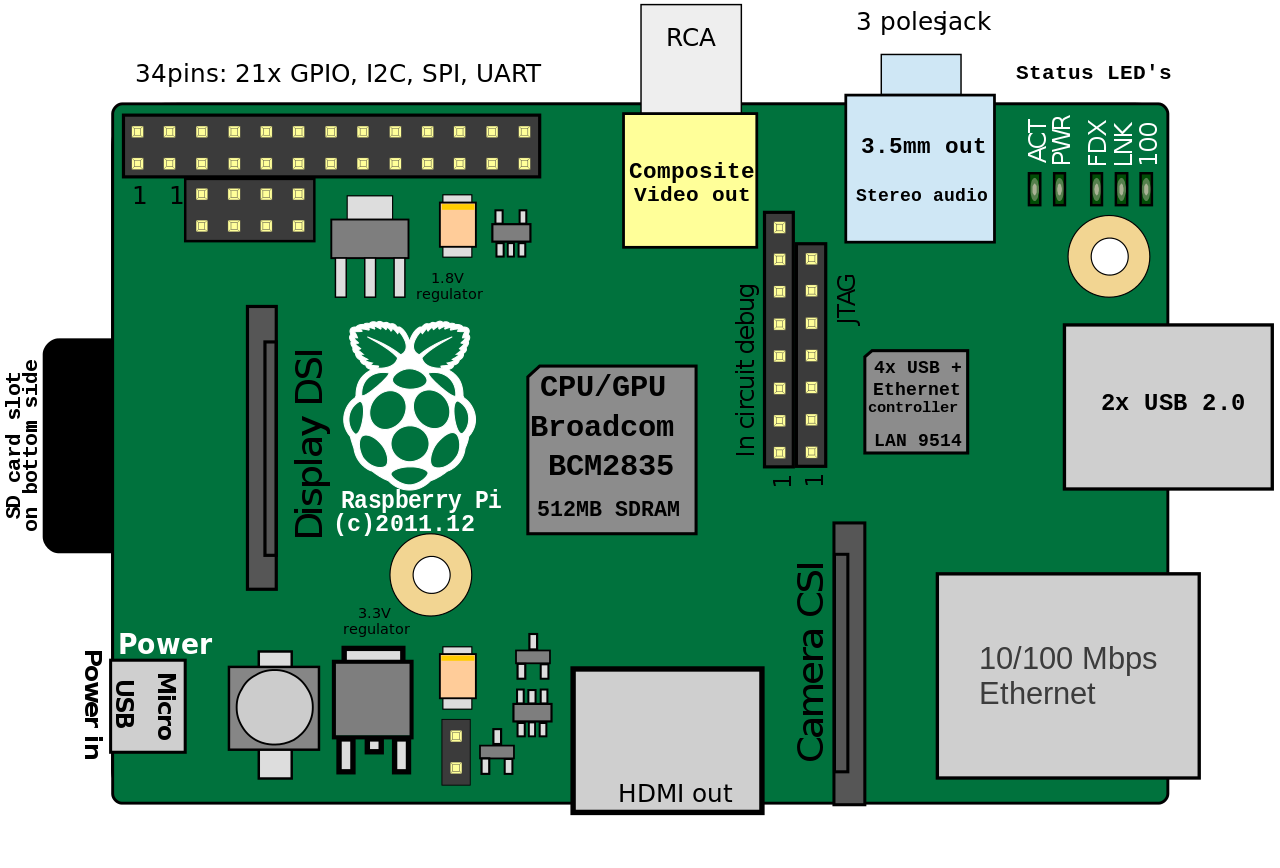
The GPS shield can be connected to the Raspberry Pi by using the pins in the top left corner of the board.

Raspberry Pi B Rev. 2 (Source: Wikipedia)

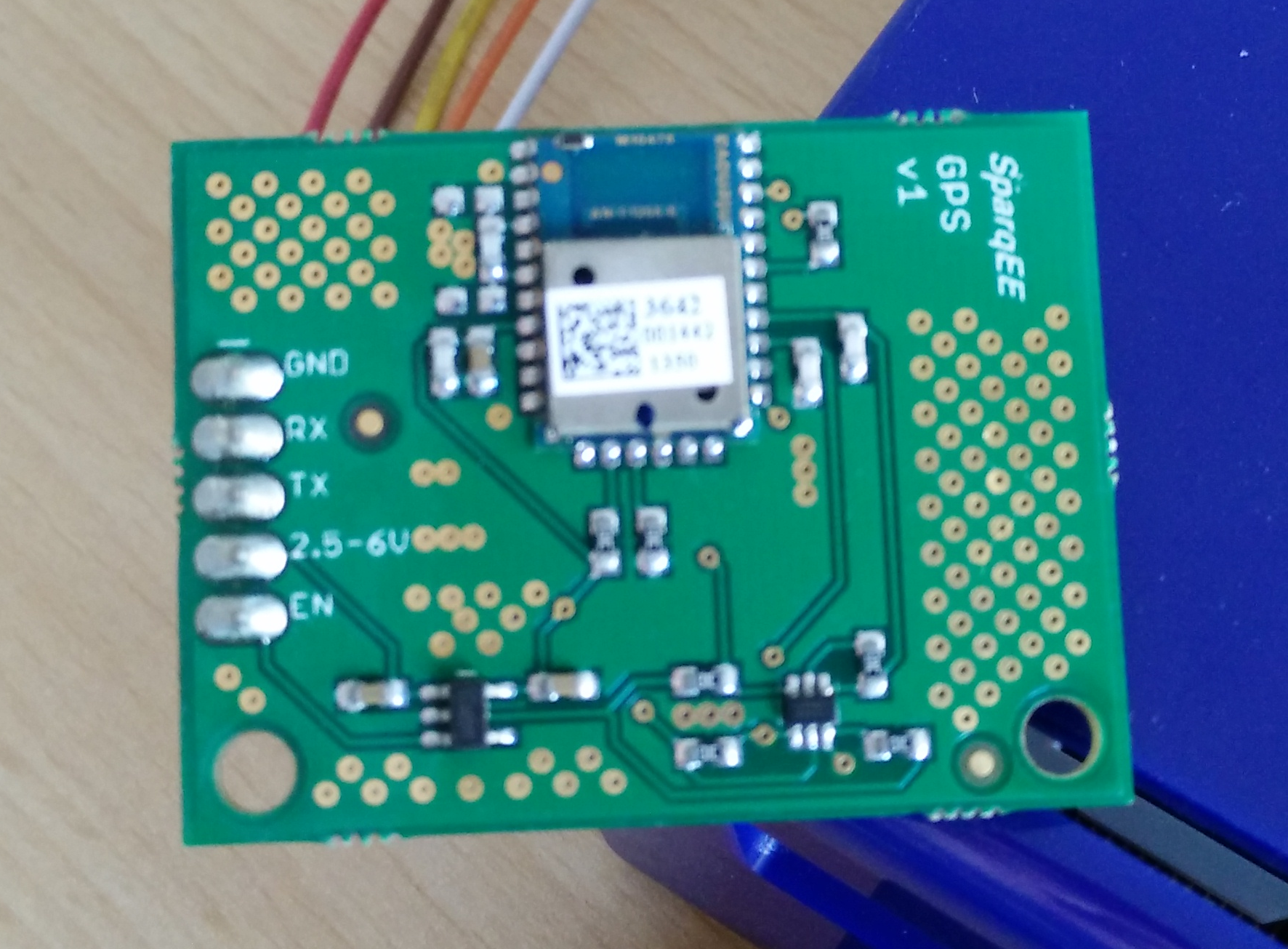
The Sparqee GPS shield possesses five pins whose purpose can be found on the product page:

Pin Function Voltage I/O
GND Ground connection 0 I
RX Receive 2.5-6V I
TX Transmit 2.5-6V O
2.5-6V Power input 2.5-6V I
EN Enable power module 2.5-6V I
Sparqee GPSv1.0
Sparqee GPSv1.0

We used the following pin configuration for connecting the GPS shield:

GPS Shield Raspberry Pi Pin-Nummer
GND GND 9
RX GPIO14 / UART0 TX 8
TX GPIO15 / UART0 RX 10
2.5-6V +3V3 OUT 1
EN +3V3 OUT 17

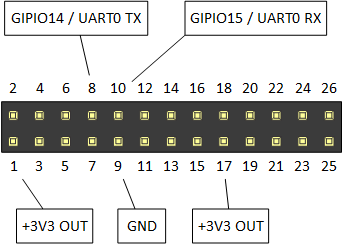
You can see the corresponding pin numbers on the Raspberry board in the graphic below. A more detailed guide for the functionality of the different pins can be found here.

Relevant pins of the Raspberry Pi

After attaching the GPS module, our Raspberry Pi looks like this:

Attaching the GPS shield to the Raspberry


GPS data retrieval

The Raspberry GPS communicates with the Sparqee GPS shield over the serial port UART0. However, in Raspbian this port is usually used as serial console, which is why we cannot directly access the GPS shield. To turn this feature off and activate the module, you have to follow these steps:

  1. Edit the file /boot/cmdline.txt and delete all parameters containing the key ttyAMA0:
    console=ttyAMA0,115200 kgdboc=ttyAMA0,115200

    Afterwards, our file contains this text:

    dwc_otg.lpm_enable=0 console=tty1 root=/dev/mmcblk0p2 rootfstype=ext4 elevator=deadline rootwait
    
  2. Edit the file /etc/inittab and comment the following line out:
    T0:23:respawn:/sbin/getty -L ttyAMA0 115200 vt100

    Comments are identified by the hash sign; the result should look as follows:

    #T0:23:respawn:/sbin/getty -L ttyAMA0 115200 vt100
    
  3. Next, we have to reboot the Raspberry Pi:
    sudo reboot
    
  4. Finally, we can test the GPS module with Minicom. The baud rate is 9600 and the device name is /dev/ttyAMA0:
    sudo minicom -b 9600 -D /dev/ttyAMA0 -o
    

    If necessary, you can install Minicom using APT:

    sudo apt-get install minicom


    You can quit Minicom with the key combination strg+a followed by z.

If you succeed, Minicom will continually output a stream of GPS data. Depending on wether the GPS module attains a lock, that is, wether it receives GPS data by a satellite, the output changes. While no data is received, the output remains mostly empty.

$GPGGA,080327.199,,,,,0,00,,,M,0.0,M,,0000*59
$GPGSA,A,1,,,,,,,,,,,,,,,*1E
$GPRMC,080327.199,V,,,,,,,240314,,,N*42
$GPGGA,080328.199,,,,,0,00,,,M,0.0,M,,0000*56
$GPGSA,A,1,,,,,,,,,,,,,,,*1E
$GPRMC,080328.199,V,,,,,,,240314,,,N*4D
$GPGGA,080329.199,,,,,0,00,,,M,0.0,M,,0000*57
$GPGSA,A,1,,,,,,,,,,,,,,,*1E
$GPGSV,3,1,12,02,14,214,29,04,64,182,24,05,00,000,21,10,00,000,23*7E
$GPGSV,3,2,12,12,03,334,26,08,57,094,,23,52,187,,27,52,110,*76
$GPGSV,3,3,12,03,36,332,,09,32,128,,24,27,212,,17,26,350,*7B

Once the GPS module starts receiving a signal, Minicom will display more data as in the example below. If you encounter problems in attaining a GPS lock, it might help to place the Raspberry Pi outside.

$GPGSA,A,3,17,09,28,08,26,07,15,,,,,,2.4,1.4,1.9*.6,1.7,2.0*3C
$GPRMC,031349.000,A,3355.3471,N,11751.7128,W,0.00,143.39,210314,,,A*76
$GPGGA,031350.000,3355.3471,N,11751.7128,W,1,06,1.7,112.2,M,-33.7,M,,0000*6F
$GPGSA,A,3,17,09,28,08,07,15,,,,,,,2.6,1.7,2.0*3C
$GPGSV,3,1,12,17,67,201,30,09,62,112,28,28,57,022,21,08,55,104,20*7E
$GPGSV,3,2,12,07,25,124,22,15,24,302,30,11,17,052,26,26,49,262,05*73
$GPGSV,3,3,12,30,51,112,31,57,31,122,,01,24,073,,04,05,176,*7E
$GPRMC,031350.000,A,3355.3471,N,11741.7128,W,0.00,143.39,210314,,,A*7E
$GPGGA,031351.000,3355.3471,N,11741.7128,W,1,07,1.4,112.2,M,-33.7,M,,0000*6C

A detailed description of the GPS format emitted by the Sparqee GPSv1.0 can be found here. Probably the most important information, the GPS coordinates, is contained by the line starting with $GPGGA: In this case, the module was located at 33° 55.3471′ Latitude North and 117° 41.7128′ Longitude West at an altitude of 112.2 meters above mean sea level.

Conclusion

We demonstrated how to connect a Sparqee GPS shield to a Raspberry Pi and how to display the GPS data via Minicom. In the next part, we will write a network service that extracts and delivers the GPS data from the serial port.

Streaming images from your application to the web with GStreamer and Icecast – Part 2

In the last article we learned how to create a GStreamer pipeline that streams a test video via an Icecast server to the web. In this article we will use GStreamer’s programmable appsrc element, in order to feed the pipeline with raw image data from our application.

First we will recreate the pipeline from the last article in C source code. We use plain C, since the original GStreamer API is a GLib based C API.

#include <gst/gst.h>

int main(int argc, char *argv)
{
    GError *error = NULL;

    gst_init(&argc, &argv);

    GstPipeline *pipeline = gst_parse_launch("videotestsrc ! vp8enc ! webmmux ! shout2send ip=127.0.0.1 port=8000 password=hackme mount=/test.webm", &error);
    if (error != NULL) {
        g_printerr("Could not create pipeline: %s\n", error->message);
        return 1;
    }
    gst_element_set_state(pipeline, GST_STATE_PLAYING);

    GMainLoop *loop = g_main_loop_new(NULL, FALSE);
    g_main_loop_run(loop);

    g_free(loop);
    g_free(pipeline);

    return 0;
}

In order to compile this code the GStreamer development files must be installed on your system. On an openSUSE Linux system, for example, you have to install the package gstreamer-plugins-base-devel. Compile and run this code from the command line:

$ cc demo1.c -o demo1 $(pkg-config --cflags --libs gstreamer-1.0)
$ ./demo1

The key in this simple program is the gst_parse_launch call. It takes the same pipeline string that we built on the command line in the previous article as an argument and creates a pipeline object. The pipeline is then started by setting its state to playing.

appsrc

So far we have only recreated the same pipeline that we called via gst-launch-1.0 before in C code. Now we will replace the videotestsrc element with an appsrc element:

#include <gst/gst.h>

extern guchar *get_next_image(gsize *size);

const gchar *format = "GRAY8";
const guint fps = 15;
const guint width = 640;
const guint height = 480;

typedef struct {
    GstClockTime timestamp;
    guint sourceid;
    GstElement *appsrc;
} StreamContext;

static StreamContext *stream_context_new(GstElement *appsrc)
{
    StreamContext *ctx = g_new0(StreamContext, 1);
    ctx->timestamp = 0;
    ctx->sourceid = 0;
    ctx->appsrc = appsrc;
    return ctx;
}

static gboolean read_data(StreamContext *ctx)
{
    gsize size;

    guchar *pixels = get_next_image(&size);
    GstBuffer *buffer = gst_buffer_new_wrapped(pixels, size);

    GST_BUFFER_PTS(buffer) = ctx->timestamp;
    GST_BUFFER_DURATION(buffer) = gst_util_uint64_scale_int(1, GST_SECOND, fps);
    ctx->timestamp += GST_BUFFER_DURATION(buffer);

    gst_app_src_push_buffer(ctx->appsrc, buffer);

    return TRUE;
}

static void enough_data(GstElement *appsrc, guint unused, StreamContext *ctx)
{
    if (ctx->sourceid != 0) {
        g_source_remove(ctx->sourceid);
        ctx->sourceid = 0;
    }
}

static void need_data(GstElement *appsrc, guint unused, StreamContext *ctx)
{
    if (ctx->sourceid == 0) {
        ctx->sourceid = g_idle_add((GSourceFunc)read_data, ctx);
    }
}

int main(int argc, char *argv[])
{
    gst_init(&argc, &argv);

    GstElement *pipeline = gst_parse_launch("appsrc name=imagesrc ! videoconvert ! vp8enc ! webmmux ! shout2send ip=127.0.0.1 port=8000 password=hackme mount=/test.webm", NULL);
    GstElement *appsrc = gst_bin_get_by_name(GST_BIN(pipeline), "imagesrc");

    gst_util_set_object_arg(G_OBJECT(appsrc), "format", "time");
    gst_app_src_set_caps(appsrc, gst_caps_new_simple("video/x-raw",
        "format", G_TYPE_STRING, format,
        "width", G_TYPE_INT, width,
        "height", G_TYPE_INT, height,
        "framerate", GST_TYPE_FRACTION, fps, 1, NULL));

    GMainLoop *loop = g_main_loop_new(NULL, FALSE);
    StreamContext *ctx = stream_context_new(appsrc);

    g_signal_connect(appsrc, "need-data", G_CALLBACK(need_data), ctx);
    g_signal_connect(appsrc, "enough-data", G_CALLBACK(enough_data), ctx);

    gst_element_set_state(pipeline, GST_STATE_PLAYING);

    g_main_loop_run(loop);

    gst_element_set_state(pipeline, GST_STATE_NULL);

    g_free(ctx);
    g_free(loop);

    return 0;
}

We assign a name (“imagesrc”) to the appsrc element by setting its name attribute in the pipeline string in line 58. The element can then be retrieved via this name by calling the function gst_bin_get_by_name. In lines 61-66 we set properties and capabilities of the appsrc element such as the image format (in this example 8 bit greyscale), width, height and frames per second.

In lines 71 and 72 we connect callback functions to the “need-data” and “enough-data” signals. The appsrc element emits the need-data signal, when it wants us to feed more image frame buffers to the pipeline and the enough-data signal when it wants us to stop.

We use an idle source to schedule calls to the read_data function in the main loop. The interesting work happens in read_data: we acquire the raw pixel data of the image for the next frame as byte array, in this example represented by a call to a function named get_next_image. The pixel data is wrapped into a GStreamer buffer and the duration and timestamp of the buffer is set. We track the time in a self-defined context object. The buffer is then sent to the appsrc via gst_app_src_push_buffer. GStreamer will take care of freeing the buffer once it’s no longer needed.

Conclusion

With little effort we created a simple C program that streams image frames from within the program itself as video to the Web by leveraging the power of GStreamer and Icecast.

Transparent software: Making complexity understandable

Software is broken. Not because it is not simple. Because it is not transparent. Let me elaborate.

“I don’t think that’s feasible”

That are not the first words we wanted to hear from our client after our presentation.

“I have seen several engineers working over a year just for the concept”

This is complex.

The world tells you that all should be simple. Make it simple. Keep it simple. It is just that simple.

Only when it is not.

Look around you. Nature is beautiful. And complex. The human is beautiful. And complex. Many systems and contexts are complex.

Look inside you. Your thoughts and emotions. Your relationships.

Look at your computer, your phone, your work. Many problems we have and solve everyday are not simple.

Sometimes we think “Oh, why can’t this be simple”. “The software should be simpler”. But KISS won’t save you. Software is broken. But not because it is not simple. We do not want simplicity. We want clarity. We want to understand. Let me elaborate.

I create software for engineers. Engineers are the people who take problems who are fine in theory and work perfectly in a controlled environment like a lab and translate them to the real world. But the real world isn’t simple or controlled. It is messy. The smallest things can blow up your house of cards of theory. These people need software to understand what happens. Through their education and their experience they know what should happen. They are the experts. But the systems and problems they work with are so complex and mostly invisible to the human eye and incomprehensible to the human brain. But today’s engineering software looks like this:

cases-colorful-colourful-2019
Options all over the place

Make no mistake. This isn’t constrained to engineering problems. Take a look around you. Nowadays there are a million sensors collecting masses of data. Your phone. Your thermostat. Your shoes. Even your tooth brush. Sensors are everywhere. We are collecting more data than ever before. This data gives us a glimpse of the complex underlying system. So we think. But why do we collect them in the first place?
Because we can. We are seeking the holy grail of wisdom. More data creates more information. More information creates more knowledge. And finally we hope that more knowledge gets us a spark of wisdom. But we are just starting out.

The course of technology

The normal way of technology goes something like this: First we are constrained. We try to push the borders. When the field is wide and open we do everything that’s possible. After a while we become more mature and use it to serve a purpose. Software is like that. Collecting data is like that. It is like an addiction. Think about it: Do you influence the data or does the data influence you? Who is in control?

But there’s hope. In order to reason about and come to our decisions we need transparent software. The dictionary defines transparent as:

transparent (adjective)

  • (of a material or article) allowing light to pass through so that objects behind can be distinctly seen
  • easy to perceive or detect
  • having thoughts, feelings, or motives that are easily perceived
  • (of an organization or its activities) open to public scrutiny
  • Physics: transmitting heat or other electromagnetic rays without distortion.
  • Computing: (of a process or interface) functioning without the user being aware of its presence.

Transparent is a tricky word. It seems to be a paradox: on the one hand it means invisible and on the other hand it means easily perceived. Both uses of the word apply to what software needs to be.

No more magic

Software has to help us understand systems and concepts. What happens and what happened. It has to make it clear, comprehensible and detectable. We need to see how the software comes to its conclusions. We need the option to overrule it. The last decision is ours. Software can help us forming a decision but it should never decide on our behalf.
Also: It gets out of our way. We don’t need any more rituals to please the software to do our bidding. Software is a tool. To be a great tool it needs to fit the problem and the person. No one wants to cut with a knife that is all blade. It should adapt to our capabilities. It should fit like a glove. It amplifies not cripples our capabilities. It is made for us. It is transparent.

That’s the goal. But how do we get there?

Maximalistic design or design with ‘Betthupferl’

Minimalistic design is a misnomer. Reducing a complex issue needs more design not less. Designing is about thinking, taking care. If we want to make complex systems understandable we need to think hard. What is the essence of the problem? What information does the expert need to evaluate a situation? All of this expertise is hidden in the heads and the daily routine of the people we design for. So we need to ask, watch and listen to them. Not direct and with a free mind. Throw your preconceptions overboard. Remove your ego. First just observe. Collect. Challenge your assumptions. When you have a good amount of information (with experience you will know when you can start but do not believe you will ever have enough), distill. Distill the essence. And then add. That little extra. The details. The cues which foster understanding.
When you stay the night in a hotel and in your white and clean bed you find a little sweet on your pillow. You are delighted. In German we call this ‘Betthupferl’.
This little extra you add is just this. The user feels cared for. He sees that someone has gone the extra mile, has thought deeply about him. The essence is not enough. You need some details. To weave the parts to together to form a whole. This can be extra information when the user needs it. This can be a shortcut when the context is right. Or an animation which guides the eye. Or or or…
Important is that it does not confuse or blur the essence. It should support. Silently, almost invisible.