Client-side web development: Drink the Kool-Aid or be cautious?

Client side web development is a fast-changing world. JavaScript libraries and frameworks come and go monthly. A couple of years ago jQuery was a huge thing, then AngularJS, and nowadays people use React or Vue.js with a state container like Redux. And so do we for new projects. Unfortunately, these modern client-side frameworks are based on the npm ecosystem, which is notoriously known for its dependency bloat. Even if you only have a couple of direct dependencies the package manager lock file will list hundreds of indirect dependencies. Experience has shown that lots of dependencies will result in a maintenance burden as time passes, especially when you have to do major version updates. Also, as mentioned above, frameworks come and then go out of fashion, and the maintainers of a framework move on to their next big thing pet project, leaving you and your project sitting on a barely or no longer maintained base, and frameworks can’t be easily replaced, because they tend to permeate every aspect of your application.

With this frustrating experience in mind we recently did an experiment for a new medium sized web project. We avoided frameworks and the npm ecosystem and only used JavaScript libraries with no or very few indirect dependencies, which really were necessary. Browsers have become better at being compatible to web standards, at least regarding the basics. Libraries like jQuery and poly-fills that paper over the incompatibilities can mostly be avoided — an interesting resource is the website You Might Not Need jQuery.

We still organised our views as components, and they are communicating via a very simple event dispatcher. Some things had to be done by foot, but not too much. It works, although the result is not as pure as it would have been with declarative views as facilitated by React and a functional state container like Redux. We’re still fans of the React+Redux approach and we’re using it happily (at least for now) for other projects, but we’re also skeptical regarding the long term costs, especially from relying on the npm ecosystem. Which approach will result in less maintenance burden? We don’t know yet. Time will tell.

Decoding non-utf8 server responses using the Fetch API

The new Javascript Fetch API is really nice addition to the language and my preferable, and in fact the only bearable, way to do server requests.
The Promise based API is a lot nicer than older, purely callback-based, approaches.

The usual approach to get a text response from a server using the Fetch API looks like this:

let request = fetch(url)
  .then(response => response.text())
  .then(handleText);

But this has one subtle problem:

I was building a client application that reads weather data from a small embedded device. We did not have direct access to changing the functionality of that device, but we could upload static pages to it, and use its existing HTML API to query the amount of registered rainfall and lightning strikes.

Using the fetch API, I quickly got the data and extracted it from the HTML but some of the identifiers had some screwed up characters that looked like decoding problems. So I checked whether the HTTP Content-Type was set correctly in the response. To my surprise it was correctly set as Content-Type: text/html; charset=iso-8859-1.

So why did my Javascript Application not get that? After some digging, it turned out that Response’s text() function always decodes the payload as utf-8. The mismatch between that and the charset explained the problem!

Obviously, I had to do the decoding myself. The solution I picked was to use the TextDecoder class. It can decode an ArrayBuffer with a given encoding. Luckily, that is easy to get from the response:

let request = fetch(url)
  .then(response => response.arrayBuffer())
  .then(buffer => {
    let decoder = new TextDecoder("iso-8859-1");
    let text = decoder.decode(buffer);
    handleText(text);
  });

Since I only had to support that single encoding, that worked well for me. Keep in mind that the TextDecoder is still experimental Technology. However, we had a specific browser as a target and it works there. Lucky us!

For what the javascript!

The setting

We are developing and maintaining an important web application for one of our clients. Our application scrapes a web page and embeds our own content into that page frame.

One day our client told us of an additional block of elements at the bottom of each page. The block had a heading “Image Credits” and a broken image link strangely labeled “inArray”. We did not change anything on our side and the new blocks were not part of the HTML code of the pages.

Ok, so some new Javascript code must be the source of these strange elements on our pages.

The investigation

I started the investigation using the development tools of the browser (using F12). A search for the string “Image Credits” instantly brought me to the right place: A Javascript function called on document.ready(). The code was basically getting all images with a copyright attribute and put the findings in an array with the text as the key and the image url as the value. Then it would iterate over the array and add the copyright information at the bottom of each page.

But wait! Our array was empty and we had no images with copyright attributes. Still the block would be put out. I verified all this using the debugger in the browser and was a bit puzzled at first, especially by the strange name “inArray” that sounded more like code than some copyright information.

The cause

Then I looked at the iteration and it struck me like lightning: The code used for (name in copyrightArray) to iterate over the elements. Sounds correct, but it is not! Now we have to elaborate a bit, especially for all you folks without a special degree in Javascript coding:

In Javascript there is no distinct notion of associative arrays but you can access all enumerable properties of an object using square brackets (taken from Mozillas Javascript docs):

var string1 = "";
var object1 = {a: 1, b: 2, c: 3};

for (var property1 in object1) {
  string1 = string1 + object1[property1];
}

console.log(string1);
// expected output: "123"

In the case of an array the indices are “just enumerable properties with integer names and are otherwise identical to general object properties“.

So in our case we had an array object with a length of 0 and a property called inArray. Where did that come from? Digging further revealed that one of our third-party libraries added a function to the array prototype like so:

Array.prototype.inArray = function (value) {
  var i;
  for (i = 0; i < this.length; i++) {
    if (this[i] === value) {
      return true;
    }
  }
  return false;
};

The solution

Usually you would iterate over an array using the integer index (old school) or better using the more modern and readable for…of (which also works on other iterable types). In this case that does not work because we do not use integer indices but string properties. So you have to use Object.keys().forEach() or check with hasOwnProperty() if in your for…in loop if the property is inherited or not to avoid getting unwanted properties of prototypes.

The takeaways

Iteration in Javascript is hard! See this lengthy discussion…The different constructs are named quite similar an all have subtle differences in behaviour. In addition, libraries can mess with the objects you think you know. So finally some advice from me:

  • Arrays are only true arrays with positive integer indices/property names!
  • Do not mess with the prototypes of well known objects, like our third-party library did…
  • Use for…of to iterate over true arrays or other iterables
  • Do not use associative arrays if other options are available. If you do, make sure to check if the properties are own properties and enumerable.


.NET Core for platform independent web development

Several of our projects are based on the .NET platform. Until recently all of them used the classic .NET Framework. With a new project we had the opportunity to give .NET Core a try. The name stands for a moderized variant of the .NET Framework. It is developed by The .NET Foundation and Microsoft as a platform independent open-source project.

Not every type of project is currently suitable for .NET Core. If you want to develop a Windows desktop application (WinForms, WPF) you still have to use the classic .NET Framework. However, for server based applications .NET Core is a really good fit. Our application, for example, is implemented as a JSON API server with .NET Core and a React/Redux based client interface.

The Benefits

Since .NET Core is platform independent it runs on Linux, MacOS and Windows. We no longer need a Window machines to build the project from our CI server. Microsoft provides Docker images for building and running .NET Core projects.

ASP.NET Core applications are no longer bound to Microsoft’s IIS or IIS Express. You can also host them on Apache or Nginx servers as well.

With .NET Core you also have a vast choice of IDEs. Of course, you can use Visual Studio on Windows. But you also have the option to use JetBrains’ Rider (on any platform), Visual Studio for Mac or Visual Studio Code (Mac, Linux, Windows). If you don’t want to use an IDE for everything .NET Core also has a nice command-line interface. For example, the following command sets up a new ASP.NET Core project with React and Redux:

$ dotnet new reactedux

To compile an run the project:

$ dotnet run

The Entity Framework Core also has a feature I missed in the Entity Framework for the classic .NET Framework: a pure in-memory database provider, which is very useful for testing.

The Downsides

When you browse the NuGet packages list you have to be aware that not every package is compatible with .NET Core yet, but the list is growing. And, as mentioned above, you can’t develop desktop GUI applications with .NET Core.

Some tricks for working with SVG in JavaScript

Scalable vector graphics (SVG) is a part of the document object model (DOM) and thus can be modified just like any other DOM node from JavaScript. But SVG has some pitfalls like having its own coordinate system and different style attributes which can be a headache. What follows is a non comprehensive list of hints and tricks which I found helpful while working with SVG.

Scalable vector graphics (SVG) is a part of the document object model (DOM) and thus can be modified just like any other DOM node from JavaScript. But SVG has some pitfalls like having its own coordinate system and different style attributes which can be a headache. What follows is a non comprehensive list of hints and tricks which I found helpful while working with SVG.

Coordinate system

From screen coordinates to SVG

function screenToSVG(svg, x, y) { // svg is the svg DOM node
  var pt = svg.createSVGPoint();
  pt.x = x;
  pt.y = y;
  var cursorPt = pt.matrixTransform(svg.getScreenCTM().inverse());
  return {x: Math.floor(cursorPt.x), y: Math.floor(cursorPt.y)}
}

From SVG coordinates to screen

function svgToScreen(element) {
  var rect = element.getBoundingClientRect();
  return {x: rect.left, y: rect.top, width: rect.width, height: rect.height};
}

Zooming and panning

Getting the view box

function viewBox(svg) {
    var box = svg.getAttribute('viewBox');
    return {x: parseInt(box.split(' ')[0], 10), y: parseInt(box.split(' ')[1], 10), width: parseInt(box.split(' ')[2], 10), height: parseInt(box.split(' ')[3], 10)};
};

Zooming using the view box

function zoom(svg, initialBox, factor) {
  svg.setAttribute('viewBox', initialBox.x + ' ' + initialBox.y + ' ' + initialBox.width / factor + ' ' + initialBox.height / factor);
}

function zoomFactor(svg) {
  var height = parseInt(svg.getAttribute('height').substring(0, svg.getAttribute('height').length - 2), 10);
  return 1.0 * viewBox(svg).height / height;
}

Panning (with zoom factor support)

function pan(svg, panX, panY) {
  var pos = viewBox(svg);
  var factor = zoomFactor(svg);
  svg.setAttribute('viewBox', (pos.x - factor * panX) + ' ' + (pos.y - factor * panY) + ' ' + pos.width + ' ' + pos.height);
}

Misc

Embedding HTML

function svgEmbedHTML(width, height, html) {
    var svg = document.createElementNS("http://www.w3.org/2000/svg", "foreignObject");
    svg.setAttribute('width', '' + width);
    svg.setAttribute('height', '' + height);
    var body = document.createElementNS('http://www.w3.org/1999/xhtml', 'body');
    body.style.background = 'none';
    svg.appendChild(body);
    body.appendChild(html);
    return svg;
}

Making an invisible rectangular click/touch area

function addTouchBackground(svgRoot) {
    var rect = svgRect(0, 0, '100%', '100%');
    rect.style.fillOpacity = 0.01;
    root.appendChild(rect);
}

Using groups as layers

This one needs an explanation. The render order of the svg children depends on the order in the DOM: the last one in the DOM is rendered last and thus shows above all others. If you want to have certain elements below or above others I found it helpful to use groups in svg and add to them.

function svgGroup(id) {
    var group = document.createElementNS('http://www.w3.org/2000/svg', 'g');
    if (id) {
        group.setAttribute('id', id);
    }
    return group;
}

// and later on:
document.getElementById(id).appendChild(yourElement);

Lessons learned developing hybrid web apps (using Apache Cordova)

In the past year we started exploring a new (at leat for us) terrain: hybrid web apps. We already developed mobile web apps and native apps but this year we took a first step into the combination of both worlds. Here are some lessons learned so far.

In the past year we started exploring a new (at leat for us) terrain: hybrid web apps. We already developed mobile web apps and native apps but this year we took a first step into the combination of both worlds. Here are some lessons learned so far.

Just develop a web app

after all the hybrid app is a (mobile) web app at its core, encapsulating the native interactions helped us testing in a browser and iterating much faster. Also clean architecture supports to defer decisions of the environment to the last possible moment.

Chrome remote debugging is a boon

The tools provided by Chrome for remote debugging on Android web views and browser are really great. You can even see and control the remote UI. The app has some redraw problems when the debugger is connected but overall it works great.

Versioning is really important

Developing web apps the user always has the latest version. But since our app can run offline and is installed as a normal Android app you have to have versions. These versions must be visible by the user, so he can tell you what version he runs.

Android app update fails silently

Sometimes updating our app only worked in parts. It seemed that the web view cached some files and didn’t update others. The problem: the updater told the user everything went smoothly. Need to investigate that further…

Cordova plugins helped to speed up

Talking to bluetooth devices? checked. Saving lots of data in a local sqlite? Plugins got you covered. Writing and reading local files? No problemo. There are some great plugins out there covering your needs without going native for yourself.

JavaScript isn’t as bad as you think

Working with JavaScript needs some discipline. But using a clean architecture approach and using our beloved event bus to flatten and exposing all handlers and callbacks makes it a breeze to work with UIs and logic.

SVG is great

Our apps uses a complex visualization which can be edited, changed, moved and zoomed by the user. SVG really helps here and works great with CSS and JavaScript.

Use log files

When your app runs on a mobile device without a connection (to the internet) you need to get information from the device to you. Just a console won’t cut it. You need log files to record the actions and errors the user provokes.

Accessibility is harder than you think

Modern design trends sometimes make it hard to get a good accessibility. Common problems are low contrast, using only icons on buttons, indiscernible touch targets, color as information bearer and touch targets that are too small.

These are just the first lessons we learned tackling hybrid development but we are sure there are more to come.

Functional tests for Grails with Geb and geckodriver

Previously we had many functional tests using the selenium-rc plugin for Grails. Many were initially recorded using Selenium IDE, then refactored to be more maintainable. These refactorings introduced “driver” objects used to interact with common elements on the pages and runners which improved the API for walking through a multipage process.

Selenium-rc got deprecated quite a while ago and support for Firefox broke every once in a while. Finally we were forced to migrate to the current state-of-the-art in Grails functional testing: Geb.

Generally I can say it is really a major improvement over the old selenium API. The page concept is similar to our own drivers with some nice features:

  • At-Checkers provide a standardized way of checking if we are at the expected page
  • Default and custom per page timeouts using atCheckWaiting
  • Specification of relevant content elements using a JQuery-like syntax and support for CSS-selectors
  • The so-called modules ease the interaction with form elements and the like
  • Much better error messages

While Geb is a real improvement over selenium it comes with some quirks. Here are some advice that may help you in successfully using geb in the context of your (grails) webapplication.

Cross-plattform testing in Grails

Geb (or more specifically the underlying webdriver component) requires a geckodriver-binary to work correctly with Firefox. This binary is naturally platform-dependent. We have a setup with mostly Windows machines for the developers and Linux build slaves and target systems. So we need binaries for all required platforms and have to configure them accordingly. We have simply put them into a folder in our project and added following configuration to the test-environment in Config.groovy:

environments {
  test {
    def basedir = new File(new File('.', 'infrastructure'), 'testing')
    def geckodriver = 'geckodriver'
    if (System.properties['os.name'].toLowerCase().contains('windows')) {
      geckodriver += '.exe'
    }
    System.setProperty('webdriver.gecko.driver', new File(basedir, geckodriver).canonicalPath)
  }
}

Problems with File-Uploads

If you are plagued with file uploads not working it may be a Problem with certain Firefox versions. Even though the fix has landed in Firefox 56 I want to add the workaround if you still experience problems. Add The following to your GebConfig.grooy:

driver = {
  FirefoxProfile profile = new FirefoxProfile()
  // Workaround for issue https://github.com/mozilla/geckodriver/issues/858
  profile.setPreference('dom.file.createInChild', true)
  new FirefoxDriver(profile)
}

Minor drawbacks

While the Geb-DSL is quite readable and allows concise tests the IDE-support is not there. You do not get much code assist when writing the tests and calling functions of the page objects like in our own, code based solution.

Conclusion

After taking the first few hurdles writing new functional tests with Geb really feels good and is a breeze compared to our old selenium tests. Converting them will be a lot work and only happen on a case-by-case basis but our coverage with Geb is ever increasing.

Internationalization of a React application with react-intl

For the internationalization of a React application I have recently used the seemingly popular react-intl package by Yahoo.

The basic usage is simple. To resolve a message use the FormattedMessage tag in the render method of a React component:

import {FormattedMessage} from "react-intl";

class Greeting extends React.Component {
  render() {
    return (
      <div>
        <FormattedMessage id="greeting.message"
            defaultMessage={"Hello, world!"}/>
      </div>
    );
  }
}

Injecting the “intl” property

If you have a text in your application that can’t be simply resolved with a FormattedMessage tag, because you need it as a string variable in your code, you have to inject the intl property into your React component and then resolve the message via the formatMessage method on the intl property.

To inject this property you have to wrap the component class via the injectIntl() function and then re-assign the wrapped class to the original class identifier:

import {intlShape, injectIntl} from "react-intl";

class SearchField extends React.Component {
  render() {
    const intl = this.props.intl;
    const placeholder = intl.formatMessage({
        id: "search.field.placeholder",
        defaultMessage: "Search"
      });
    return (<input type="search" name="query"
               placeholder={placeholder}/>);
  }
}
SearchField.propTypes = {
    intl: intlShape.isRequired
};
SearchField = injectIntl(SearchField);

Preserving references to components

In one of the components I had captured a reference to a child component with the React ref attribute:

ref={(component) => this.searchInput = component}

After wrapping the parent component class via injectIntl() as described above in order to internationalize it, the internal reference stopped working. It took me a while to figure out how to fix it, since it’s not directly mentioned in the documentation. You have to pass the “withRef: true” option to the injectIntl() call:

SearchForm = injectIntl(SearchForm, {withRef: true});

Here’s a complete example:

import {intlShape, injectIntl} from "react-intl";

class SearchForm extends React.Component {
  render() {
    const intl = this.props.intl;
    const placeholder = intl.formatMessage({
        id: "search.field.placeholder",
        defaultMessage: "Search"
      });
    return (
      <form>
        <input type="search" name="query"
               placeholder={placeholder}
               ref={(c) => this.searchInput = c}/>
      </form>
    );
  }
}
SearchForm.propTypes = {
  intl: intlShape.isRequired
};
SearchForm = injectIntl(SearchForm,
                        {withRef: true});

Conclusion

Although react-intl appears to be one of the more mature internationalization packages for React, the overall experience isn’t too great. Unfortunately, you have to litter the code of your components with dependency injection boilerplate code, and the documentation is lacking.

CSS 3D transforms

Simple 3D objects with CSS only

If you are like me when thinking about 3D in the browser you immediately speak of WebGL. But what most developers forget is that we use simple 3D mechanism in our web sites and applications already: the z-index.
While the z-index in only stacking flat containers above each other. Almost all modern browsers can use CSS to create simple 3D models.
Let’s start with a cuboid.

<div class="container">
  <div id="cuboid">
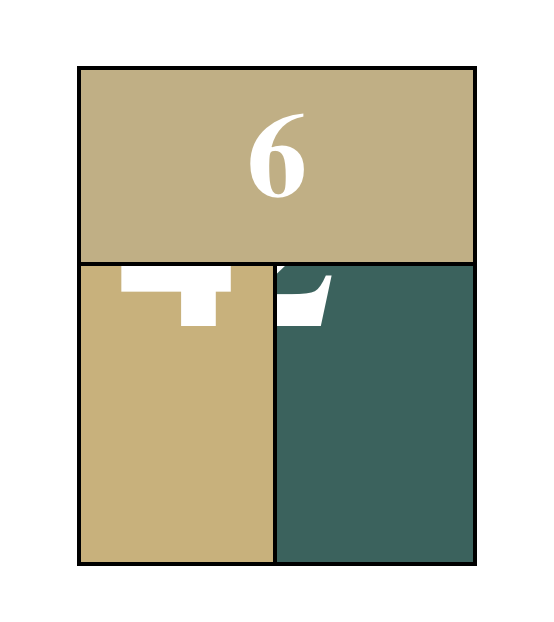
    <div class="front">1</div>
    <div class="back">2</div>
    <div class="right">3</div>
    <div class="left">4</div>
    <div class="top">5</div>
    <div class="bottom">6</div>
  </div>
</div>

We have 6 sides and for easier recognizing each one each has a number on it. We make them bigger and give them a different background to distinguish them further.

.container {
  width: 300px;
  height: 300px;
  position: relative;
  margin: 0 auto 40px;
  padding-top: 100px;
}

#cuboid {
  width: 100%;
  height: 100%;
  position: absolute;
}

#cuboid div {
  display: block;
  position: absolute;
  border: 2px solid black;
  line-height: 196px;
  font-size: 120px;
  font-weight: bold;
  color: white;
  text-align: center;
}

Until now we didn’t use any 3D transformations. For ordering the sides we rotate and translate each side in its place.

    #cuboid .front  { transform: translateZ(100px); }
    #cuboid .back   { transform: rotateX(-180deg) translateZ(0px); }
    #cuboid .right  { transform: rotateY(90deg) translateZ(150px) translateX(-50px); }
    #cuboid .left   { transform: rotateY(-90deg) translateZ(50px) translateX(50px); }
    #cuboid .top    { transform: rotateX(90deg) translateZ(50px) translateY(50px); }
    #cuboid .bottom { transform: rotateX(-90deg) translateZ(200px) translateY(-50px); }

This brought the back side on top but no 3D visible yet. Further we tell the browser to use 3d on its children and move the scene a bit out.

#cuboid {
  transform-style: preserve-3d;
  transform: translateZ( -100px );
}

Still we are trapped in flatland. Ah we are looking straight onto the front. So we rotate the scene.

#cuboid {
  transform-style: preserve-3d;
  transform: translateZ( -100px ) rotateX(20deg) rotateY(20deg);
}

Now we have depth. Something is quite not right. If we remember one thing from our OpenGL days we need another ingredient to make it look 3D: a perspective.

.container {
  perspective: 1200px;
}

Last but not least we add animation to see it spinning.

#cuboid {
  transform-style: preserve-3d;
  transform: translateZ(-100px) rotateX(20deg) rotateY(20deg);
  animation: spinCuboid 5s infinite ease-out;
}
@keyframes spinCuboid {
  0% { transform: translateZ(-100px) rotateX(0deg) rotateY(0deg); }
  100% { transform: translateZ(-100px) rotateX(360deg) rotateY(360deg); }
}

Platform independent development with .NET

We develop most of our projects as platform independent applications, usually running under Windows, Mac and Linux. There are exceptions, for example when it is required to communicate with special hardware drivers or third-party libraries or other components that are not available on all platforms. But even then we isolate these parts into interchangeable modules that can be operated either in a simulated mode or with the real thing. The simulated modes are platform independent. Developers usually can work on the code base using their favorite operating system. Of course, it has to be tested on the target platform(s) that the application will run on in the end.

Platform independent development is both a matter of technology choices and programming practices. Concerning the technology the ecosystem based on the Java VM is a proven choice for platform independent development. We have developed many projects in Java and other JVM based languages. All of our developers are polyglots and we are able to develop software with a wide variety of programming languages.

The .NET ecosystem

Until recently the .NET platform has been known to be mainly a Microsoft Windows based ecosystem. The Mono project was started by non-Microsoft developers to provide an open source implementation of .NET for other operating systems, but it never had the same status as Microsoft’s official .NET on Windows.

However, recently Microsoft has changed course: They open sourced their .NET implementation and are porting it to other platforms. They acquired Xamarin, the company behind the Mono project, and they are releasing developer tools such as IDEs for non-Windows platforms.

IDEs for non-Windows platforms

If you want to develop a .NET project on a platform other than Windows you now have several choices for an IDE:

I am currently using JetBrains Rider on a Mac to develop a .NET based application in C#. Since I have used other JetBrains products before it feels very familiar. Xamarin Studio, MonoDevelop, VS for Mac and JetBrains Rider all support the solution and project file format of the original Visual Studio for Windows. This means a .NET project can be developed with any of these IDEs.

Web applications

The .NET application I am developing is based on Web technologies. The server side uses the NancyFX web framework, the client side uses React. Persistence is done with Microsoft’s Entity Framework. All the libraries I need for the project like NancyFX, the Entity Framework, a PostgreSQL driver, JSON.NET, NLog, NUnit, etc. work on non-Windows platforms without any problems.

Conclusion

Development of .NET applications is no longer limited to the Windows platform. Microsoft is actively opening up their development platform for other operating systems.